
Gymthreads
Junior Member
- Sep 12, 2014
- 199
- 39
Great guide here, does anyone know how to make this work on Mac?

Great guide here, does anyone know how to make this work on Mac?


This is awesome thanks!
How to create 1000+ Unique QUOTE pictures for your Instagram pages in 5 minutes?
Let me show you the step by step tutorial!
Things you will need for this to work:
- 1. List of quotes (in Excell, so make sure to have Excell on your device)
- 2. TextImages software
- 3. Photoshop
How to find quotes and export them to EXCELL format?
Now we have something like this:
- Hire your little brother to copy/paste quotes for you in the excell.
- Follow @Asif WILSON Khan guide on how to do it ( https://www.blackhatworld.com/seo/scraping-quotes-from-brainyquote.974131/#post-10422238 )
- Make sure to copy all the quotes into notepad, each line should be a separate quote.

How to create SIMPLE images out of those quotes?
- Download TextImages software
- Paste your quotes inside Text box in the software & make sure to select the option as I did in the screenshot below:

- Now go to Font & Format and edit style options you would like to keep (Background color, text size, font, text colors etc). This is the part where you choose what kind of images you would come up with, so be creative, change colors, formats, fonts based on your mind!

- Now go to Margins & Spaces and set exact settings as I did in order to have exact final results! (Of course, you can play around with those settings as much as you want)

Now you will have colorful pictures of quotes, those are simple and clean quotes for your pages. Now if you want something nicer (like all those quote pages out there on Instagram), just continue reading!
- Click on the SAVE tab and locate the folder you want to save pictures too, you can also choose how to name images etc.
- Save your images by clicking on the CREATE & SAVE button in the down right corner of the software!
How to create AMAZING images out of those quotes?
- Open Photoshop and set those parameters:
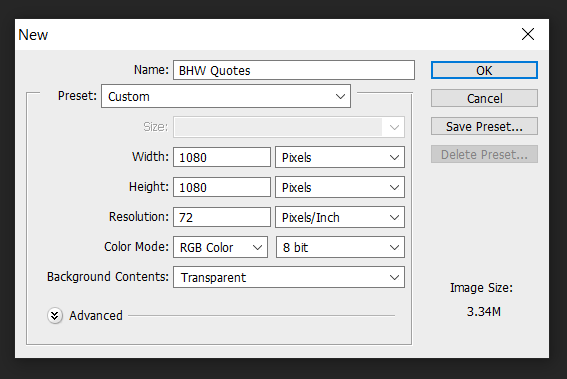
- Create the style of pictures you would like to have. So this is actually creating one sample on how it should look like for all other pictures, be creative, add your Instagram Page watermark somewhere if you want it

Make sure to name those layers as I did since we are going to use them in the next step!
- Credit layer: This will be used as a watermark for our IG Page or if you want to mention who is the creator of the quote.
- Quote layer: This will be the quote text, we will bulk add all of the other quotes from the text in the next step.
- Image layer: This is the background image we will use.
- Shadow layer: Just some style for my taste!
Setting up variables for auto changing all of the content
- Define variables
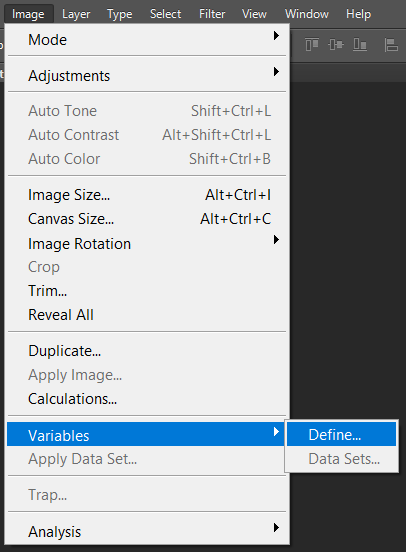
- Now set those variables
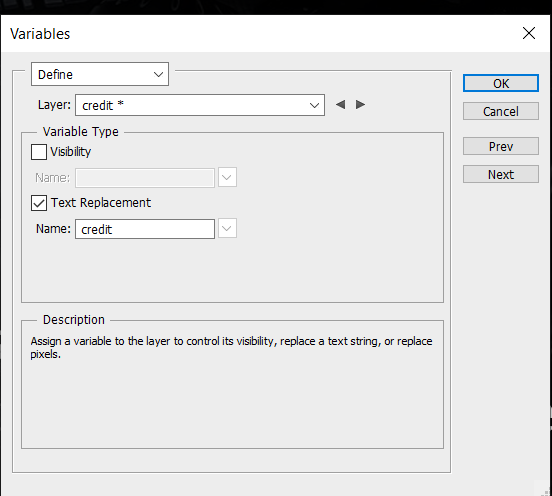
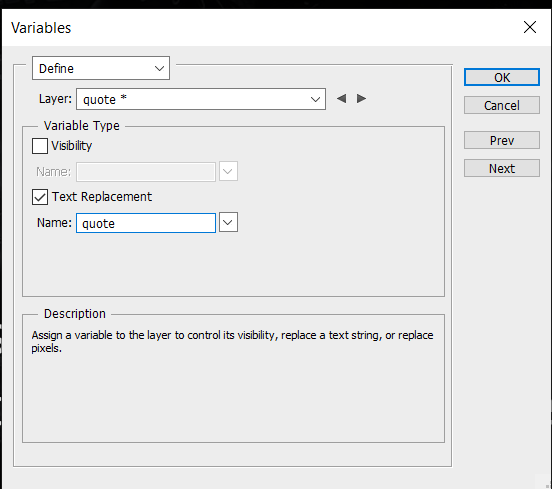

Save all of them by clicking "Ok".
- Now create folder "Quotes" on your desktop and create new .txt document inside it named "import". Add all of the pictures you would like to use as a background in the same folder, I like to name my pictures "1", "2", just to be easier.

This is how it looks like.
- Now go to your "Import" file and sort all of your quotes, credits and background images like on the picture below. (This is a little bit of a hand work but for like 50 images you will need around 3 minutes).

Make sure to be correct about your images names and formats!
- Now go back to photoshop and locate:
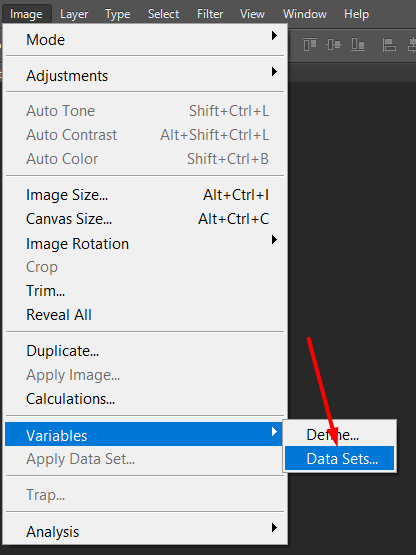
- Now click on this to load all variables and data set:
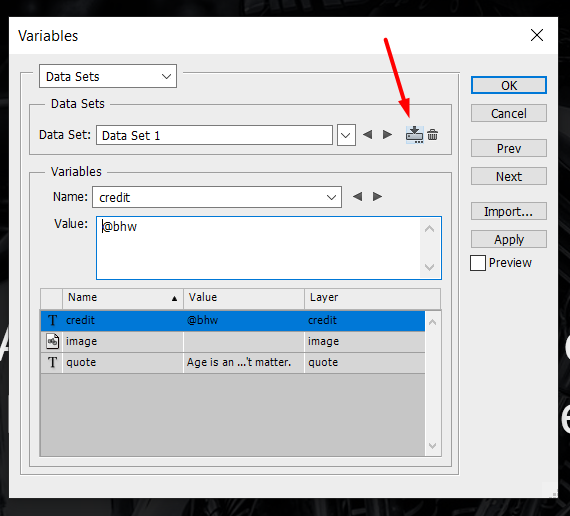
You will now see all the variables.
- Now click on the "Import" button (locate your import.txt file) and select the preview:
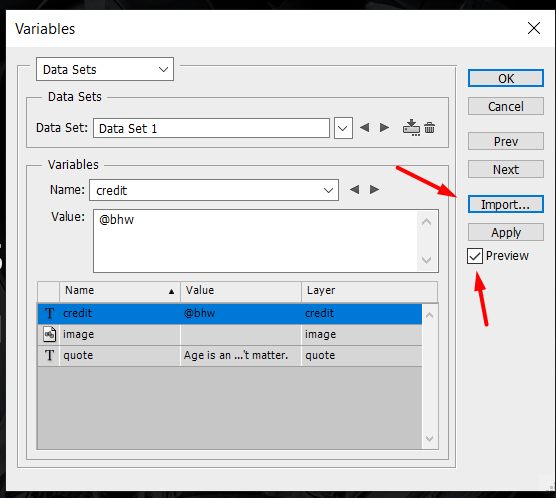
Click "Ok".
Exporting images
- Locate this:

- Select the folder you would like to save your .psd files (those files are only for Photoshop, in the next step we will convert them to .jpg).

Hit "ok" button.
- Now you will have the folder with your images in .psd format
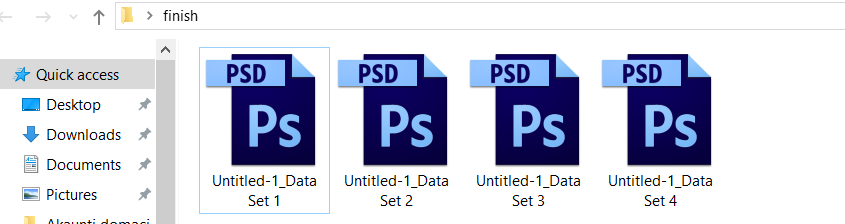
Convert .psd to .jpg format
- Go and locate:

- Select the folder where is your batch of .psd files and choose output format then click Run.

That's it! You have your pictures all set up!
BONUS TIPS
- Your quote text is broken? Like this (
Solution: When you set the text layer for "quote" do not just click on the background, instead of that drag your text tool in order to set boundaries.
- If you already have "," in your quote text, you won't be able to import your import.txt, so make sure to use " " for your quotes.
pixabay.com
- Where to find background pictures?
freeimages.com
morguefile.com
freepik.com/popular-photos
visualhunt.com
unsplash.com
pexels.com
stocksnap.io
freeimages.co.uk
sitebuilderreport.com/stock-up
freenaturestock.com
gratisography.com
magdeleine.com
raumrot.com
littlevisuals.com
NOW GO AND MAKE SOME USE OF THIS!


Mate ou can do this with a few lines of codes with imagemagick, no need for photoshop nor excel.


