[METHOD] How to create UNIQUE content for Instagram in 5 minutes

SpawneR

Elite Member
Jr. VIP
Joined
Aug 15, 2014
Messages
4,074
Reaction score
3,875
giphy.gif


How to create 1000+ Unique QUOTE pictures for your Instagram pages in 5 minutes?

Let me show you the step by step tutorial!

Things you will need for this to work:

  • 1. List of quotes (in Excell, so make sure to have Excell on your device)
  • 2. TextImages software
  • 3. Photoshop

How to find quotes and export them to EXCELL format?
Now we have something like this:

fhlgrGE


How to create SIMPLE images out of those quotes?
  • Download TextImages software
  • Paste your quotes inside Text box in the software & make sure to select the option as I did in the screenshot below:
ptaq6m8


  • Now go to Font & Format and edit style options you would like to keep (Background color, text size, font, text colors etc). This is the part where you choose what kind of images you would come up with, so be creative, change colors, formats, fonts based on your mind!
fuIQHh7


  • Now go to Margins & Spaces and set exact settings as I did in order to have exact final results! (Of course, you can play around with those settings as much as you want)
SRjZvGS


  • Click on the SAVE tab and locate the folder you want to save pictures too, you can also choose how to name images etc.
  • Save your images by clicking on the CREATE & SAVE button in the down right corner of the software!
Now you will have colorful pictures of quotes, those are simple and clean quotes for your pages. Now if you want something nicer (like all those quote pages out there on Instagram), just continue reading!

How to create AMAZING images out of those quotes?
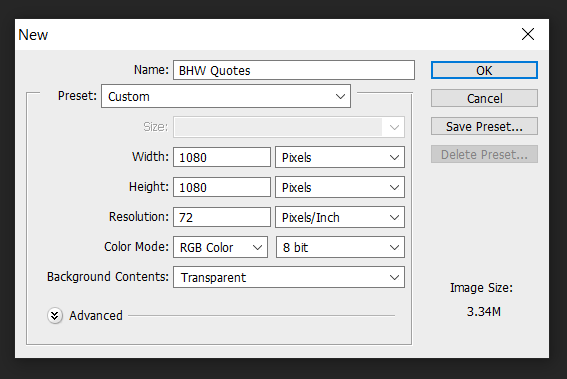
  • Open Photoshop and set those parameters:
Trx3Ke1


  • Create the style of pictures you would like to have. So this is actually creating one sample on how it should look like for all other pictures, be creative, add your Instagram Page watermark somewhere if you want it :)
J8KYddG


Make sure to name those layers as I did since we are going to use them in the next step!

  • Credit layer: This will be used as a watermark for our IG Page or if you want to mention who is the creator of the quote.
  • Quote layer: This will be the quote text, we will bulk add all of the other quotes from the text in the next step.
  • Image layer: This is the background image we will use.
  • Shadow layer: Just some style for my taste!

Setting up variables for auto changing all of the content

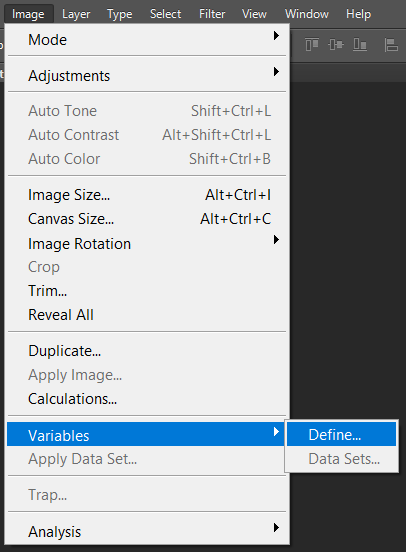
  • Define variables
qgAXb9y


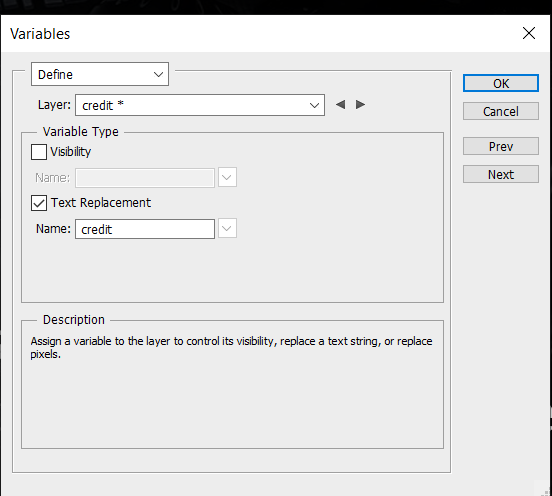
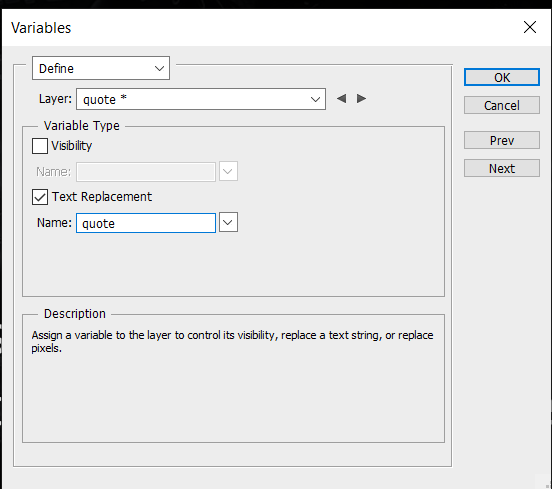
  • Now set those variables
Ti7Ga2U

eOvMh93

AjxdTJx


Save all of them by clicking "Ok".

  • Now create folder "Quotes" on your desktop and create new .txt document inside it named "import". Add all of the pictures you would like to use as a background in the same folder, I like to name my pictures "1", "2", just to be easier.
svY3jin


This is how it looks like.

  • Now go to your "Import" file and sort all of your quotes, credits and background images like on the picture below. (This is a little bit of a hand work but for like 50 images you will need around 3 minutes).
slT7NdR


Make sure to be correct about your images names and formats!

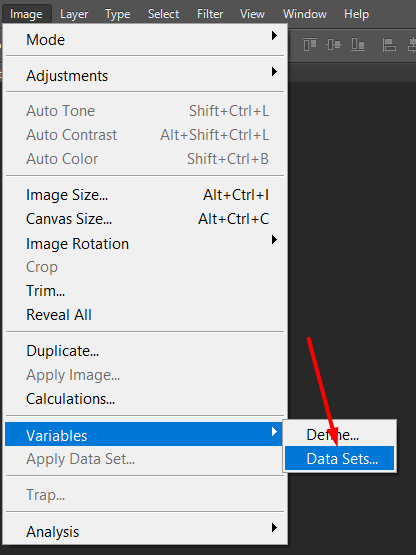
  • Now go back to photoshop and locate:
zoegmvr


  • Now click on this to load all variables and data set:
MWmxwGK


You will now see all the variables.

  • Now click on the "Import" button (locate your import.txt file) and select the preview:
x2DCBau


Click "Ok".

Exporting images

  • Locate this:
uJMo35R


  • Select the folder you would like to save your .psd files (those files are only for Photoshop, in the next step we will convert them to .jpg).
q8DxDk0


Hit "ok" button.

  • Now you will have the folder with your images in .psd format
4p36bYD


Convert .psd to .jpg format

  • Go and locate:
L62q7jv


  • Select the folder where is your batch of .psd files and choose output format then click Run.
IlY6MKy


That's it! You have your pictures all set up!

BONUS TIPS
  • Your quote text is broken? Like this (https://i.imgur.com/EhMcfrq.jpg)? Solution: When you set the text layer for "quote" do not just click on the background, instead of that drag your text tool in order to set boundaries.
  • If you already have "," in your quote text, you won't be able to import your import.txt, so make sure to use " " for your quotes.
slT7NdR

  • Where to find background pictures?
pixabay.com
freeimages.com
morguefile.com
freepik.com/popular-photos
visualhunt.com
unsplash.com
pexels.com
stocksnap.io
freeimages.co.uk
sitebuilderreport.com/stock-up
freenaturestock.com
gratisography.com
magdeleine.com
raumrot.com
littlevisuals.com

NOW GO AND MAKE SOME USE OF THIS!

giphy.gif
 
Amazing guide! Thanks for sharing. I give it a try for sports niche :)
 
Great share. Thank you. You can also use Canva graphics for quick photos

I think this is much more faster way to create them in bulk. You can play with styles as much as you want, those steps are just basics. You can create tons of adore features with variables :)
 
I was wondering when someone was going to make this public. Nice.
 
giphy.gif


How to create 1000+ Unique QUOTE pictures for your Instagram pages in 5 minutes?

Let me show you the step by step tutorial!

Things you will need for this to work:

  • 1. List of quotes (in Excell, so make sure to have Excell on your device)
  • 2. TextImages software
  • 3. Photoshop

How to find quotes and export them to EXCELL format?
Now we have something like this:

fhlgrGE


How to create SIMPLE images out of those quotes?
  • Download TextImages software
  • Paste your quotes inside Text box in the software & make sure to select the option as I did in the screenshot below:
ptaq6m8


  • Now go to Font & Format and edit style options you would like to keep (Background color, text size, font, text colors etc). This is the part where you choose what kind of images you would come up with, so be creative, change colors, formats, fonts based on your mind!
fuIQHh7


  • Now go to Margins & Spaces and set exact settings as I did in order to have exact final results! (Of course, you can play around with those settings as much as you want)
SRjZvGS

  • Click on the SAVE tab and locate the folder you want to save pictures too, you can also choose how to name images etc.
  • Save your images by clicking on the CREATE & SAVE button in the down right corner of the software!
Now you will have colorful pictures of quotes, those are simple and clean quotes for your pages. Now if you want something nicer (like all those quote pages out there on Instagram), just continue reading!
How to create AMAZING images out of those quotes?
  • Open Photoshop and set those parameters:
Trx3Ke1


  • Create the style of pictures you would like to have. So this is actually creating one sample on how it should look like for all other pictures, be creative, add your Instagram Page watermark somewhere if you want it :)
J8KYddG


Make sure to name those layers as I did since we are going to use them in the next step!

  • Credit layer: This will be used as a watermark for our IG Page or if you want to mention who is the creator of the quote.
  • Quote layer: This will be the quote text, we will bulk add all of the other quotes from the text in the next step.
  • Image layer: This is the background image we will use.
  • Shadow layer: Just some style for my taste!

Setting up variables for auto changing all of the content

  • Define variables
qgAXb9y


  • Now set those variables
Ti7Ga2U

eOvMh93

AjxdTJx


Save all of them by clicking "Ok".

  • Now create folder "Quotes" on your desktop and create new .txt document inside it named "import". Add all of the pictures you would like to use as a background in the same folder, I like to name my pictures "1", "2", just to be easier.
svY3jin


This is how it looks like.

  • Now go to your "Import" file and sort all of your quotes, credits and background images like on the picture below. (This is a little bit of a hand work but for like 50 images you will need around 3 minutes).

slT7NdR


Make sure to be correct about your images names and formats!

  • Now go back to photoshop and locate:
zoegmvr


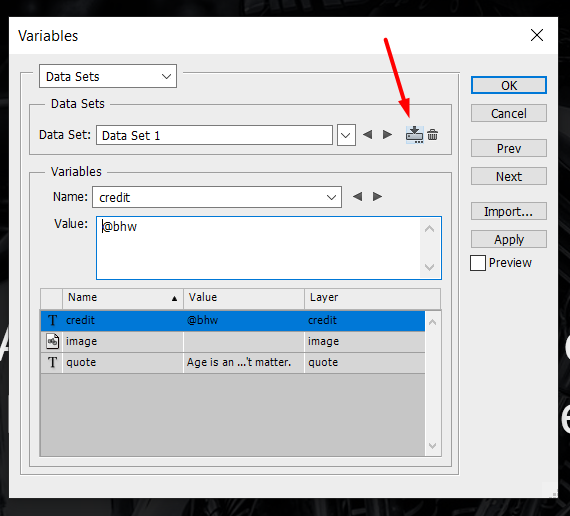
  • Now click on this to load all variables and data set:
MWmxwGK


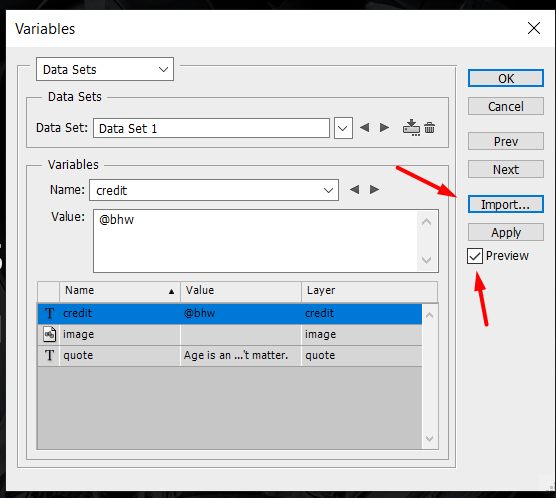
You will now see all the variables.

  • Now click on the "Import" button (locate your import.txt file) and select the preview:
x2DCBau


Click "Ok".

Exporting images

  • Locate this:
uJMo35R


  • Select the folder you would like to save your .psd files (those files are only for Photoshop, in the next step we will convert them to .jpg).
q8DxDk0


Hit "ok" button.

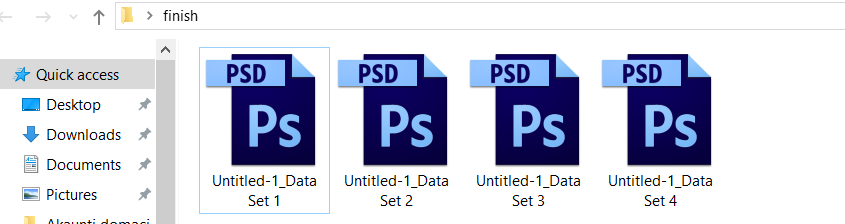
  • Now you will have the folder with your images in .psd format
4p36bYD


Convert .psd to .jpg format

  • Go and locate:
L62q7jv


  • Select the folder where is your batch of .psd files and choose output format then click Run.
IlY6MKy


That's it! You have your pictures all set up!

BONUS TIPS
  • Your quote text is broken? Like this (https://i.imgur.com/EhMcfrq.jpg)? Solution: When you set the text layer for "quote" do not just click on the background, instead of that drag your text tool in order to set boundaries.
  • If you already have "," in your quote text, you won't be able to import your import.txt, so make sure to use " " for your quotes.
slT7NdR

  • Where to find background pictures?
pixabay.com
freeimages.com
morguefile.com
freepik.com/popular-photos
visualhunt.com
unsplash.com
pexels.com
stocksnap.io
freeimages.co.uk
sitebuilderreport.com/stock-up
freenaturestock.com
gratisography.com
magdeleine.com
raumrot.com
littlevisuals.com

NOW GO AND MAKE SOME USE OF THIS!

giphy.gif
was nice seeing the post very well written but.

there was a user that posted thousands of celebrity quotes and it didnt convert at all.

how it being monitized?

tried .
celb quotes
love quotes
motivational quotes

many more , i spent 2 weeks on it no conversions at all .

can get traffic won't convert and quote did match affiliate deal! ....

on Pinterest idea been used for donkey years.

any ideas.
 
Last edited by a moderator:
Great share, thank you!
Although the TextImages .exe won't run on all devices. Do you know a similar software for mac?

I was thinking if something similar would be possible with Photoshop actions but I never figured a way to get the txt file to work.
 
you can also download thousands of images and randomly place quotes from a bulk watermak app.

takes 5 mins with php
 
you can use this code to add all watermark quotes to images in a folder

a bit of 2 min coding, can add the quotes to be placed on the images.


https://www.google.com/amp/s/www.su...o-add-watermark-to-all-images-in-a-folder/amp

the idea is this simple

collect thousands quotes know collect thousands of images in a folder .

set up the script to stamp the quote on all images in the folder .

method half complete just setup a ig quote page done .

for coders want to do this .

just use the plugin shown above from another member to get the qoutes scraped
download each quote on a text file , know add code to the script to use the text file as the quotes for the watermarks ....

if this part of your living then collect all the qoutes and put them in a database from a file ...
Code:
$string = file_get_contents("http://www.angelfire.com/ri2/DMX/data.txt", "r"); $myFile = "C:/path/to/myFile.txt"; $fh = fopen($myFile, 'w') or die("Could not open: " . mysql_error()); fwrite($fh, $string); fclose($fh); $sql = mysql_connect("localhost", "root", "password"); if (!$sql) { die("Could not connect: " . mysql_error()); } mysql_select_db("my_database"); $result = mysql_query("LOAD DATA INFILE '$myFile'" . " INTO TABLE test FIELDS TERMINATED BY '|'"); if (!$result) { die("Could not load. " . mysql_error()); }

refrence
https://stackoverflow.com/questions/2601349/read-a-text-file-and-transfer-contents-to-mysql-database

you now have to alter the script to use the database to get the qoutes to be placed over all the images in the folder

not hard at all .
 
Last edited by a moderator:
Thank you so much for this share! People like you make this community looks good! Great share!
 
giphy.gif


How to create 1000+ Unique QUOTE pictures for your Instagram pages in 5 minutes?

Let me show you the step by step tutorial!

Things you will need for this to work:

  • 1. List of quotes (in Excell, so make sure to have Excell on your device)
  • 2. TextImages software
  • 3. Photoshop

How to find quotes and export them to EXCELL format?
Now we have something like this:

fhlgrGE


How to create SIMPLE images out of those quotes?
  • Download TextImages software
  • Paste your quotes inside Text box in the software & make sure to select the option as I did in the screenshot below:
ptaq6m8


  • Now go to Font & Format and edit style options you would like to keep (Background color, text size, font, text colors etc). This is the part where you choose what kind of images you would come up with, so be creative, change colors, formats, fonts based on your mind!
fuIQHh7


  • Now go to Margins & Spaces and set exact settings as I did in order to have exact final results! (Of course, you can play around with those settings as much as you want)
SRjZvGS

  • Click on the SAVE tab and locate the folder you want to save pictures too, you can also choose how to name images etc.
  • Save your images by clicking on the CREATE & SAVE button in the down right corner of the software!
Now you will have colorful pictures of quotes, those are simple and clean quotes for your pages. Now if you want something nicer (like all those quote pages out there on Instagram), just continue reading!
How to create AMAZING images out of those quotes?
  • Open Photoshop and set those parameters:
Trx3Ke1


  • Create the style of pictures you would like to have. So this is actually creating one sample on how it should look like for all other pictures, be creative, add your Instagram Page watermark somewhere if you want it :)
J8KYddG


Make sure to name those layers as I did since we are going to use them in the next step!

  • Credit layer: This will be used as a watermark for our IG Page or if you want to mention who is the creator of the quote.
  • Quote layer: This will be the quote text, we will bulk add all of the other quotes from the text in the next step.
  • Image layer: This is the background image we will use.
  • Shadow layer: Just some style for my taste!

Setting up variables for auto changing all of the content

  • Define variables
qgAXb9y


  • Now set those variables
Ti7Ga2U

eOvMh93

AjxdTJx


Save all of them by clicking "Ok".

  • Now create folder "Quotes" on your desktop and create new .txt document inside it named "import". Add all of the pictures you would like to use as a background in the same folder, I like to name my pictures "1", "2", just to be easier.
svY3jin


This is how it looks like.

  • Now go to your "Import" file and sort all of your quotes, credits and background images like on the picture below. (This is a little bit of a hand work but for like 50 images you will need around 3 minutes).
slT7NdR


Make sure to be correct about your images names and formats!

  • Now go back to photoshop and locate:
zoegmvr


  • Now click on this to load all variables and data set:
MWmxwGK


You will now see all the variables.

  • Now click on the "Import" button (locate your import.txt file) and select the preview:
x2DCBau


Click "Ok".

Exporting images

  • Locate this:
uJMo35R


  • Select the folder you would like to save your .psd files (those files are only for Photoshop, in the next step we will convert them to .jpg).
q8DxDk0


Hit "ok" button.

  • Now you will have the folder with your images in .psd format
4p36bYD


Convert .psd to .jpg format

  • Go and locate:
L62q7jv


  • Select the folder where is your batch of .psd files and choose output format then click Run.
IlY6MKy


That's it! You have your pictures all set up!

BONUS TIPS
  • Your quote text is broken? Like this (https://i.imgur.com/EhMcfrq.jpg)? Solution: When you set the text layer for "quote" do not just click on the background, instead of that drag your text tool in order to set boundaries.
  • If you already have "," in your quote text, you won't be able to import your import.txt, so make sure to use " " for your quotes.
slT7NdR

  • Where to find background pictures?
pixabay.com
freeimages.com
morguefile.com
freepik.com/popular-photos
visualhunt.com
unsplash.com
pexels.com
stocksnap.io
freeimages.co.uk
sitebuilderreport.com/stock-up
freenaturestock.com
gratisography.com
magdeleine.com
raumrot.com
littlevisuals.com

NOW GO AND MAKE SOME USE OF THIS!

giphy.gif

I don't know why but I have this feeling you resemble @ZlatanTheGod very much especially in the way you share and style of writing. Are you Dutch too?
 
Great really detailed share. Thanks for taking the time to do this :-)
 
Mnogo very good guide dear rakija brother. I want to thank you for being here for me in these times of nuclear weapons and money laundering.
 
Back
Top