

- Nov 29, 2022
- 2,478
- 284
You can transfer both active and paused campaigns, as well as drafts. The main goal of transferring is to save time. Possible reasons for transferring include:
- Advertising account block.
- Scaling the advertising campaign.
Export
Select the campaign you want to transfer, click “More,” then “Export” and choose “Export selected.”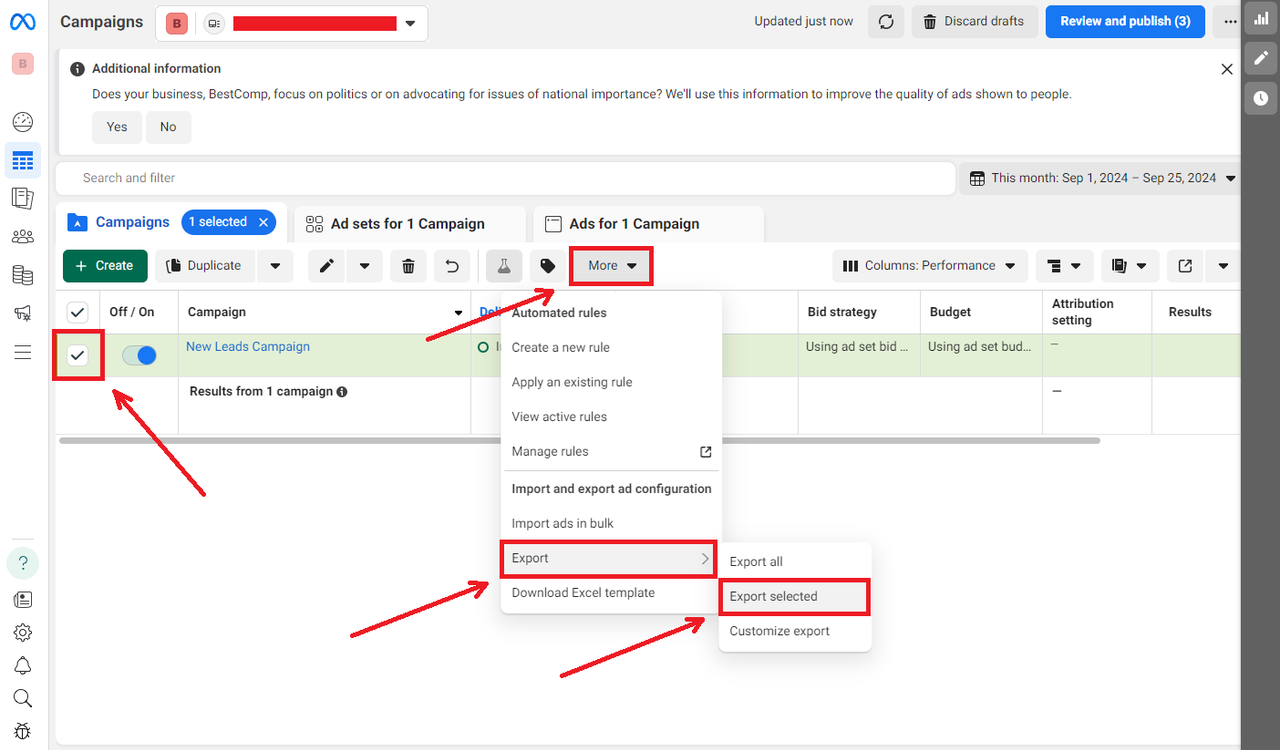
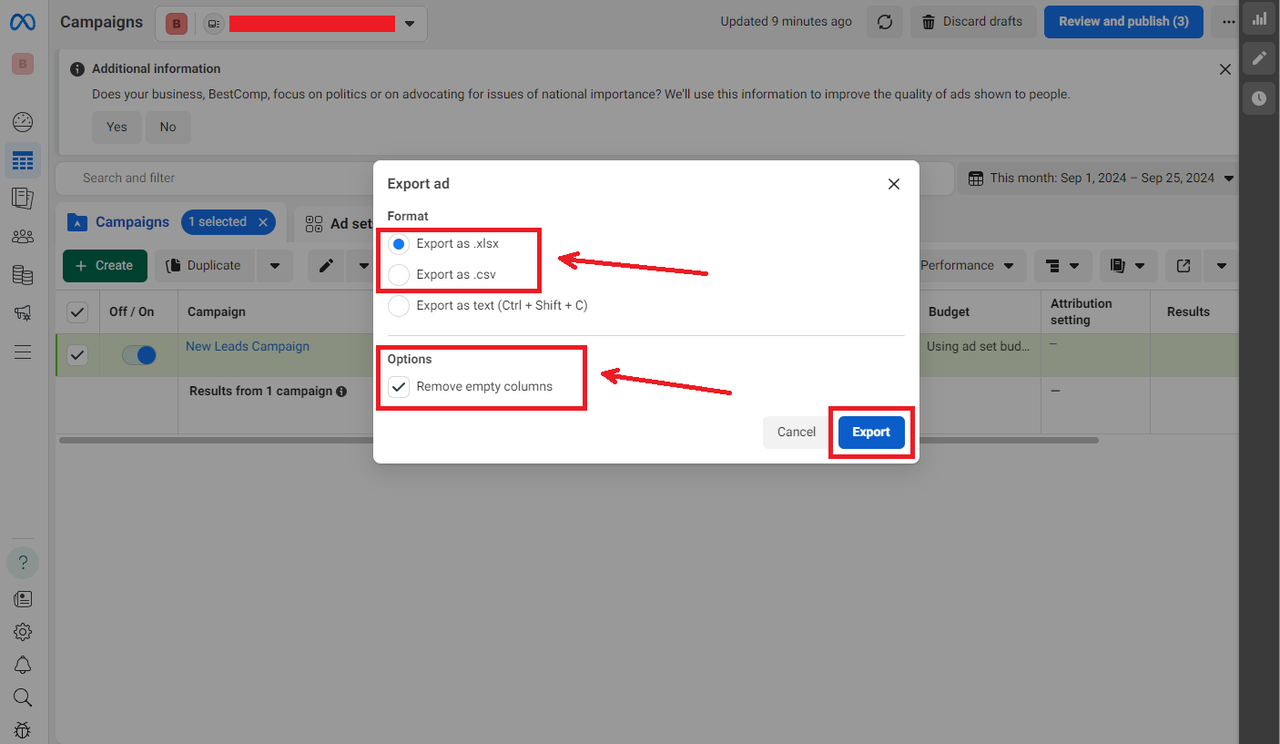
Next, choose the format of the exported document, check the box next to “Remove empty columns,” and click “Export.”
Editing the Downloaded File
In the downloaded file, you need to delete the data from the following three columns:- Campaign ID
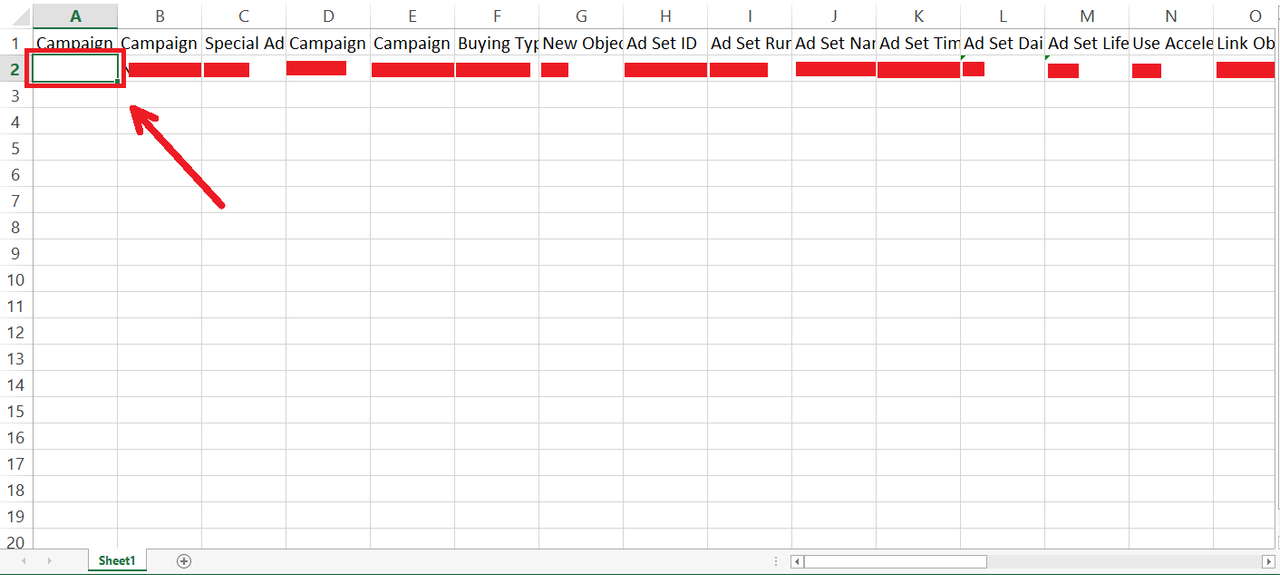
- Ad Set ID
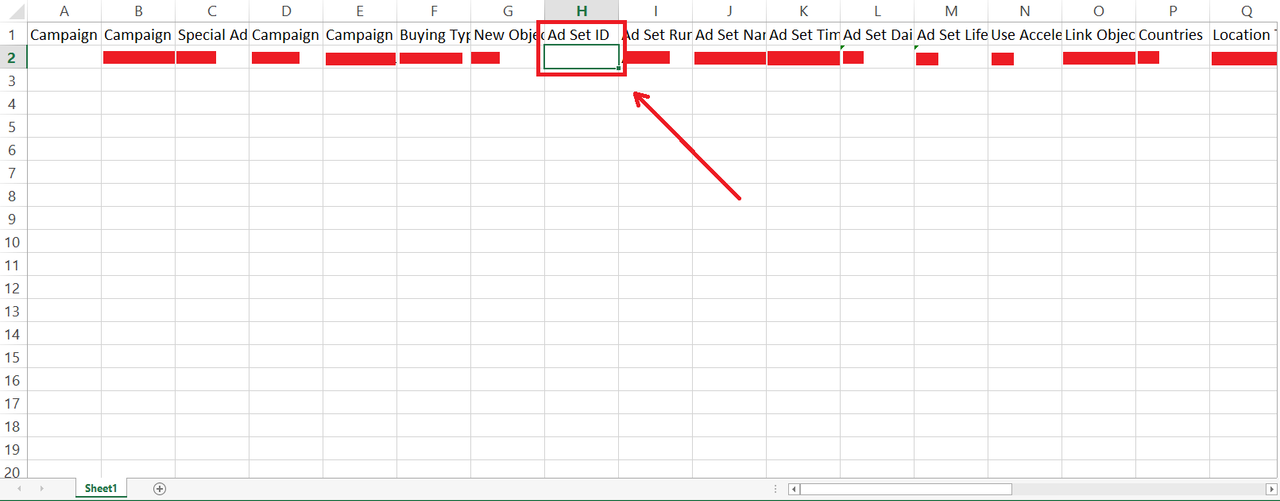
- Ad ID
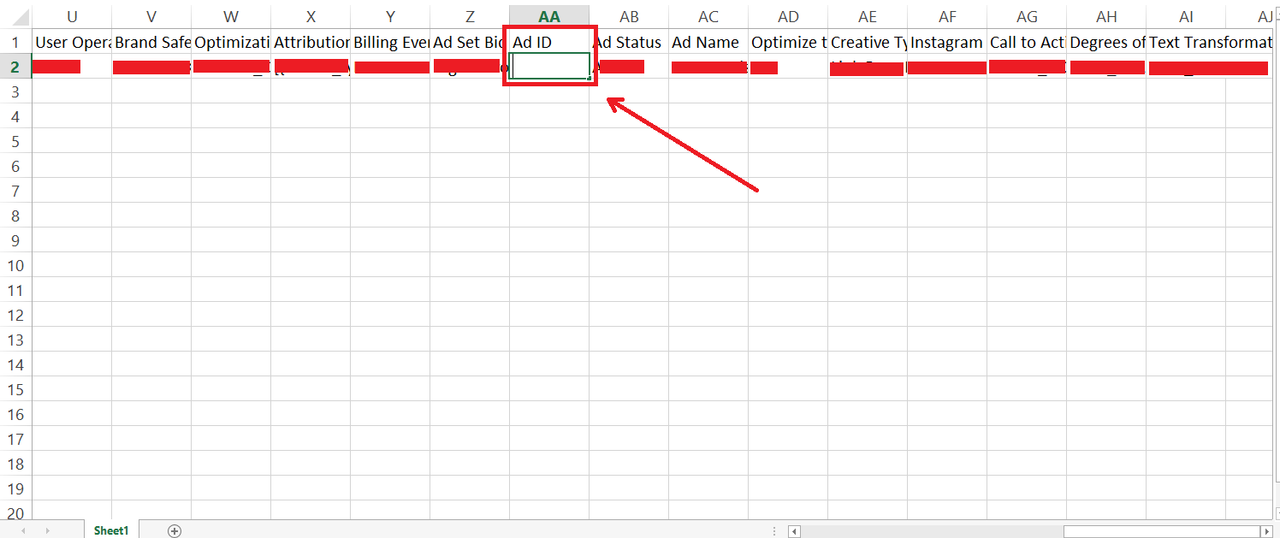
Save the file in either "Excel Workbook" or "Unicode Text" format.
Important! If you don’t delete the data from these three columns, Facebook might return the following error during import.
Import
Go to the other advertising account, click “More” and select “Import ads in bulk.”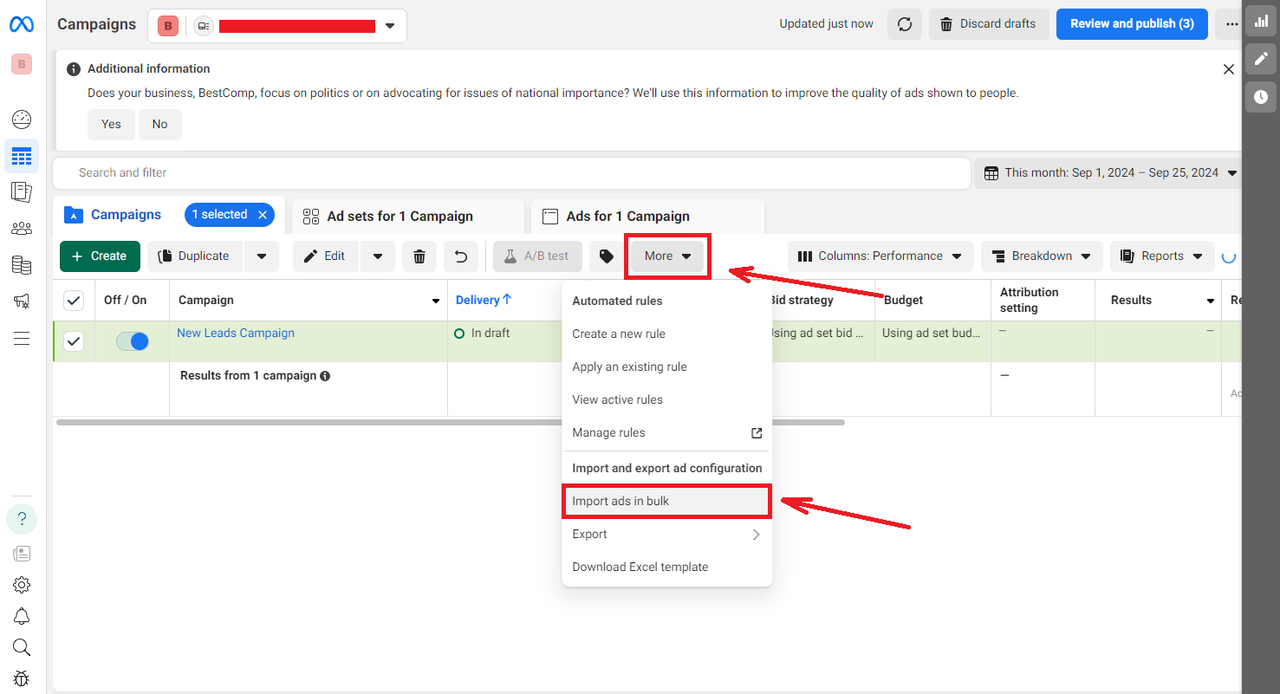
Click “Choose file” and select the saved file.
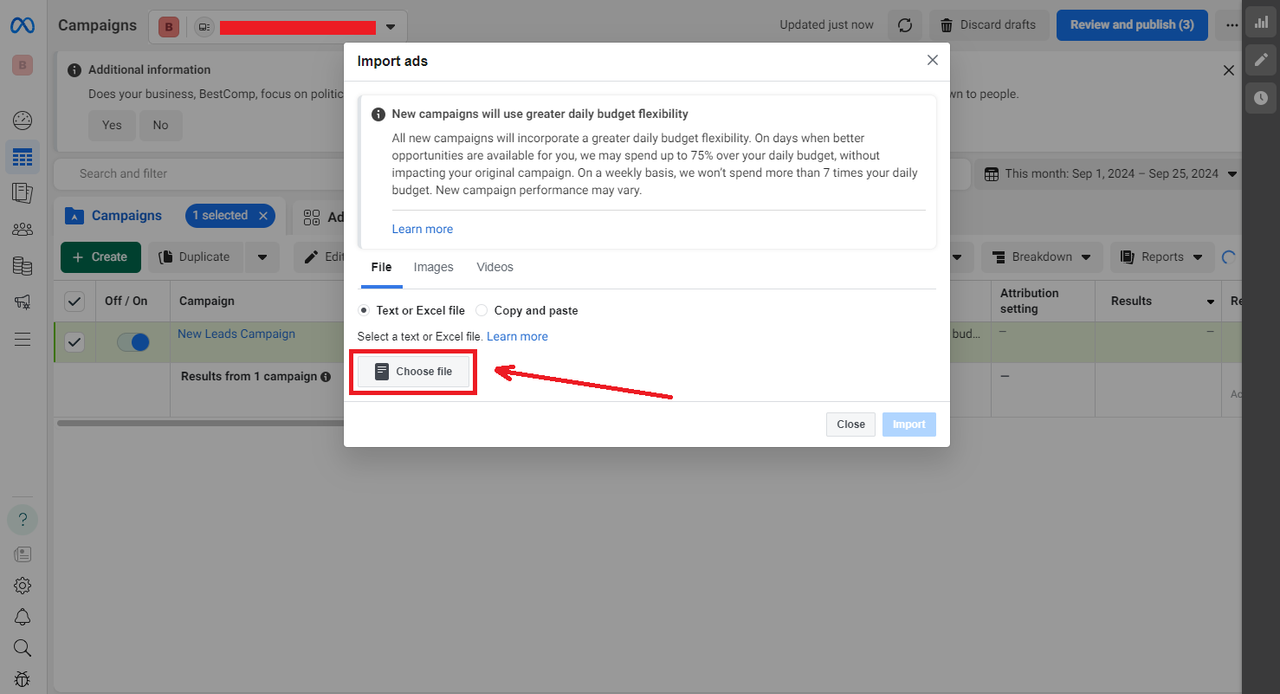
Once the file is uploaded, click “Import.”
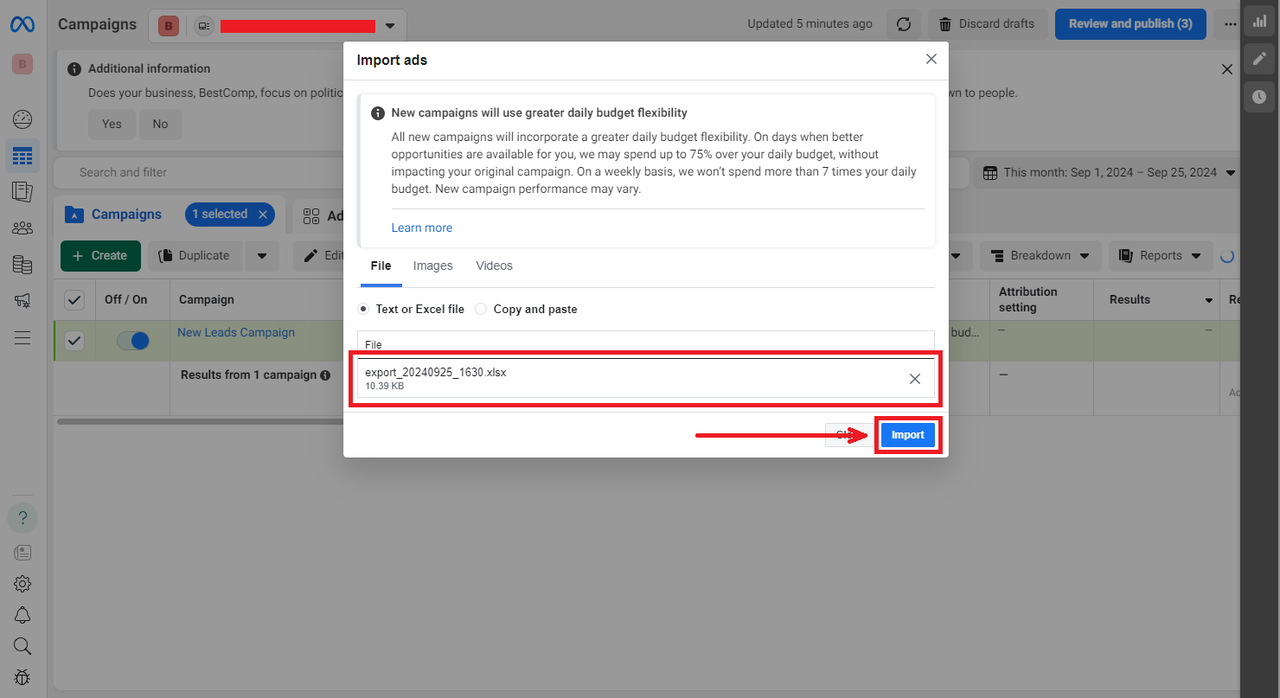
The upload process will then begin.
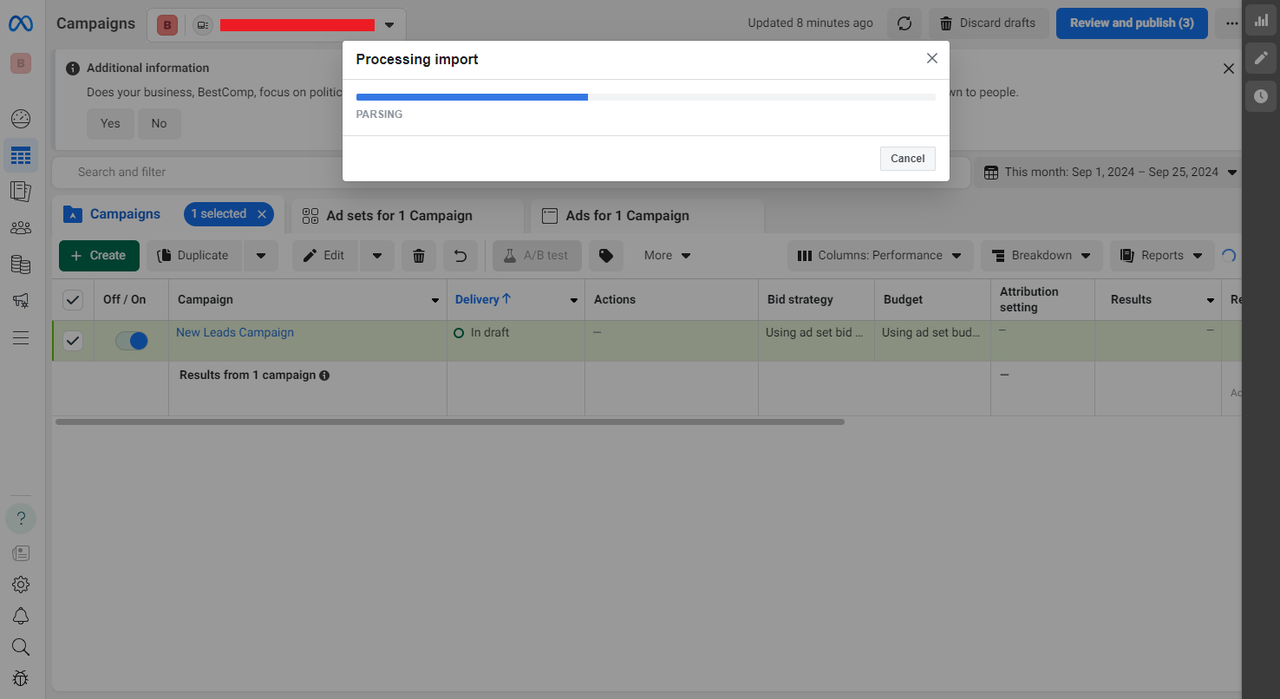
Once the campaign is imported, check if everything was uploaded correctly and publish the campaign. You can also edit individual elements before publishing, for example, replacing the creative or pixel in the link.
