

maxedgames
Regular Member
- Jul 30, 2014
- 270
- 113
I have used wordpress for about 90% of my personal websites & also my clients websites, wordpress is a very powerful platform and yet extremely easy to use and operate, even if you know nothing about it. I have decided to create a full complete guide on using and familiarizing people with wordpress & my goal of this thread is to teach everyone something they didn't know about wordpress. With over 9 years experience with wordpress I am going to do my best to help you all out.
This Guide Consists Of TONS of screenshots to make it very easy!
Table of Contents:
1. Why You Should Consider Using Wordpress / What Is Wordpress?
2. Wordpress Installation (Manually W/ Screenshots)
3. Customizing & Familiarizing Yourself With Wordpress
4. Installing Plugins / What Is A Plugin?
5. Installing A Theme / What Is A Theme?
6. What's Next For My Wordpress Site?
1. What Is Wordpress & Why Should I Use it?
-What Is Wordpress? Wordpress is an open source blogging and content managing system that has revolutionized the way people and companies present themselves online. Wordpress allows webmasters to easily create / add / edit/ change anything about a website, with a built in control panel it's no doubt wordpress is the most advanced & powerful website system.
-Why Should I Use It?. Whether you're an experienced web developer or just a normal person with absolutely no website knowledge, wordpress is the answer. I constantly hear people, even on this forum, complain about how wordpress is difficult to use and difficult to install, this is NOT TRUE!! Many people think wordpress is for blogs and personal blogs but it's far more advanced than that, this powerful platform can be used for ANY type of website from e-commerce web shops to news website any anything in between. In fact, many of the LARGEST websites in the world are using wordpress! Don't believe me? Just to name a few:
->Viralnova.com
->TechCrunch.com
->MTVNews.com
->NewYorker.com
-Doesn't Wordpress Get Hacked? Anything can get hacked if there is someone with the will to do it. This is another large complaint that surrounds and scares users considering wordpress, this isn't true. Yes, wordpress can get hacked, but like anything else if you take preventive measures this will NOT happen. I will talk more about this topic later on.
2. Wordpress Installation (Manually W/Screenshots)
Enough with the introductory, let's get right into this, installing wordpress....A very easy task that will take NO LONGER then 10 minutes. For starters you will need a domain and host (if you don't know what this is or how to get them check out in my other thread) log in to your hosting account and navigate over to your cpanel.
1. Find the 'databases' section and click MYSQL Database(s)
2. Create a NEW mysql database and name it anything you want, I am using 'wordpressnew' as my database name just to make things easier for you later on.
3. Create a database username and password (write these down and also write down database name)
4. On your hosting cpanel you should see 'Ip Address' of your website somewhere, write this down as well.
5. Download wordpress here
6. Unzip The File And Open The Wordpress Folder You should see this:
View attachment 65207
7. Open The File "Wp-Config" with Notepad ++ (Highly recommend you use Notepad ++)
8. Navigate To "MySQL settings" The highlighted section in screenshot is what you will need to edit (The password, host, etc. may be different then yours, it's fine)

9. Using the information in STEPS 2-4 fill out the information needed.

10. Save the file and upload the ENTIRE Contents Of The 'Wordpress' directory to your website using FTP. (SHOULD LOOK LIKE THIS)
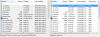
11. YOU ARE DONE!!!!Visit your site / directory you uploaded files too. If you receive an 'Error Establishing Database Connection' you have incorrectly entered the database information.

**To fix this simply go back to your FTP and delete the file 'Wp-Config' from your website, and repeat steps 7-9 and then re-upload your EDITED wp-config file.**
If you did it correctly you will receive this screen:

Simply follow the on-screen instructions to your preferences. REMEMBER Your wordpress username and password you will create.
3. Customization & Familiarizing Yourself With Wordpress
First off, congratulations for making it to this step, you have completed the hardest previous step, wasn't so bad was it?! Now that you have your wordpress installed and you are logged in to your dashboard you should see this.

If you have no idea where I got this screenshot, type in /wp-admin to the end of your current url. It should look like www.yoursite.com/wp-admin. Now that you are in your wordpress dashboard look around and get familiar with all the options and menus in here, you will need this and you will ALWAYS be using this. Simply watching some youtube videos may help you familiarize yourself with the dashboard.
4. Installing Plugins / What Is A Plugins
Plugins can turn your average site into the most unique and creative site! Plugins will do things you never thought were possible and they are beyond easy to install and activate! So why don't we install one, head over to your dashboard (/wp-admin) and hover over the 'Plugins' menu and click 'Add New' & type in 'Wordpress SEO'.
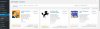
Click 'Install Now' on the "Wordpress SEO By Yoast" and then click the 'Activate Plugin' option that will pop up shortly after you pressed 'Install Now'. You have just installed a brand new plugin for your site that will help your wordpress site rank quicker and more efficiently. Yoast is a very popular and well known plugin that will automatically index your pages without you even doing a thing.
You will now see a 'SEO' menu option in your dashboard! There are millions of cool plugins, simply go on google and type in 'Best Wordpress Plugins' and you will be bombarded with some very interested plugins you can install the same way you installed Yoast.
There are many plugins that will prevent spam comments & plugins that will enhance your wordpress security to prevent your website from being hacked.
5. Installing A Theme / What Is A theme
Lets get this tutorial moving, you wanna see your website in action don't you?! For this tutorial I will show you how to install the Free theme 'Customizer' which is just a random free theme I found on google, you can use or download any theme you want, it's the exact same process.
If you want to install the 'Customizer' Theme simply download it by clicking here
Your themes will ALWAYS download in .zip format which is good, more often then not, you will not need to extract it. Head over to your dashboard and hover your mouse over 'Appearance' then click the option 'Themes' then click on 'Add New'.

After clicking 'Add New' click on 'Upload Theme' (Located beside Add Themes near top of screen) you will then be brought to a screen that allows you to choose a file, simply choose the .zip file you downloaded and click install now, then click Activate!
Your Wordpress Website Should Now Be Running the theme you uploaded!
6. What's Next For My Wordpress Site?
Simply play around and learn new things, watch youtube videos on how to advanced customize your wordpress site, I have showed you the very basics now work off of what was taught! If you have any questions, and I mean literally ANY, post them in the replies and I will answer all of them, I hope this tutorial helped you in some.
I hope you enjoyed, if you want me to make a part two wordpress tutorial please let me know along with suggestions / tips to add in the next guide.
This Guide Consists Of TONS of screenshots to make it very easy!
Table of Contents:
1. Why You Should Consider Using Wordpress / What Is Wordpress?
2. Wordpress Installation (Manually W/ Screenshots)
3. Customizing & Familiarizing Yourself With Wordpress
4. Installing Plugins / What Is A Plugin?
5. Installing A Theme / What Is A Theme?
6. What's Next For My Wordpress Site?
1. What Is Wordpress & Why Should I Use it?
-What Is Wordpress? Wordpress is an open source blogging and content managing system that has revolutionized the way people and companies present themselves online. Wordpress allows webmasters to easily create / add / edit/ change anything about a website, with a built in control panel it's no doubt wordpress is the most advanced & powerful website system.
-Why Should I Use It?. Whether you're an experienced web developer or just a normal person with absolutely no website knowledge, wordpress is the answer. I constantly hear people, even on this forum, complain about how wordpress is difficult to use and difficult to install, this is NOT TRUE!! Many people think wordpress is for blogs and personal blogs but it's far more advanced than that, this powerful platform can be used for ANY type of website from e-commerce web shops to news website any anything in between. In fact, many of the LARGEST websites in the world are using wordpress! Don't believe me? Just to name a few:
->Viralnova.com
->TechCrunch.com
->MTVNews.com
->NewYorker.com
-Doesn't Wordpress Get Hacked? Anything can get hacked if there is someone with the will to do it. This is another large complaint that surrounds and scares users considering wordpress, this isn't true. Yes, wordpress can get hacked, but like anything else if you take preventive measures this will NOT happen. I will talk more about this topic later on.
2. Wordpress Installation (Manually W/Screenshots)
Enough with the introductory, let's get right into this, installing wordpress....A very easy task that will take NO LONGER then 10 minutes. For starters you will need a domain and host (if you don't know what this is or how to get them check out in my other thread) log in to your hosting account and navigate over to your cpanel.
1. Find the 'databases' section and click MYSQL Database(s)
2. Create a NEW mysql database and name it anything you want, I am using 'wordpressnew' as my database name just to make things easier for you later on.
3. Create a database username and password (write these down and also write down database name)
4. On your hosting cpanel you should see 'Ip Address' of your website somewhere, write this down as well.
5. Download wordpress here
6. Unzip The File And Open The Wordpress Folder You should see this:
View attachment 65207
7. Open The File "Wp-Config" with Notepad ++ (Highly recommend you use Notepad ++)
8. Navigate To "MySQL settings" The highlighted section in screenshot is what you will need to edit (The password, host, etc. may be different then yours, it's fine)
9. Using the information in STEPS 2-4 fill out the information needed.
10. Save the file and upload the ENTIRE Contents Of The 'Wordpress' directory to your website using FTP. (SHOULD LOOK LIKE THIS)
11. YOU ARE DONE!!!!Visit your site / directory you uploaded files too. If you receive an 'Error Establishing Database Connection' you have incorrectly entered the database information.
**To fix this simply go back to your FTP and delete the file 'Wp-Config' from your website, and repeat steps 7-9 and then re-upload your EDITED wp-config file.**
If you did it correctly you will receive this screen:
Simply follow the on-screen instructions to your preferences. REMEMBER Your wordpress username and password you will create.
3. Customization & Familiarizing Yourself With Wordpress
First off, congratulations for making it to this step, you have completed the hardest previous step, wasn't so bad was it?! Now that you have your wordpress installed and you are logged in to your dashboard you should see this.
If you have no idea where I got this screenshot, type in /wp-admin to the end of your current url. It should look like www.yoursite.com/wp-admin. Now that you are in your wordpress dashboard look around and get familiar with all the options and menus in here, you will need this and you will ALWAYS be using this. Simply watching some youtube videos may help you familiarize yourself with the dashboard.
4. Installing Plugins / What Is A Plugins
Plugins can turn your average site into the most unique and creative site! Plugins will do things you never thought were possible and they are beyond easy to install and activate! So why don't we install one, head over to your dashboard (/wp-admin) and hover over the 'Plugins' menu and click 'Add New' & type in 'Wordpress SEO'.
Click 'Install Now' on the "Wordpress SEO By Yoast" and then click the 'Activate Plugin' option that will pop up shortly after you pressed 'Install Now'. You have just installed a brand new plugin for your site that will help your wordpress site rank quicker and more efficiently. Yoast is a very popular and well known plugin that will automatically index your pages without you even doing a thing.
You will now see a 'SEO' menu option in your dashboard! There are millions of cool plugins, simply go on google and type in 'Best Wordpress Plugins' and you will be bombarded with some very interested plugins you can install the same way you installed Yoast.
There are many plugins that will prevent spam comments & plugins that will enhance your wordpress security to prevent your website from being hacked.
5. Installing A Theme / What Is A theme
Lets get this tutorial moving, you wanna see your website in action don't you?! For this tutorial I will show you how to install the Free theme 'Customizer' which is just a random free theme I found on google, you can use or download any theme you want, it's the exact same process.
If you want to install the 'Customizer' Theme simply download it by clicking here
Your themes will ALWAYS download in .zip format which is good, more often then not, you will not need to extract it. Head over to your dashboard and hover your mouse over 'Appearance' then click the option 'Themes' then click on 'Add New'.
After clicking 'Add New' click on 'Upload Theme' (Located beside Add Themes near top of screen) you will then be brought to a screen that allows you to choose a file, simply choose the .zip file you downloaded and click install now, then click Activate!
Your Wordpress Website Should Now Be Running the theme you uploaded!
6. What's Next For My Wordpress Site?
Simply play around and learn new things, watch youtube videos on how to advanced customize your wordpress site, I have showed you the very basics now work off of what was taught! If you have any questions, and I mean literally ANY, post them in the replies and I will answer all of them, I hope this tutorial helped you in some.
I hope you enjoyed, if you want me to make a part two wordpress tutorial please let me know along with suggestions / tips to add in the next guide.


