

- Dec 2, 2015
- 6,328
- 2,972
Getting backlinks from the Chrome Web Store is a surprisingly straightforward process. This link is a true heavy hitter too, since it comes directly from Google. It's a fantastic way to add serious authority to your website's profile.
I'll walk you through exactly how to get one. Some of you already know this, so you can skip it.
A Chrome extension is just a small program that runs in the browser, built with basic web technologies like HTML, CSS, and JavaScript.
Don't worry if you are not a developer.
You have options. You can hire someone to build a very simple extension. Or, you can use a tool like ChatGPT or Gemini to help you generate the code for a basic "Hello World" style extension. The goal here is not to build a complex product. You just need a valid extension file to submit.
Once you have your extension code zipped into a single file, you are ready for the easy part.
This is the final and most important step. You now have to provide all the store listing details.
This includes a description, screenshots, and maybe a video if you have one. As you fill out this information, look for the Homepage URL section.
This field is your target.
Put your website's URL right in that Homepage URL box. This is the backlink you are here for.
After you complete all the required fields, submit your extension for review. Once it's approved, your extension and your new, high-authority backlink will be live on a top-tier Google domain.
Before you can make your extension live, you will need to pay the one-time developer signup fee. This is a small registration cost that Google requires to verify developer accounts.
Once your payment is processed and you have filled out all the store listing details, you are ready to submit your extension.
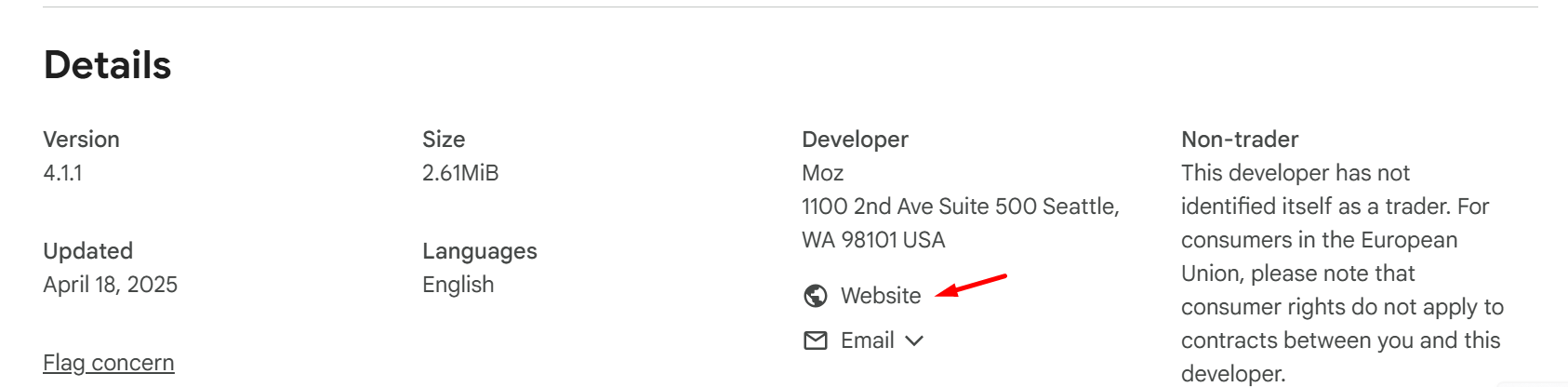
Now, here is the best part. This method does not get you just one link. It actually gets you two.
Example Link 1

Example Link 2
Enjoy
I'll walk you through exactly how to get one. Some of you already know this, so you can skip it.
Your First Task: Create a Simple Extension
A Chrome extension is just a small program that runs in the browser, built with basic web technologies like HTML, CSS, and JavaScript.
Don't worry if you are not a developer.
You have options. You can hire someone to build a very simple extension. Or, you can use a tool like ChatGPT or Gemini to help you generate the code for a basic "Hello World" style extension. The goal here is not to build a complex product. You just need a valid extension file to submit.
Getting Your Extension Published
Once you have your extension code zipped into a single file, you are ready for the easy part.
- First, go to the Chrome Developer Dashboard.
- You will need to sign into your developer account. If this is your first time, you will have to accept the developer agreement. This usually involves a small, one-time registration fee. ($5 and you can publish up to 20 extensions.
- Inside the dashboard, look for and click the "New Item" button.
- A dialog will ask you to upload your file. Click "Browse Files," find your ZIP file, and upload it.
The Payoff: Placing Your Backlink
This is the final and most important step. You now have to provide all the store listing details.
This includes a description, screenshots, and maybe a video if you have one. As you fill out this information, look for the Homepage URL section.
This field is your target.
Put your website's URL right in that Homepage URL box. This is the backlink you are here for.
After you complete all the required fields, submit your extension for review. Once it's approved, your extension and your new, high-authority backlink will be live on a top-tier Google domain.
The Final Step: Paying and Publishing
Before you can make your extension live, you will need to pay the one-time developer signup fee. This is a small registration cost that Google requires to verify developer accounts.
Once your payment is processed and you have filled out all the store listing details, you are ready to submit your extension.
Now, here is the best part. This method does not get you just one link. It actually gets you two.
Example Link 1
Example Link 2
Enjoy


