

- Nov 29, 2022
- 2,496
- 285

Today we will figure out how to create a video with a deepfake for free. The deepface neural network allows you to replace a person's face in a video with the desired one from a photo. Deepfake can be used to create advertising creatives or video content for your ads - it all depends on your imagination.
It’s important to remember – don’t use deepfake videos for fraudulent purposes and don’t violate copyrights.
Top deepfake neural networks
There are many paid and free online deepfake services like Unboring, but it are not good for serious work. That’s why we have tested and selected several popular neural networks for creating deepfake videos such as:- roop – the project is closed but there are still original files on GitHub. The version uploaded on Google colab stopped working. They can be installed on your PC or cloud GPU server.
- refacer – this neural network can change the faces of several people on video. Currently, it doesn’t work on Google colab but it can be configured locally. The author does not recommend running it on a Mac with Apple Silicon chips.
- There is a portable refacer version to run on Windows PCs with Nvidia GPU.
- Rope Opal – an updated version of the deepfake
- neural network with new features and an improved interface. There is a portable version for quick launch on Windows.
- FaceFusion – it’s a transformation of roop deepfake and the best deepfake in our opinion. The installation is quite complicated but thanks to the portable version, you can run it on your PC in 1 click even without an Nvidia graphics card.
From the article you will get answers to the following questions: why to use, how it works, and what results you can get.
FaceFusion deepfake neural network
FaceFusion Deepfake is a powerful neural network for replacing people’s faces on videos. Technically it is a direct extension of the famous roop neural network and one of the roop’s developers is also working on it. The source code is available on GitHub. Installation requires some technical skills, but there is a startup option allowing novices to handle the process.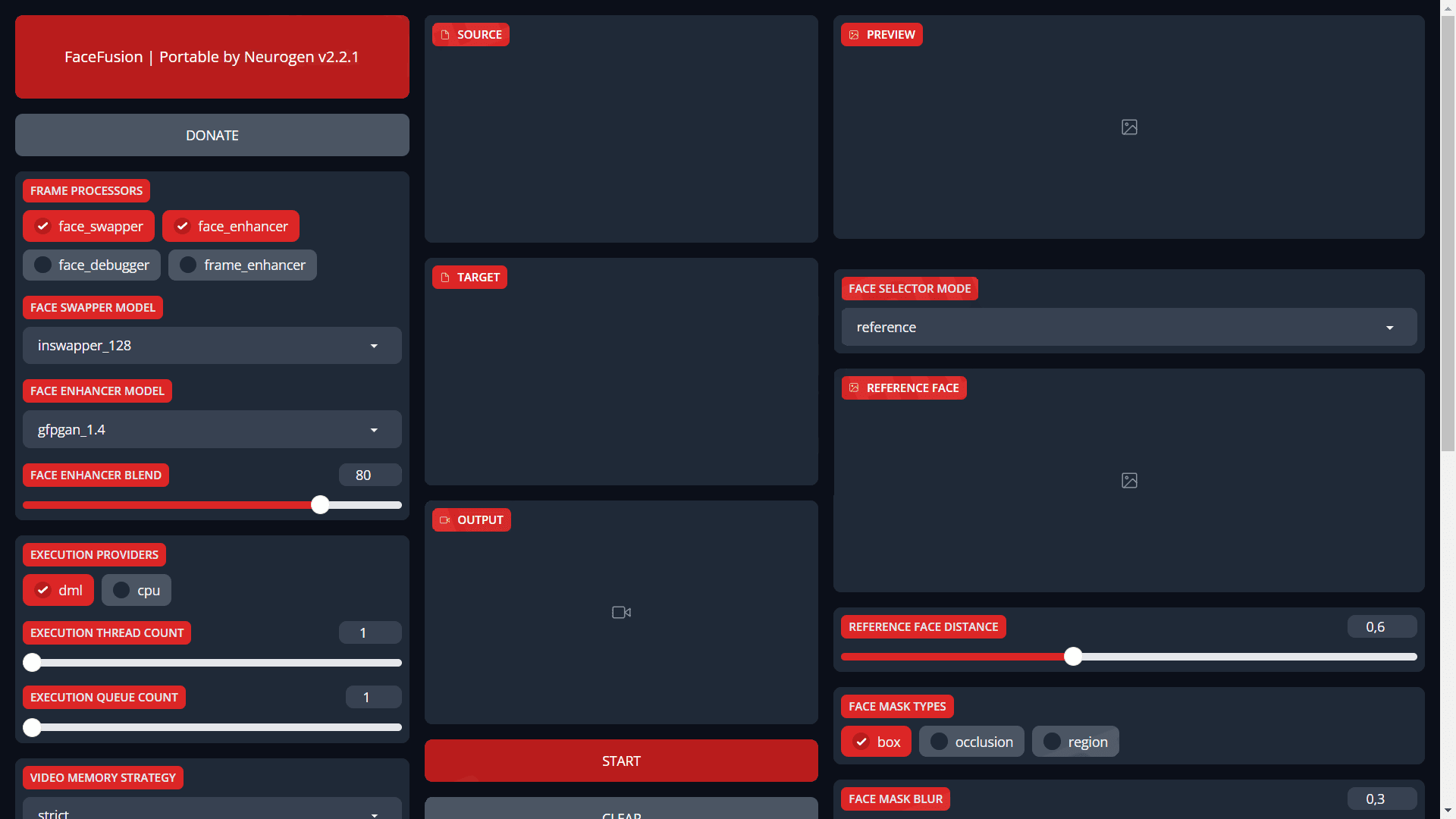
Technical requirements and speed
Thanks to the portable version from Neurogen, you can easily and quickly run Facefusion on your PC with/without an Nvidia GPU (using AMD and Intel chips).For PCs with an Nvidia GeForce 4070 12Gb graphics card, the generation of small clips takes a few seconds and the preview runs practically in real-time.
We’ve also tested it on the office laptop with an AMD processor and AMD Radeon Vega 2 integrated graphics. Surprisingly it worked quite well and took some minutes.
There is no portable version for macOS, installation instructions are available at https://docs.facefusion.io/installation. Meanwhile, let’s move on to FaceFusion Portable v2.2.1.
FaceFusion Portable
FaceFusion Portable v2.2.1 is available for download, but the author has an updated version that requires a paid subscription to boosty. In this article we are interested in how to create a deepfake video for free, so let’s use the latest available version.- FaceFusion portable version page: https://boosty.to/neurogen/posts/9839e63f-182d-42dc-a2b2-e600187a01f4.
- Direct link to download the archive: https://neurostorage.ru/wp-content/uploads/2024/01/facefusion-portable-by-neurogen-2-2-1.rar.
The launching process is as simple as possible:
IMPORTANT! There should be no Cyrillic characters in the path of the folder where you unzip FaceFusion and the files downloaded for generation.
- Download and unzip the archive.
- Run start_portable_nvidia.bat , if you have an Nvidia graphics card
- Run start_portable_amd_intel.bat , if you have an AMD or Intel system.
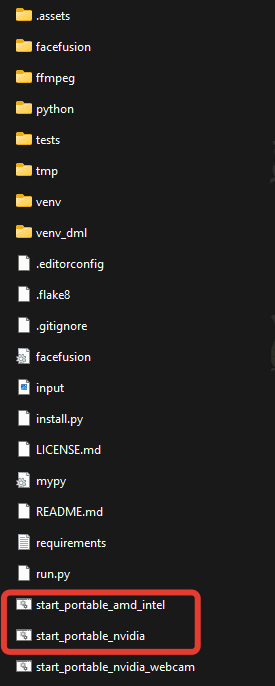
As a bonus, there is a file called start_portable_nvidia_webcam that starts FaceFusion in live webcam deepfake demo mode.
How to create a deepfake with FaceFusion
Let’s go directly to the neural network interface and deepfakes creation. The interface runs in the browser and by default everything is already set up for optimal generation.First, the interface seems complicated but in reality, it is very simple. Let’s look at the main elements and settings.
In the “FRAME PROCESSOR” block we recommend enabling the “face_swapper” and “face_enhancer” modes. If you have a poor quality video it can be better not to use a face enhancer to get a more natural result.
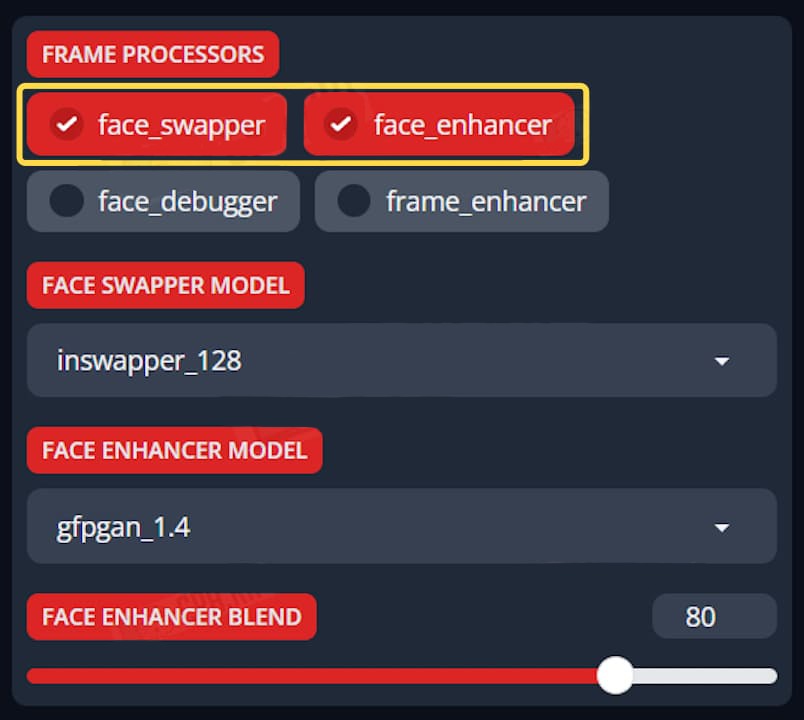
Just below, in the drop-down list, you can select “FACE SWAPPER MODEL” and “FACE ENHANCER”. We got the best result with default models.
The “FACE ENHANSER BLEND” slider affects the level density. The higher the value is, the more recognizable the face will be. However, in this case, artifacts can appear.
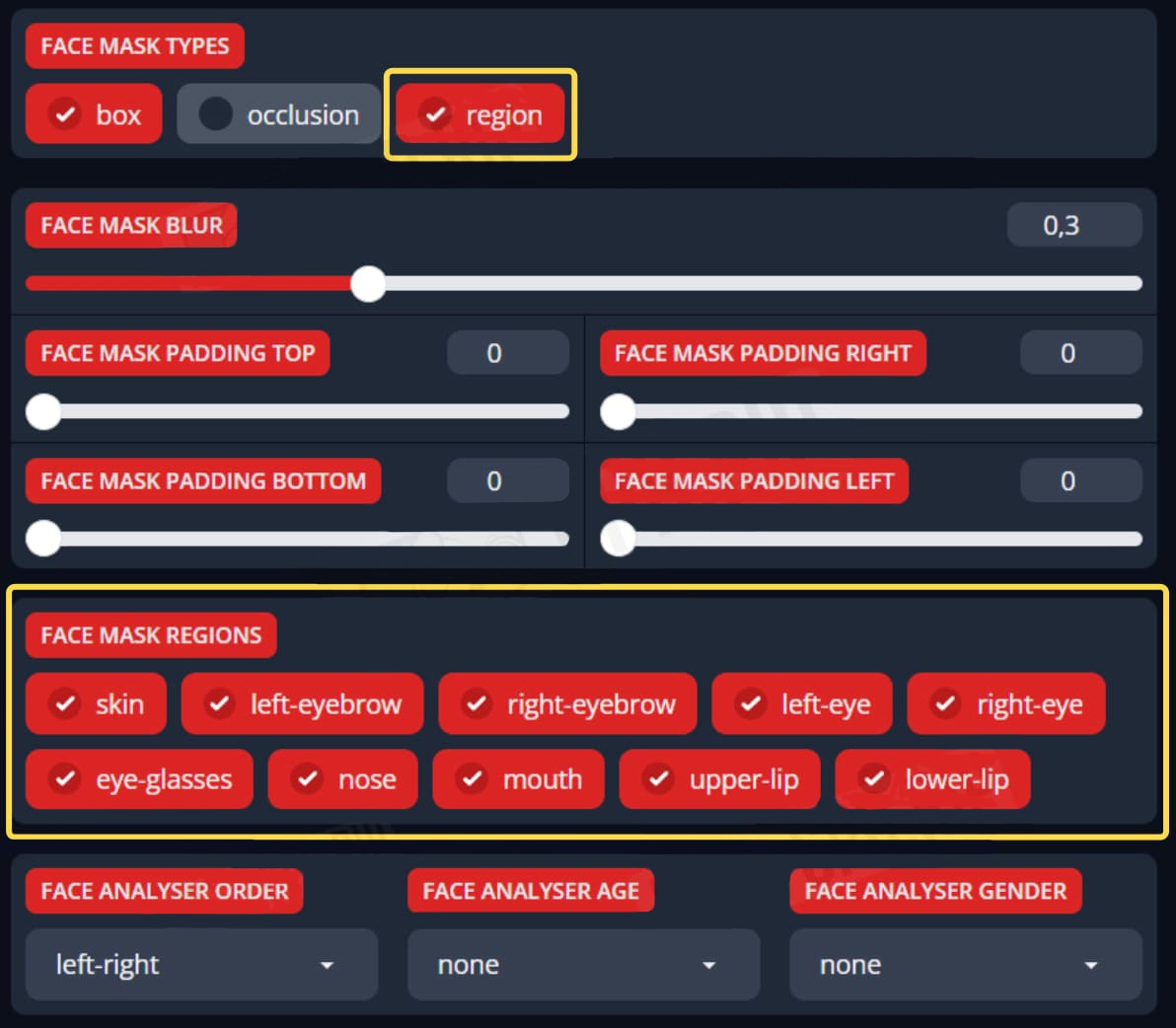
Another interesting setting is “FACE MASK TYPES”. If you enable the “region” function in it, you will see a block where you can separately disable parts of the face that do not need to be replaced. For example, you can disable “mouth” to keep the original mouth and its facial expressions:
In the “SOURCE” field add the face photo, and in the “TARGET” field add the original video for the deepfake:

The “PREVIEW” field will display the preliminary result of the deepfake (it may take a long time on a weak PC):

This is how it looks – you can see the preliminary result immediately on the right:
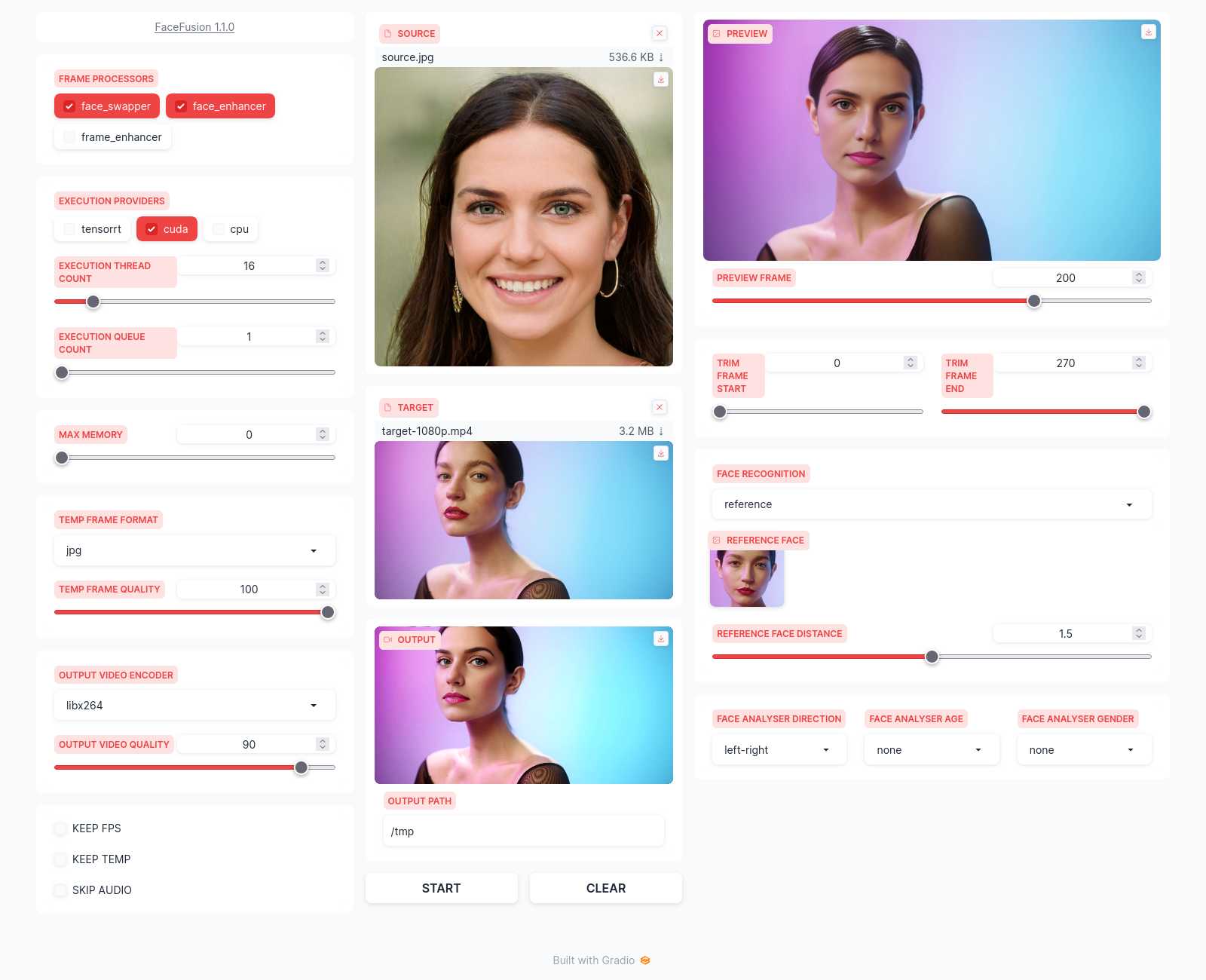
Then we need to press the “START” button under the “OUTPUT” field to start the generation:

It is important not to close running console windows during the process!
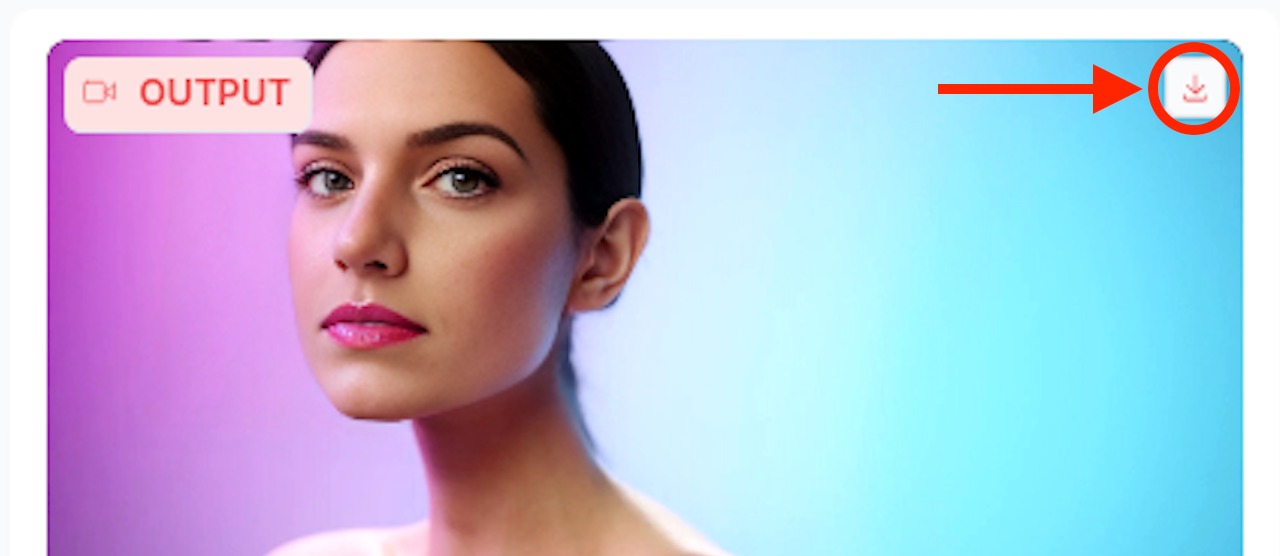
When the generation is complete, click the download button in the upper right corner of the “OUTPUT” field:
Done!
Recommendations
To get a good result, stick to the following recommendations:- Use good quality sources.
- Select a video of a person close in head and face proportions to the person to be replaced.
- There should not be objects obscuring the face in the video, for example, hands, hair, etc. Try to avoid using glasses or other similar accessories.
- Do not use videos with excessive facial expressions and strong turning or tilting of the head.


