

Degen
Elite Member
- Apr 9, 2016
- 2,604
- 2,848
For anyone that is not familiar with coding in general..
Window users like their GUI
So we will be starting off with downloading a few programs
Winscp: https://winscp.net/eng/download.php
Putty : https://www.putty.org/
When you have them both installed open WinSCP
It will look like this
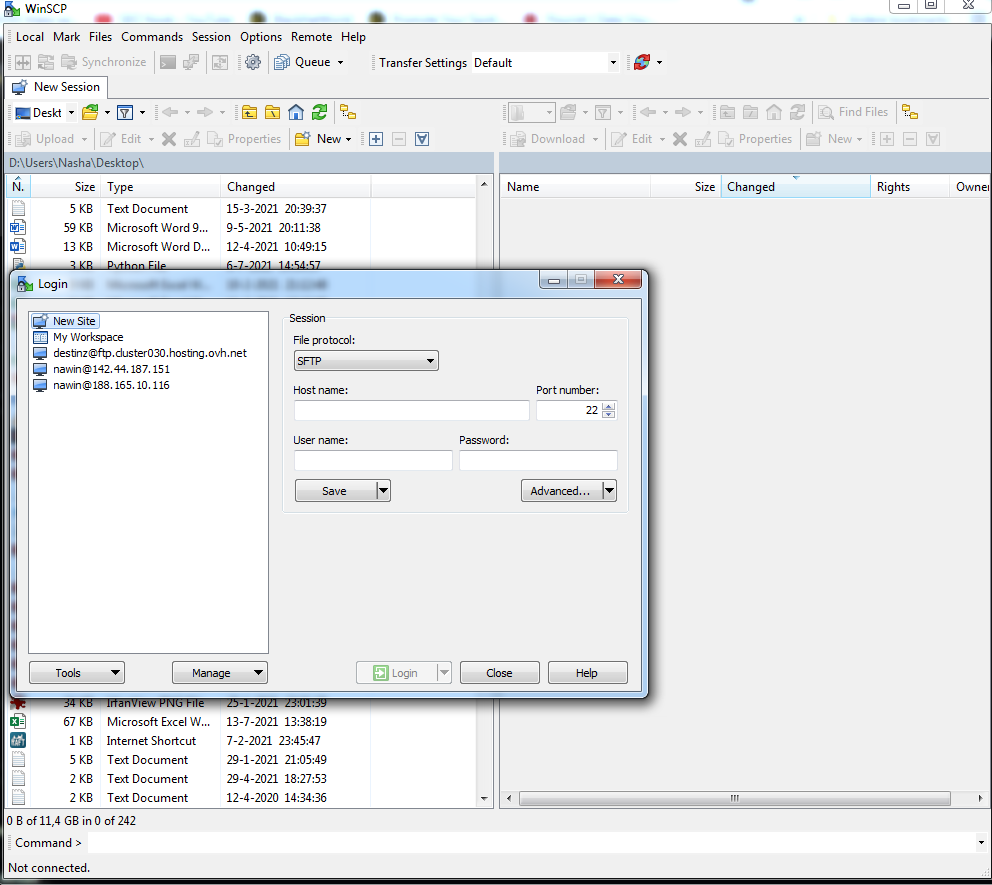
get the Linux VPS info from your hosting and insert that into the correct lines
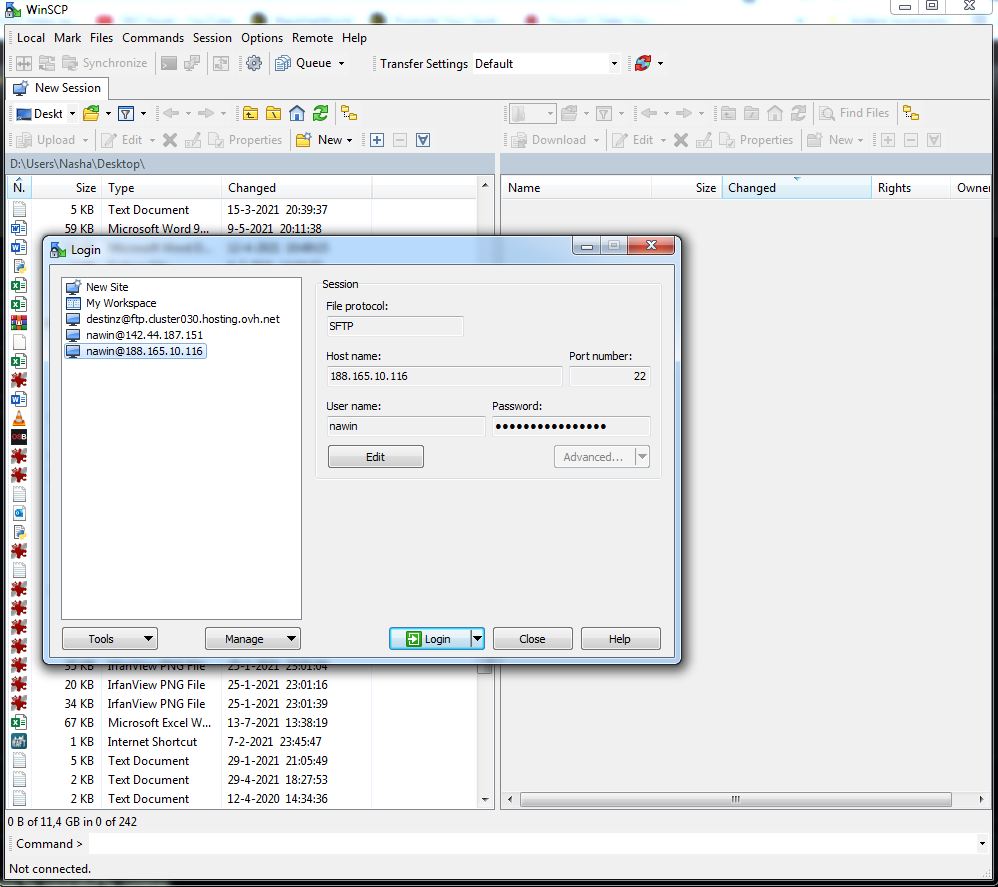
Press login and you will be connected to the VPS ( you will see all the folder in the right side of the window (while the left side is your desktop)

Now you need to get your Python script onto your VPS.
You can simple search the file in the left part (desktop) and drag it to the right part (VPS).
Now that the file is copied over to your VPS you now need to do something out of your comfort zone !!!
We are going to open Putty from within WinSCP
Click on 'New session'
 Right click the VPS and open Putty
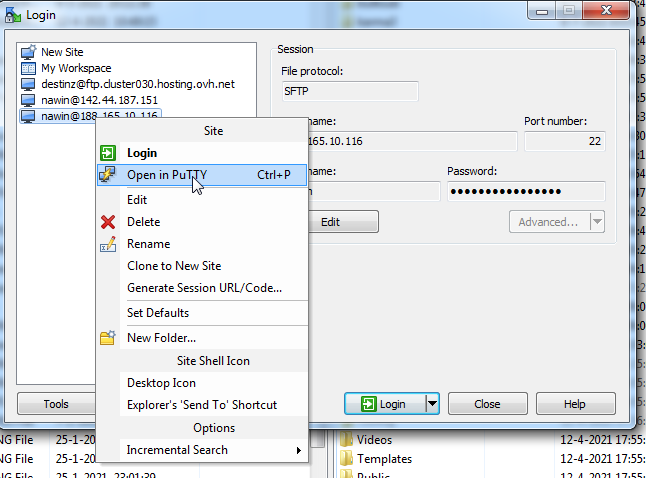
You will be asked to enter your VPS password
I recommend you to COPY your password and paste it by pressing your right mouse button ( the cursor will not move in the password line so there is no indication of you having typed in anything!!), press enter!

Now that we have connected to the VPS we need to install a few things before we can start using our scripts!
First time installs (copy paste and press enter)
Python 3
Check if you have python 3 installed
the command for that is
If it is not installed use
TMUX
I personally use TMUX to get multiple scripts running on the same VPS
To install TMUX use
You will get a choice to continue (y/n) obviously choose y if you want to install it.
If you are using Reddit API (PRAW)
If you are using Reddit API related scripts like me you need to have PRAW installed
the code for that is
( if you get an error, try
)
Now that we have everything installed we can now run our scripts
Running your scripts
(we are going to run them in TMUX)
type tmux
Your screen will change into
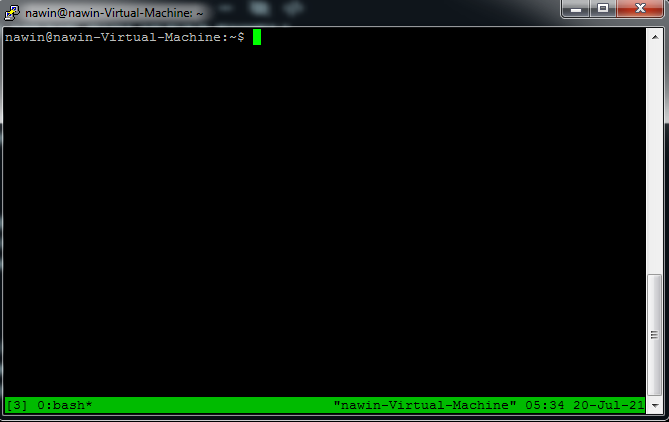
Press the following keys CTRL + b then SHIFT + 4 (
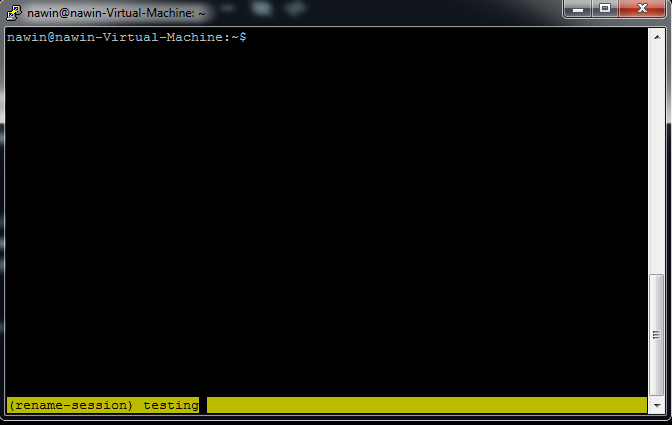 )
)
You can now rename the window (make it something short rememberable) , if you have named it press enter
The python file you have copied at the start of this tutorial is probably still in the main area of the server. (if it is in a folder type cd [foldername] )
We are going to invoke the script here with the following line
Python3 [yourscriptname].py
 The green cursor will move to the start on a new line, now we can leave this tmux window
Leave the TMUX by pressing CTRL +b and then d .

to see the TMUX windows you have active
see all active TMUX windows: tmux ls
My list of current tmux windows

to attach to a certain tmux window : tmux a -t [yourtmuxname]

press enter . You will be back where you had started your script.
To stop your script : CTRL + C
Window users like their GUI
So we will be starting off with downloading a few programs
Winscp: https://winscp.net/eng/download.php
Putty : https://www.putty.org/
When you have them both installed open WinSCP
It will look like this
get the Linux VPS info from your hosting and insert that into the correct lines
Press login and you will be connected to the VPS ( you will see all the folder in the right side of the window (while the left side is your desktop)
Now you need to get your Python script onto your VPS.
You can simple search the file in the left part (desktop) and drag it to the right part (VPS).
Now that the file is copied over to your VPS you now need to do something out of your comfort zone !!!
We are going to open Putty from within WinSCP
Click on 'New session'
You will be asked to enter your VPS password
I recommend you to COPY your password and paste it by pressing your right mouse button ( the cursor will not move in the password line so there is no indication of you having typed in anything!!), press enter!
Now that we have connected to the VPS we need to install a few things before we can start using our scripts!
First time installs (copy paste and press enter)
Python 3
Check if you have python 3 installed
the command for that is
Code:
python3 --version
Code:
sudo apt-get install python3.8TMUX
I personally use TMUX to get multiple scripts running on the same VPS
To install TMUX use
Code:
sudo apt-get install tmuxIf you are using Reddit API (PRAW)
If you are using Reddit API related scripts like me you need to have PRAW installed
the code for that is
Code:
pip3 install praw
Code:
pip install prawNow that we have everything installed we can now run our scripts
Running your scripts
(we are going to run them in TMUX)
type tmux
Your screen will change into
Press the following keys CTRL + b then SHIFT + 4 (
You can now rename the window (make it something short rememberable) , if you have named it press enter
The python file you have copied at the start of this tutorial is probably still in the main area of the server. (if it is in a folder type cd [foldername] )
We are going to invoke the script here with the following line
Python3 [yourscriptname].py
Leave the TMUX by pressing CTRL +b and then d .
to see the TMUX windows you have active
see all active TMUX windows: tmux ls
My list of current tmux windows
to attach to a certain tmux window : tmux a -t [yourtmuxname]
press enter . You will be back where you had started your script.
To stop your script : CTRL + C