

- Nov 29, 2022
- 2,480
- 284
Increasingly, people are starting to use Pixel Value Adjustments (PVA) and schemes, but not many know how to use a single pixel across all accounts. With the standard pixel sharing, you can only add up to 10 accounts and only if they are on the Business Manager (BM). However, thanks to Facebook's developer tools, you can bypass this limit and add an unlimited number of accounts without linking them to the Business Manager.
The Eternal Pixel: How to Share a Pixel for Free and Without Software
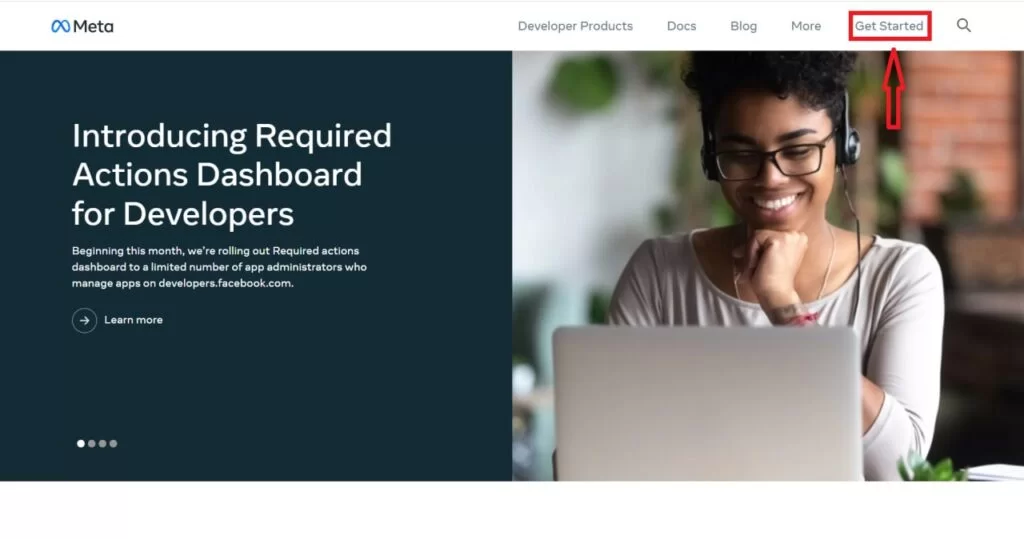
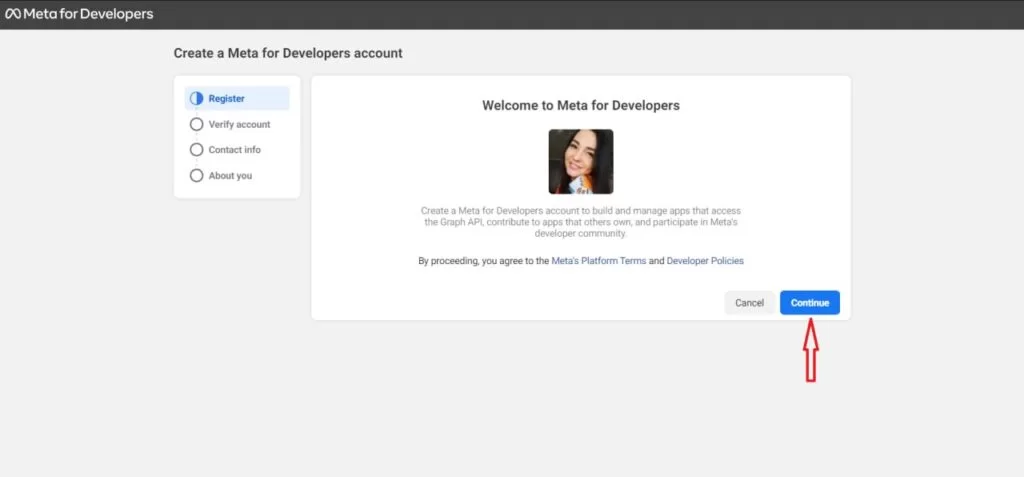
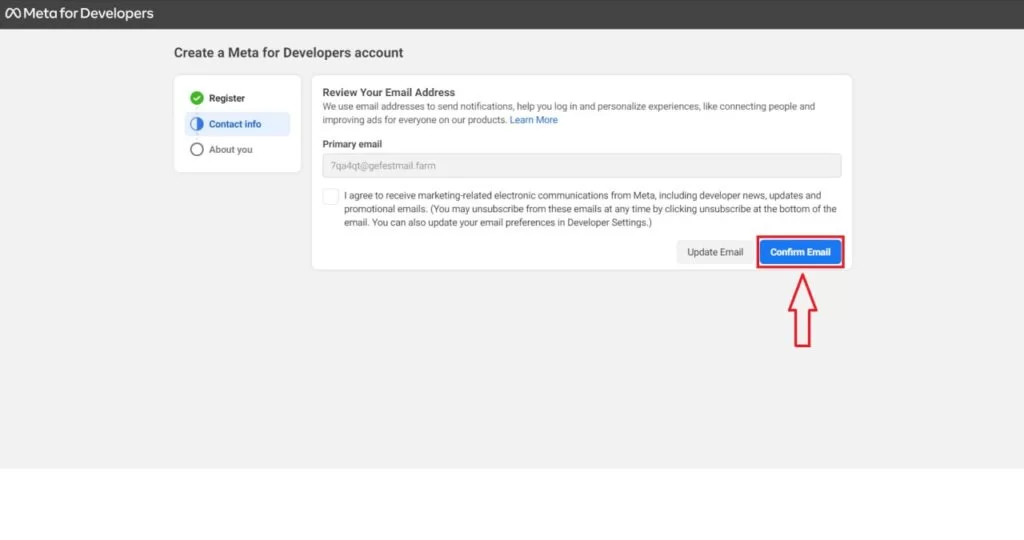
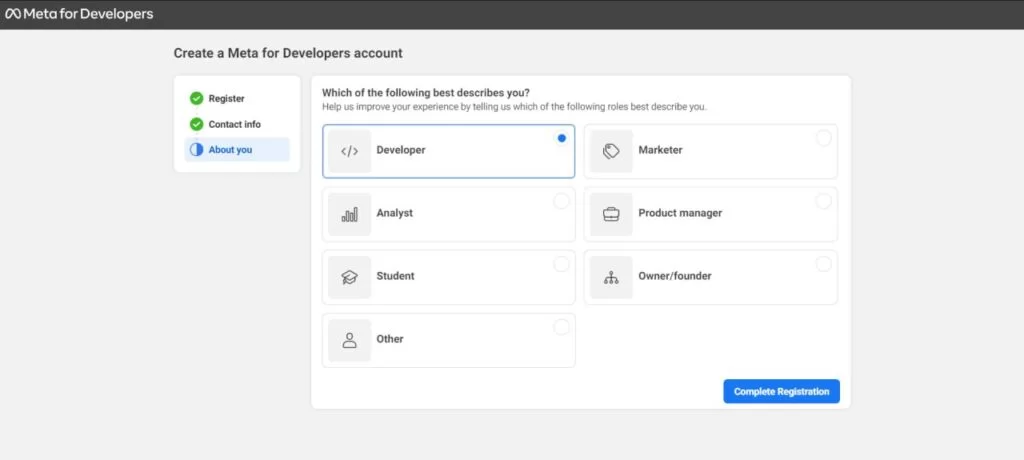
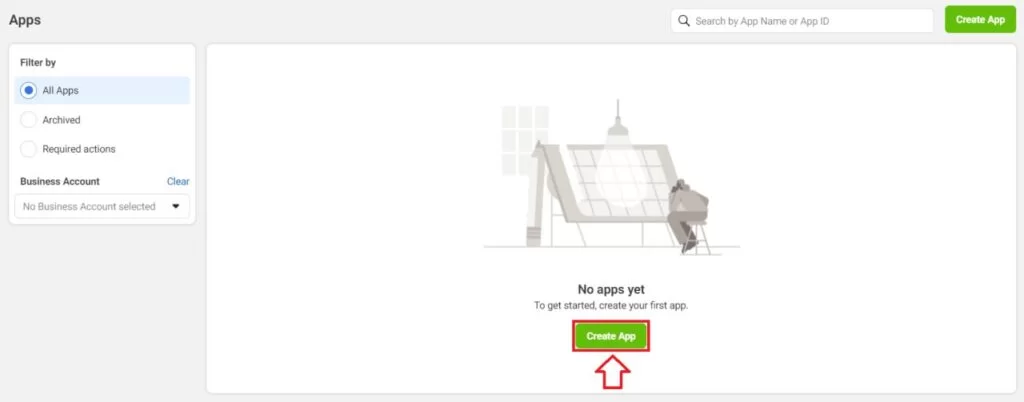
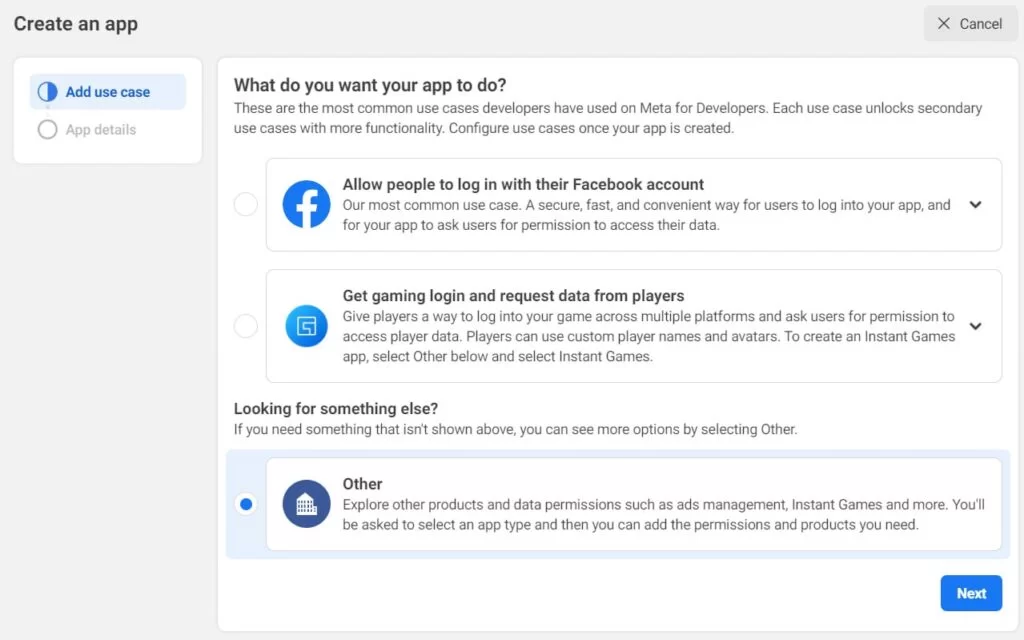
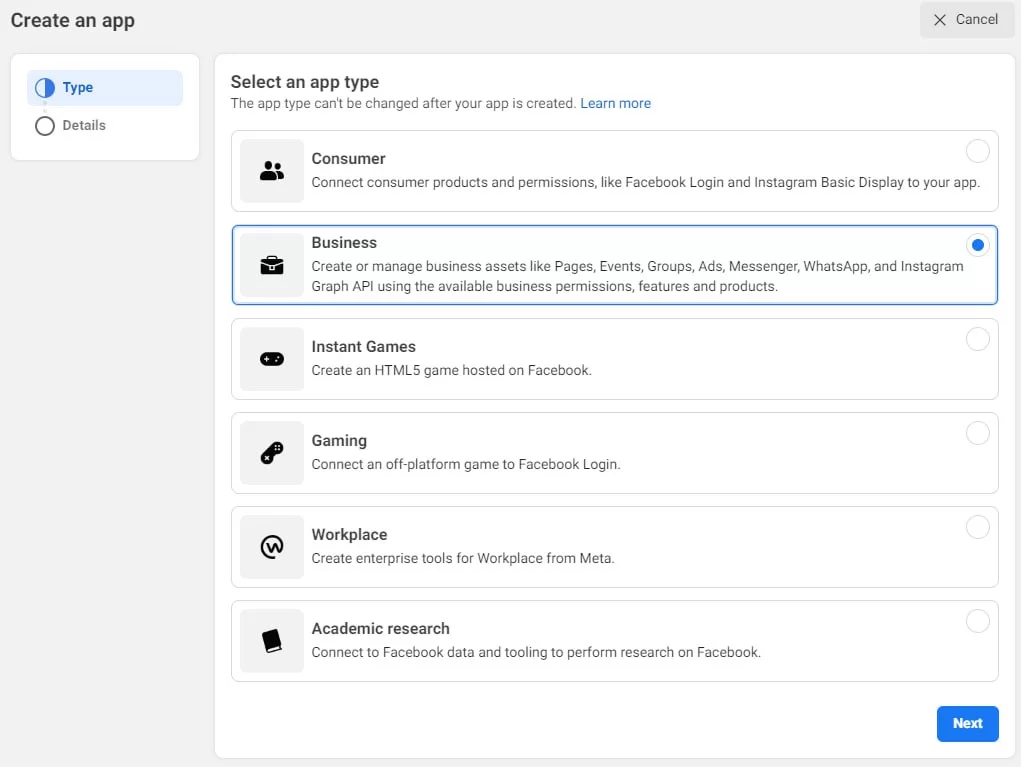
To start, we need a farm and preferably a Business Manager account specifically for creating and sharing pixels. I had the farm, and for the BM, I used a Paid Zero Risk Data (PZRD) BM for $0.5.Create a developer account by going to developers.facebook.com and follow the instructions as shown in the screenshots. If your account is not linked to a phone number, you will be prompted to add it during the account creation process.
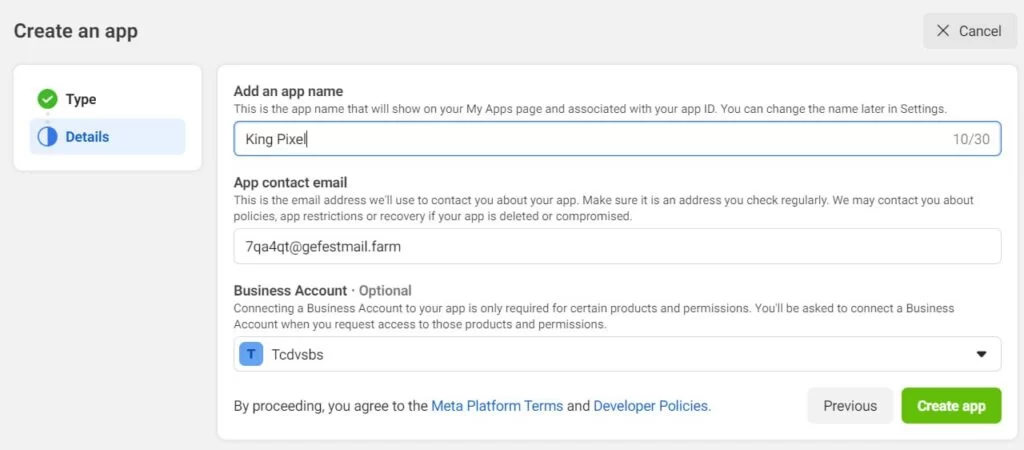
Once the developer account is created, you need to create an app through which you'll share the pixel. In the “Business Account” section, select the PZRD BM you purchased for pixels.
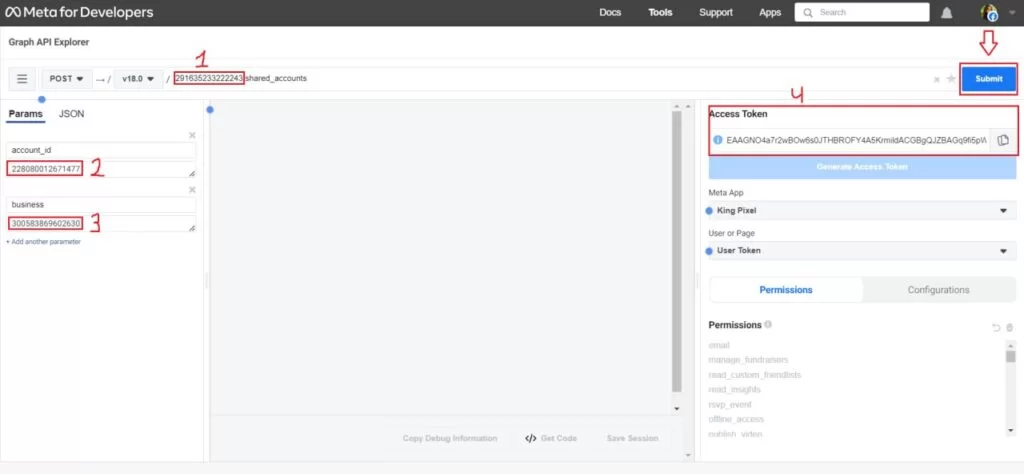
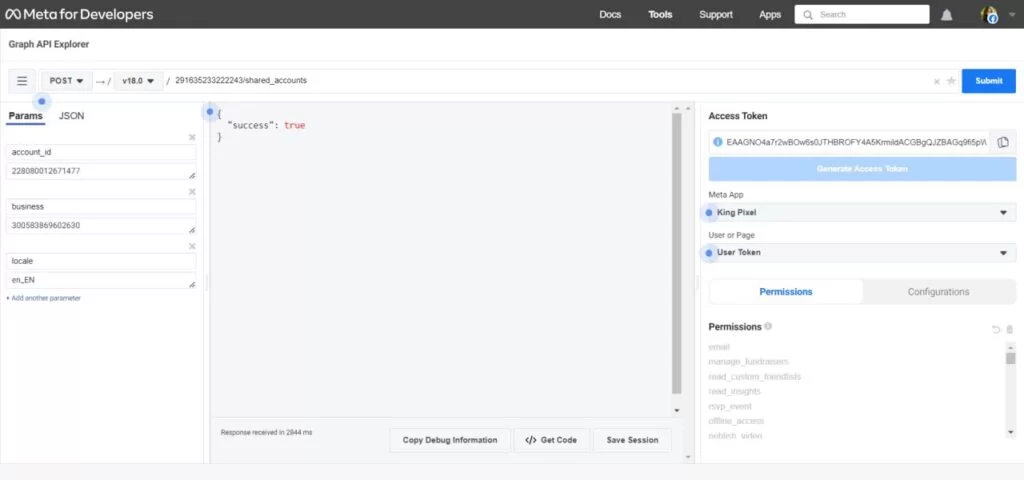
After creating the app, you can start sharing pixels. To share pixels, go to this link: Facebook Graph API Explorer. To avoid repeatedly entering your details, you can immediately include them in the URL:
- path (pixel ID to be shared) – 291635233222243
- account_id (account ID to share with) – 228080012671477
- business (BM ID where the pixel and app are) – 300583869602630