

- Nov 29, 2022
- 2,703
- 289
This article is intended for informational purposes only. Please adhere to Facebook Ads guidelines when placing advertisements.
Creating a Catalog
To create a catalog, you need a Business Manager account.Option 1:
Go to business.facebook.com/commerce and click "Add catalog."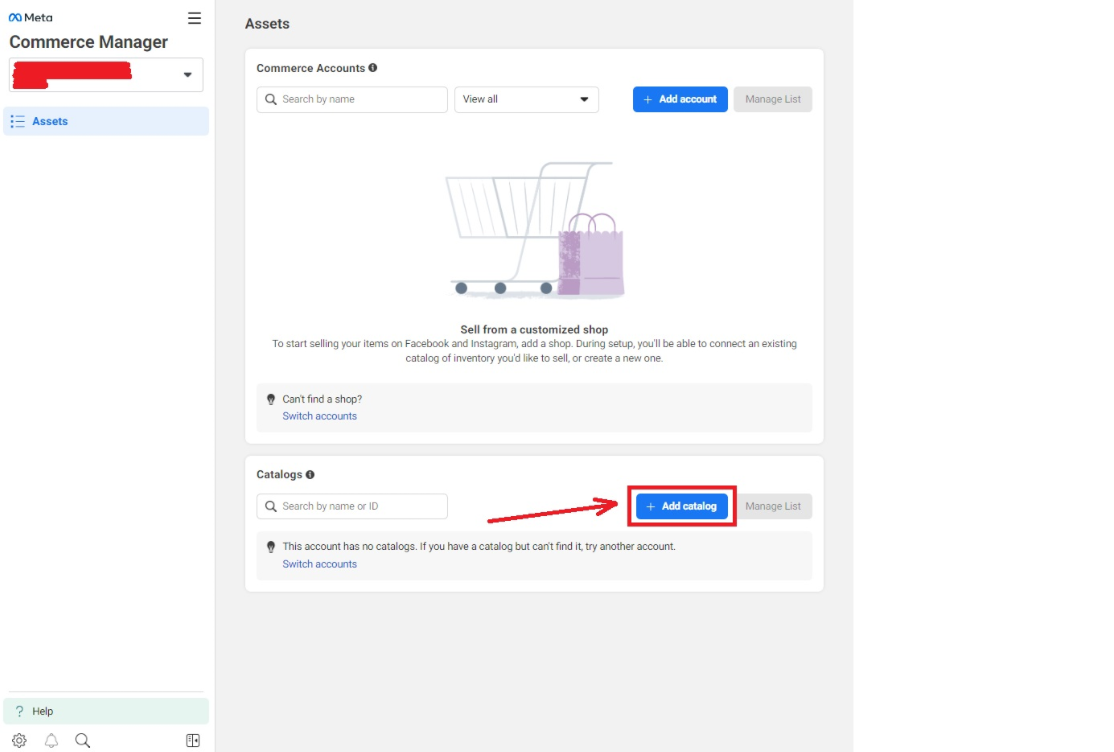
Option 2:
Navigate to business.facebook.com/settings/, go to "Business Settings," select "Data sources," then "Catalogs," and click "Add."Click "Create a new catalog."
General Actions
From this point, the actions are the same, regardless of the method you used to create the catalog.Select the product category as "Online products," assign the owner of the catalog as the Business Manager you're using, enter a name for the catalog, and click "Next."
Next, create a Meta Pixel by clicking "Go to Events Manager."
Click "Connect data"
Choose "Web", and press "Next".
Fill in the "Name" field and click "Create."
After creating the Meta Pixel, return to the catalog creation process.
Enable "Connection" and click "Next."
Access rights are automatically assigned to the account used to create the catalog. Click "Next."
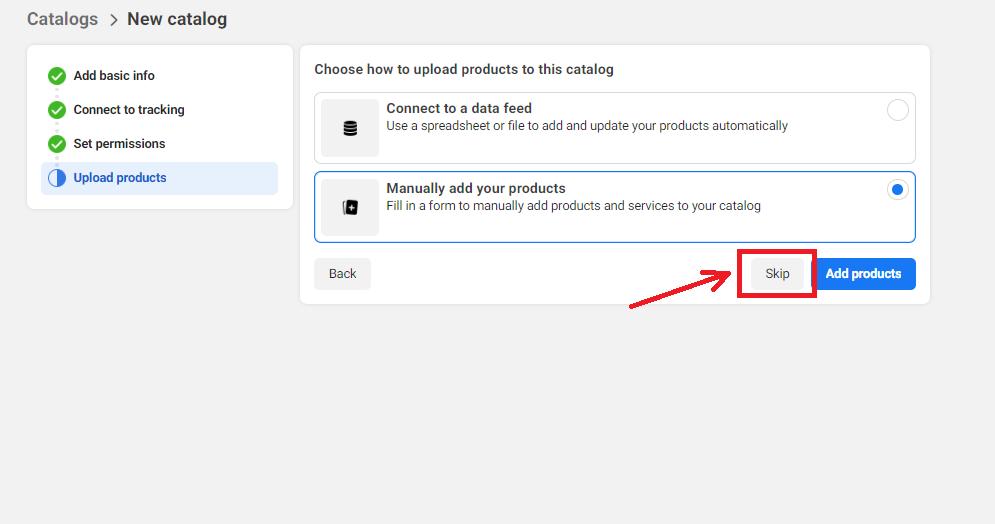
You can upload data manually or via spreadsheet. We will skip this step for now by clicking "Skip" and review both methods in detail later.
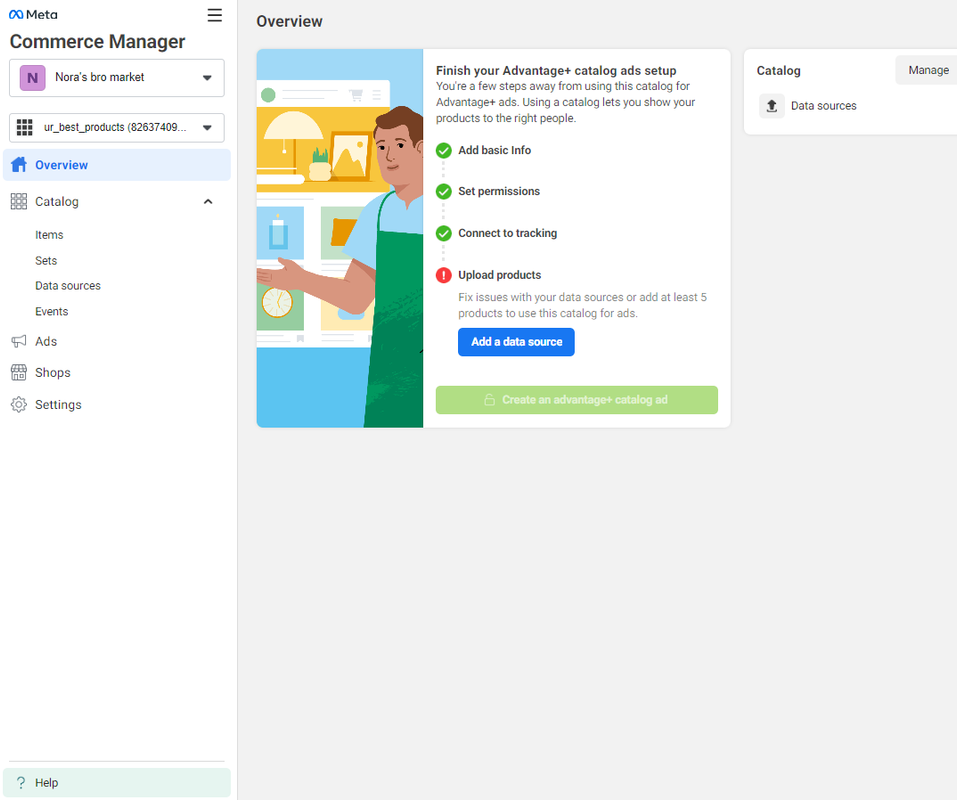
Created Catalog
Data Upload to Catalog
Manual Upload:
Go to the "Items" section and click "Add items,"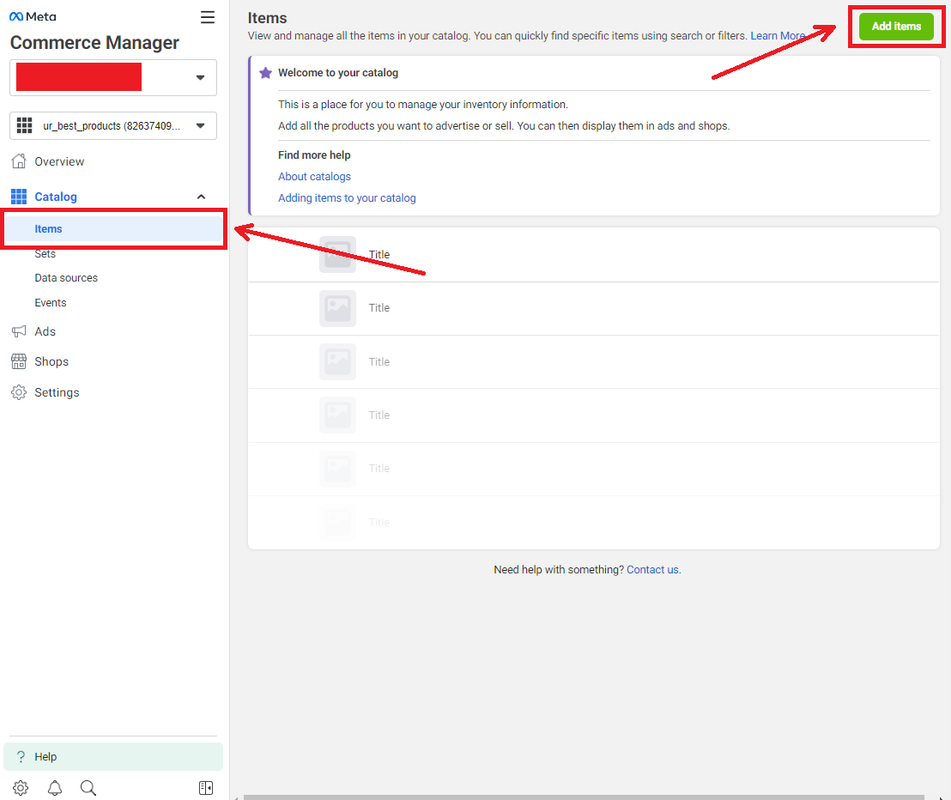
or navigate to "Data Sources,"
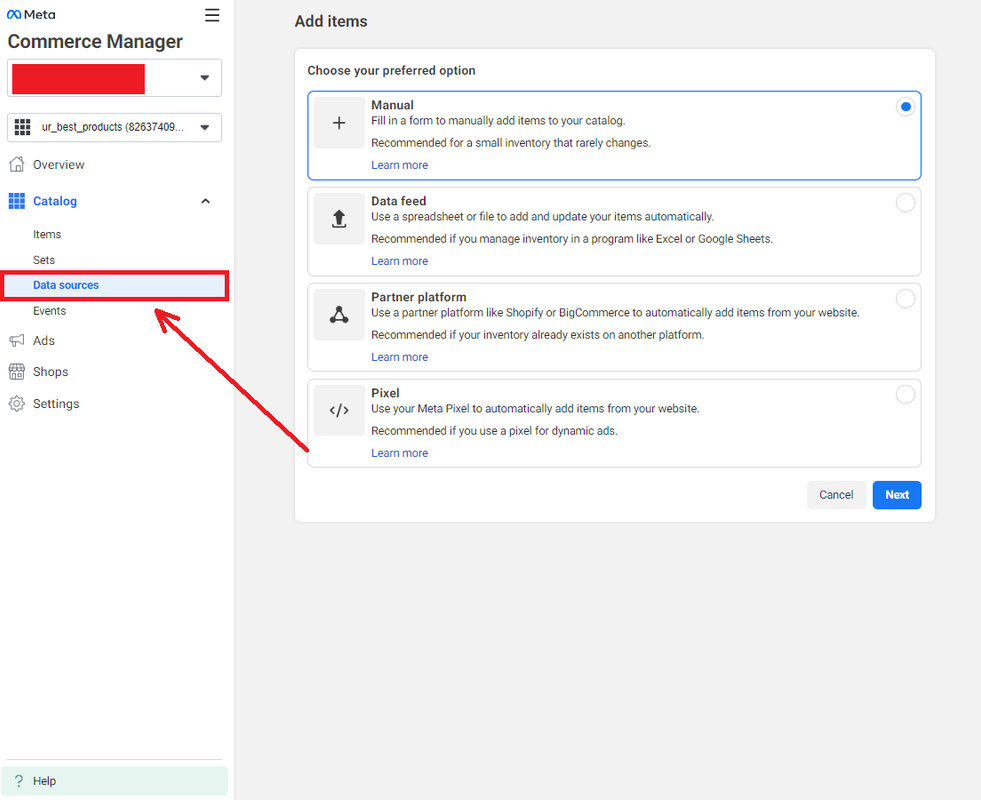
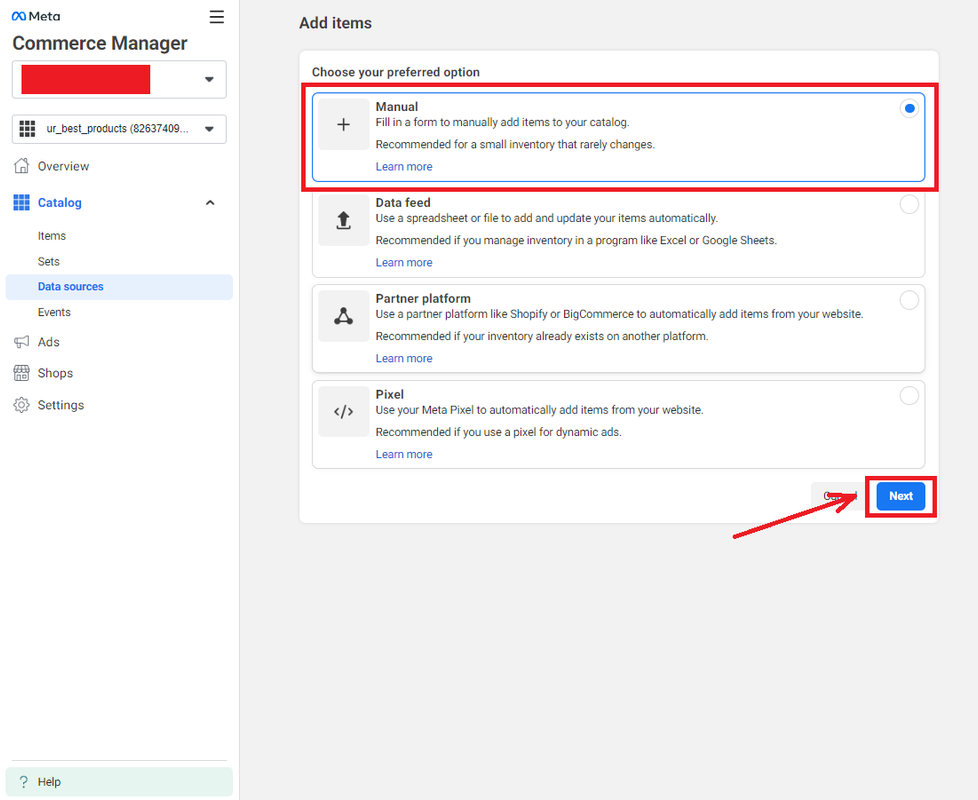
Select "Manual," and click "Next."
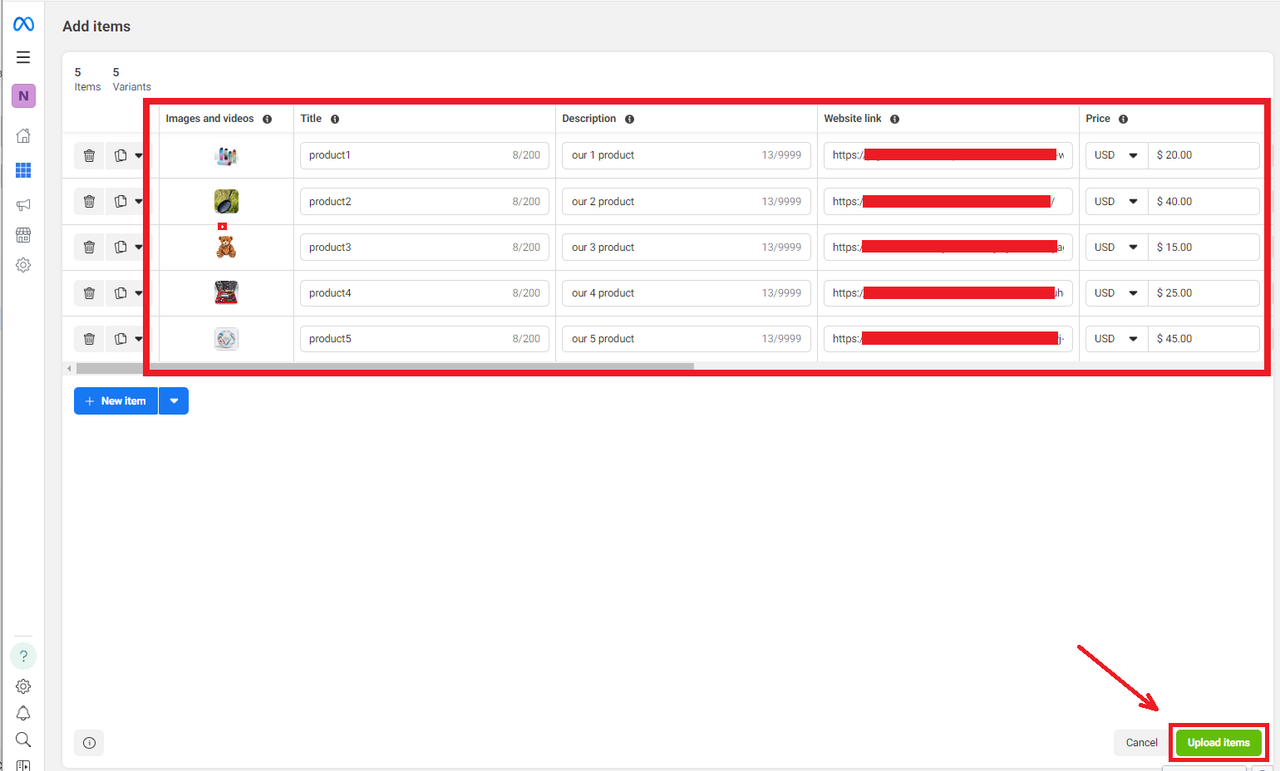
Fill in the required fields and click "Upload items." You need at least five products to run ads.
Next, group the products. If you're using one creative, select one product per group. For dynamic creatives, select multiple products.
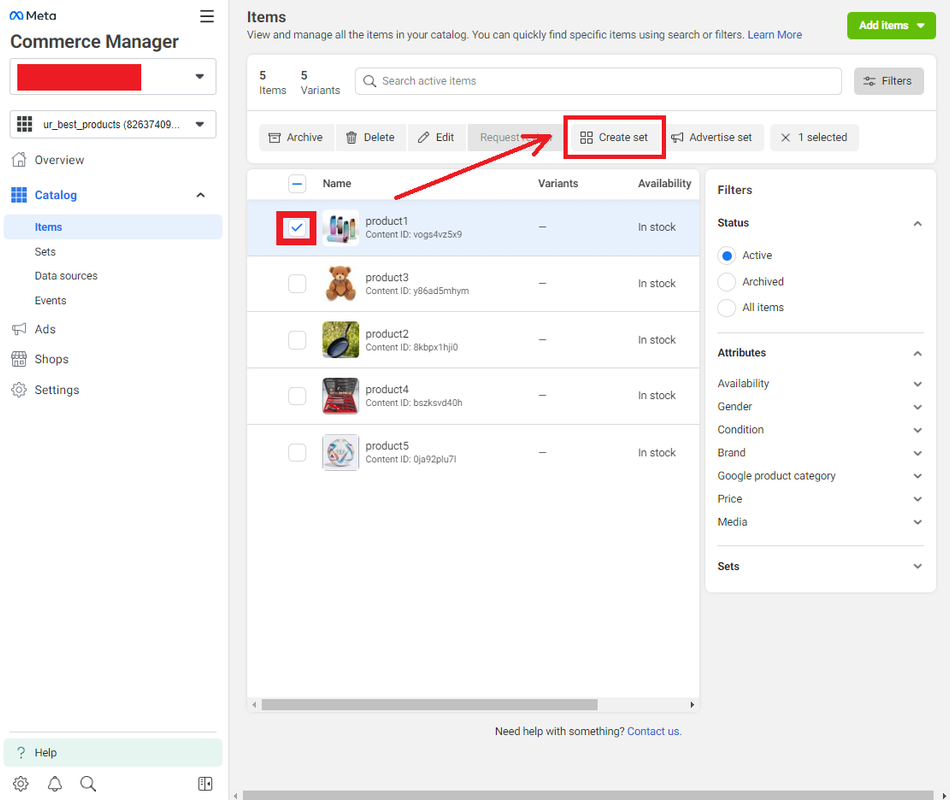
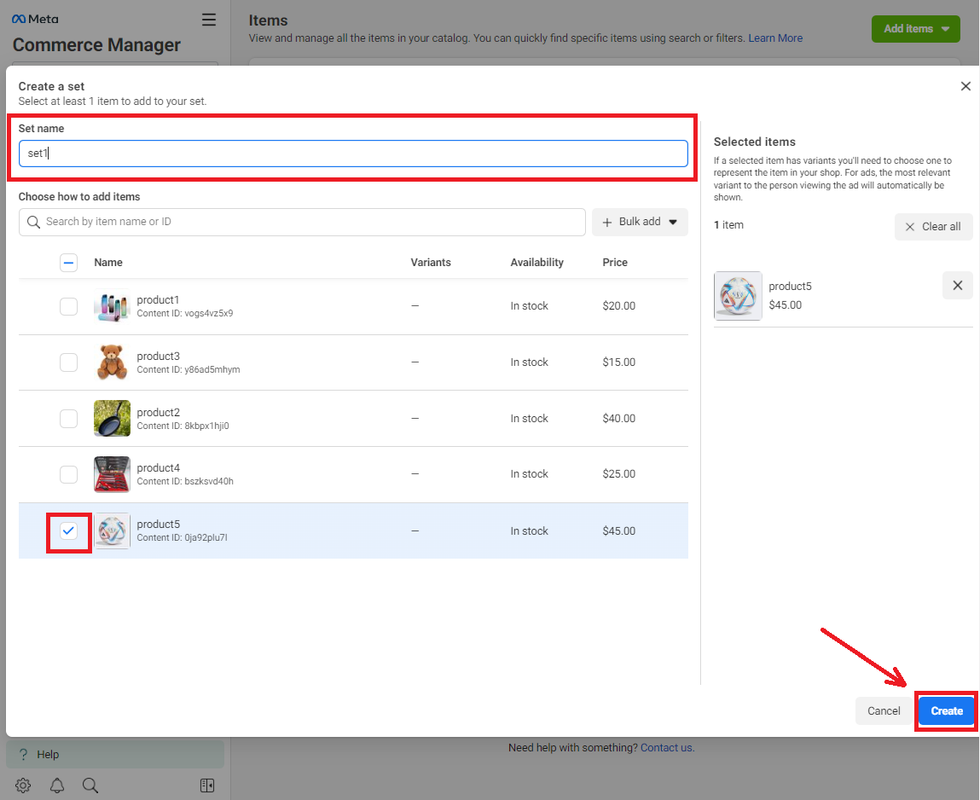
Name the group and click "Create."
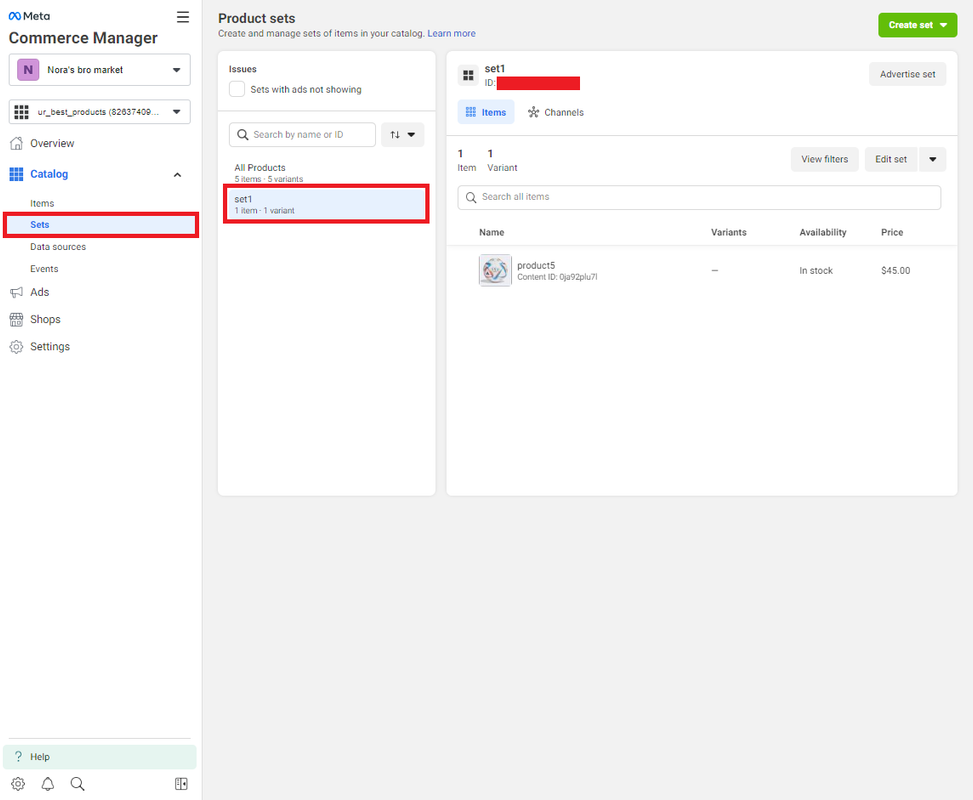
The group will appear in the "Sets" section.
Data Feed Creation
Download the template by going to "Data sources," selecting "Data feed," and clicking "Download template."Transfer the data to Google Sheets for easier management and updates. Fill in the required fields like “Title” and “description,” which will be used as the main text and headline in your ads, respectively. The catalog macros will automatically pull in this information. “Image_link” is the direct link to the product image.
Select "Data feed" and click "Next." Paste the Google Sheet link and click "Next." Make sure to grant access to anyone with the link.
Enter the catalog name, set the frequency for data updates, and click "Upload." If the sheet is correctly filled out, the products will be added without errors.
Creative Replacement in Active Campaigns
Manual Replacement Option 1:
Replace a product in the group by selecting the group in the catalog, clicking "Edit set," and choosing a different creative.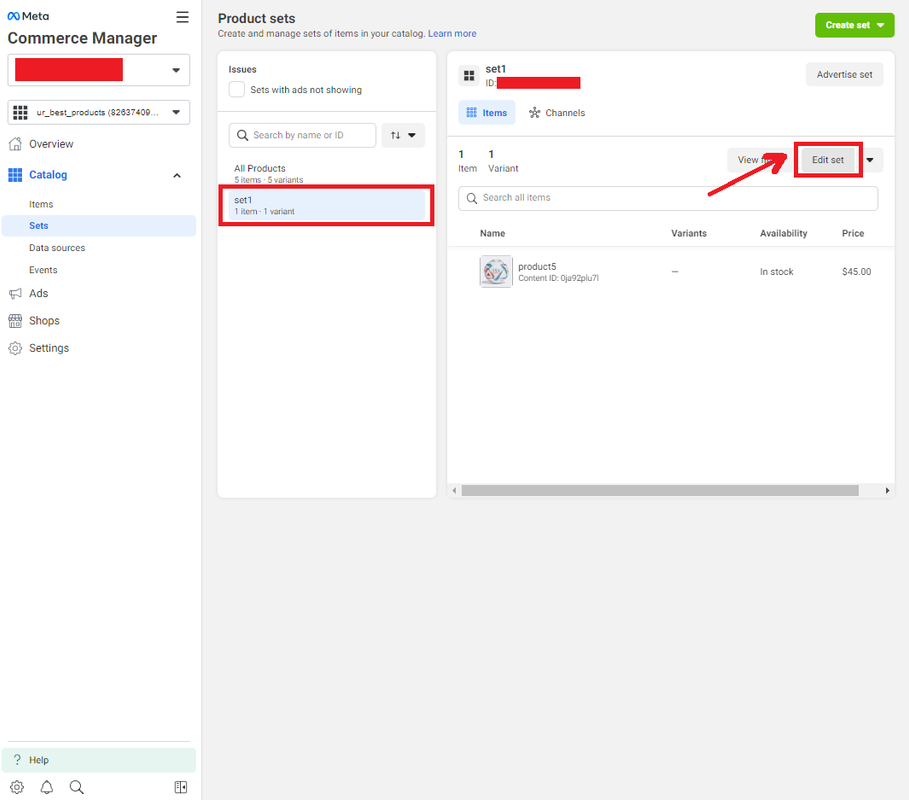
Select a different creative and click "Save." This can either be another neutral creative or a more aggressive one that might not have passed standard moderation.
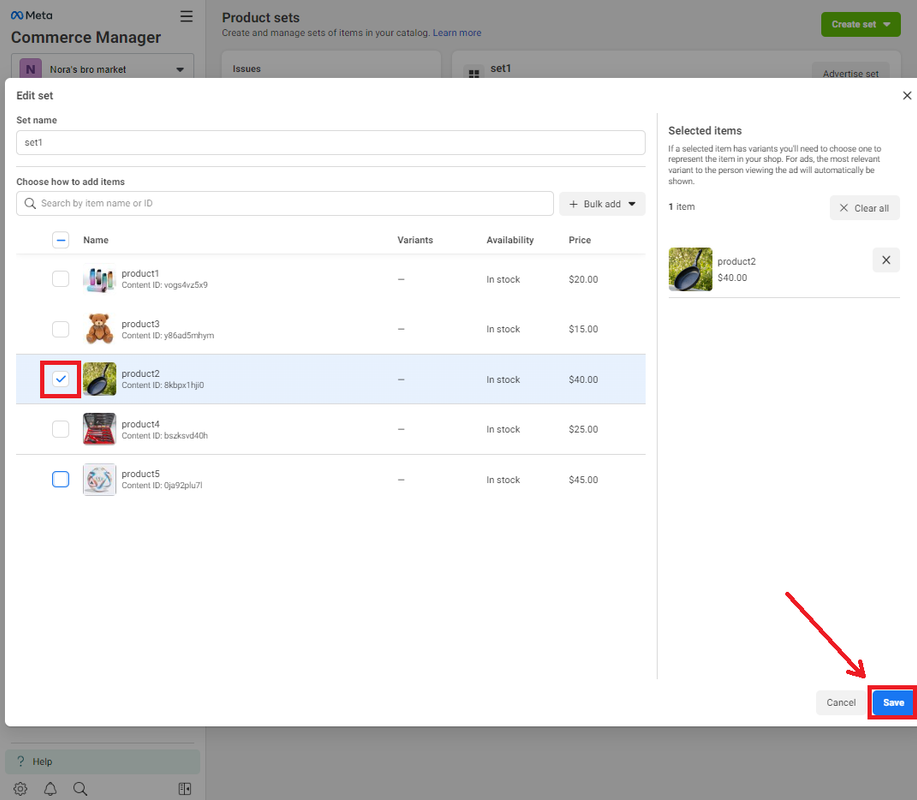
The product has been replaced in the catalog group.
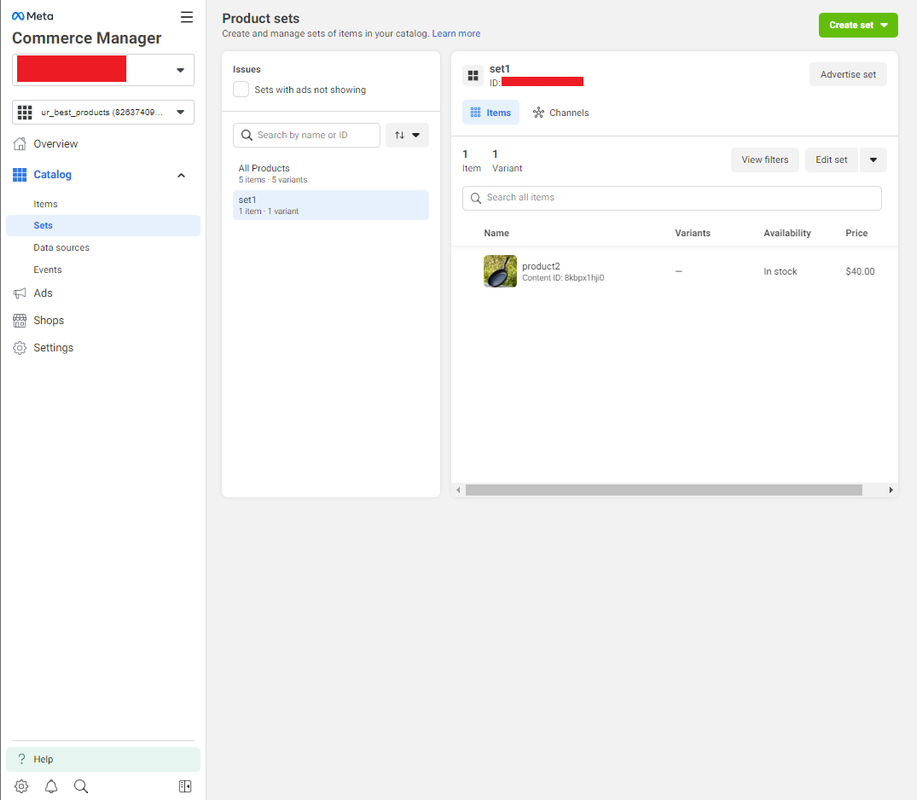
This method allows you to use a new creative that may not pass moderation in the standard way. The product will be replaced in the group, and after some time, the ad will reflect the change.
Manual Replacement Option 2:
Edit the product listed in the group. This can be done by selecting the group and clicking "Edit items" or via the "Items" section.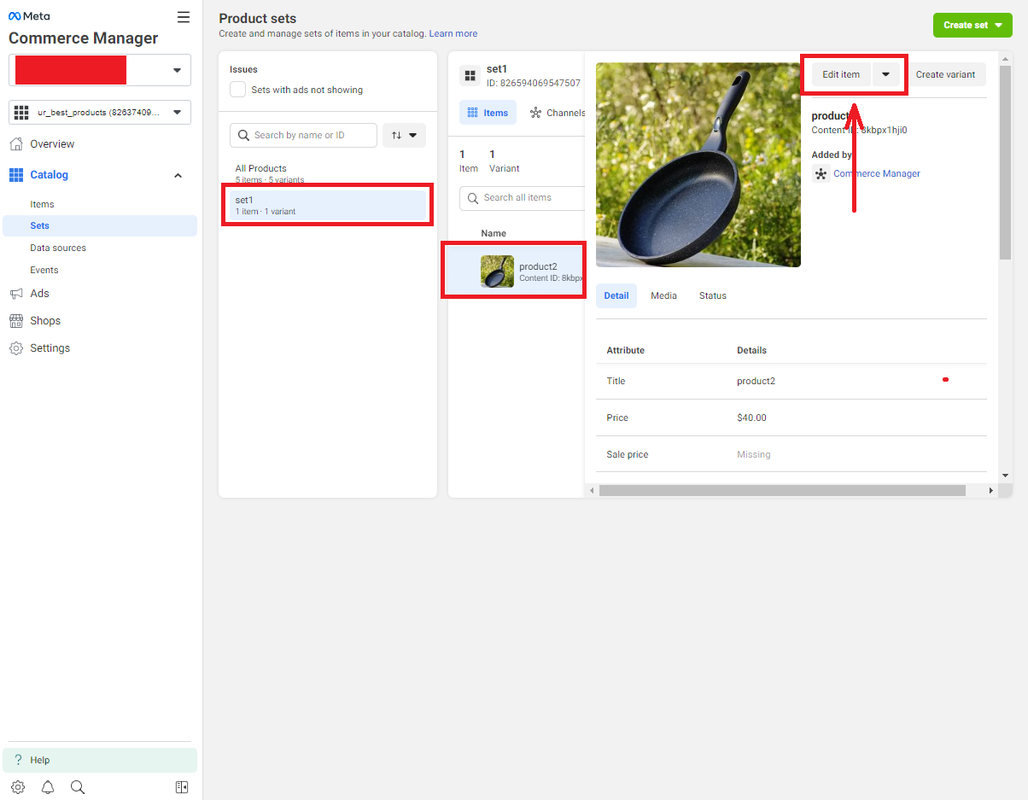
Replace the necessary elements and click "Update product."
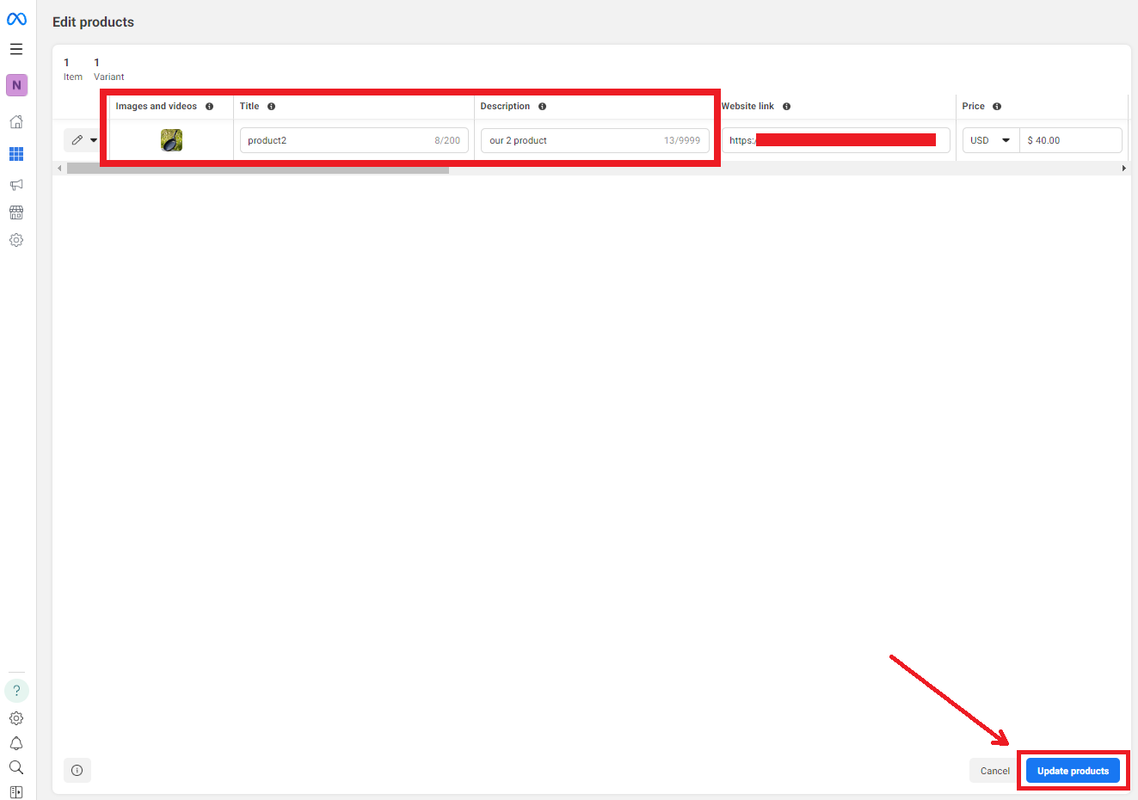
The product has been updated.
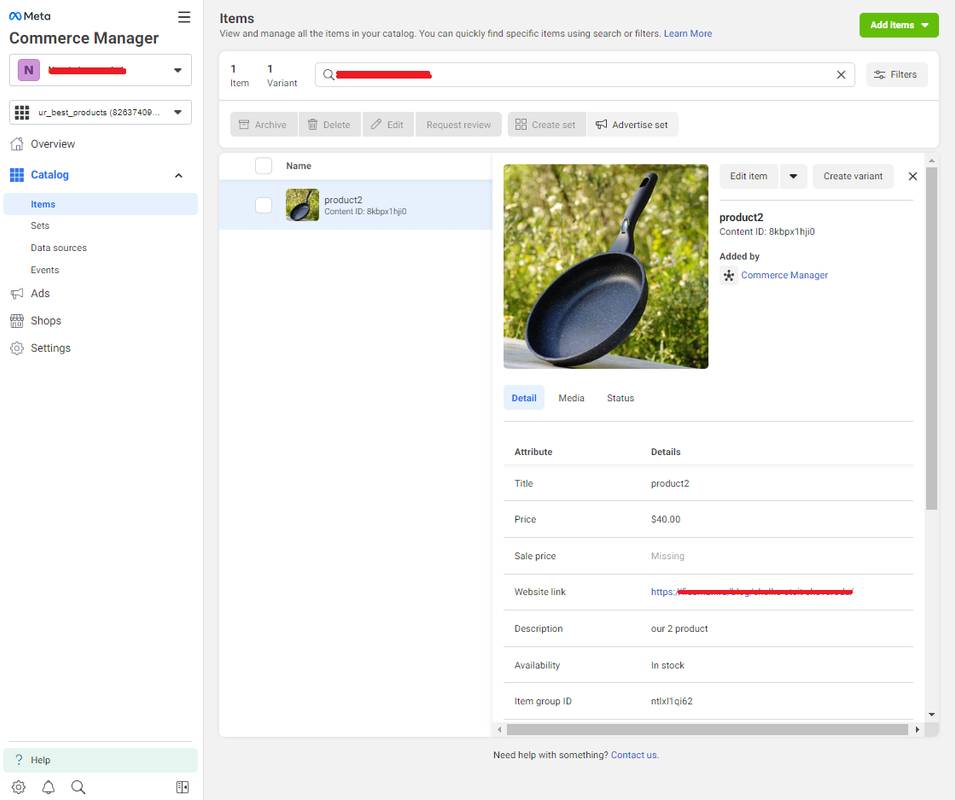
The error in the ad usually disappears once the changes are processed, typically within 2-3 hours.
Replacement via Additional Images:
Create a product with multiple creatives (2-4). In the ad, the creative in the first position will be shown.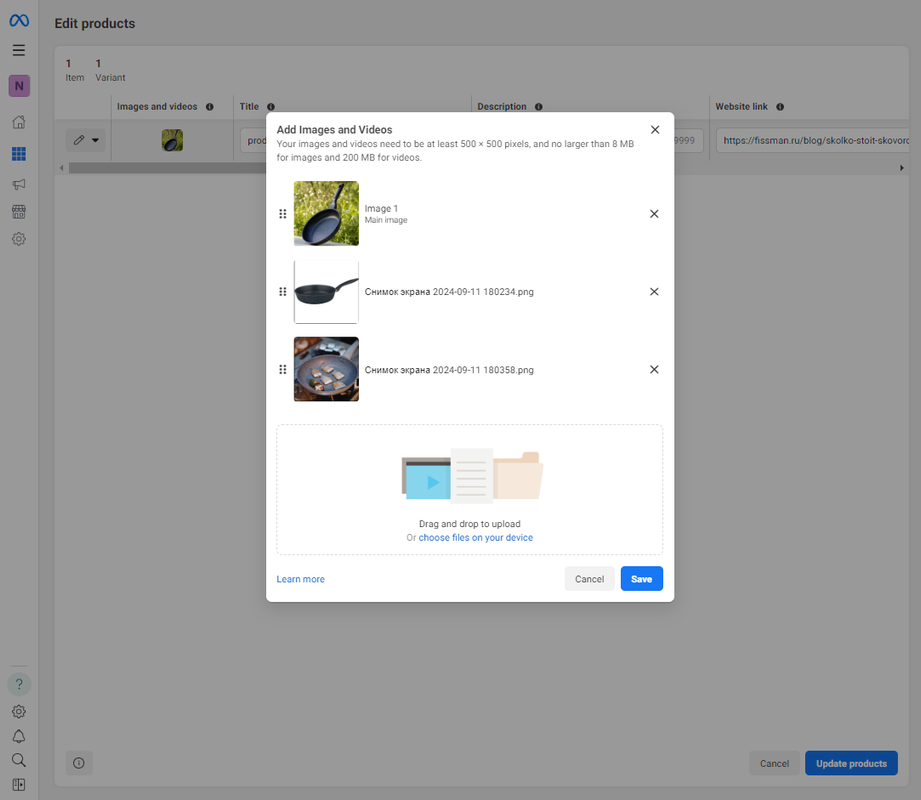
If you need to replace the creative, move the desired image to the first position and click "Save"
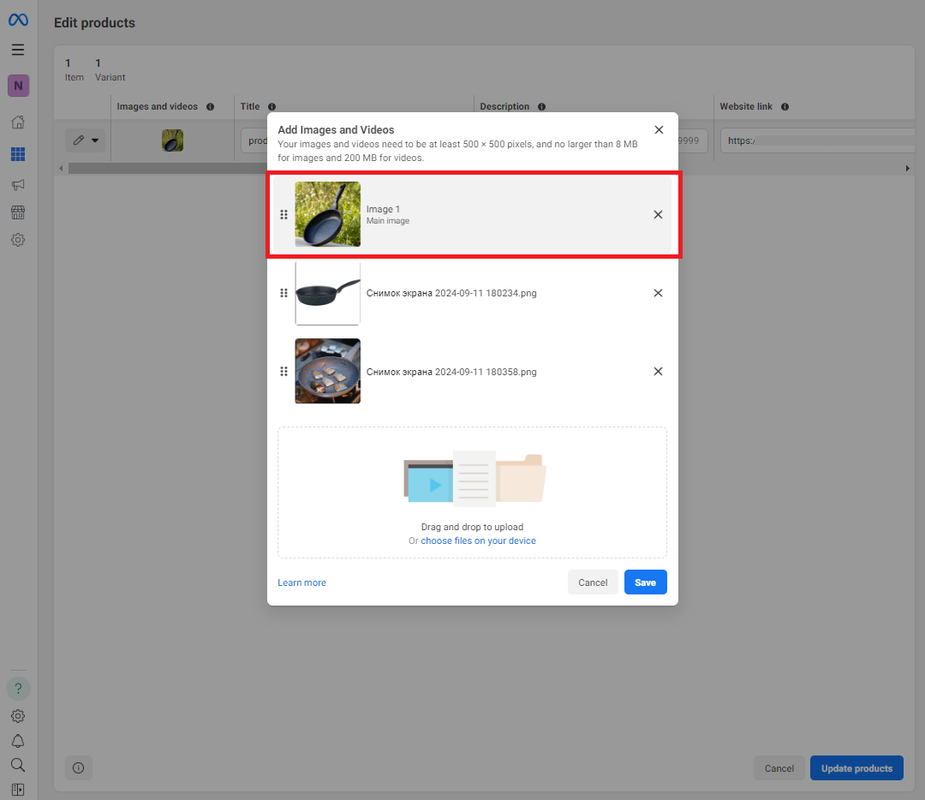
and then "Update products."
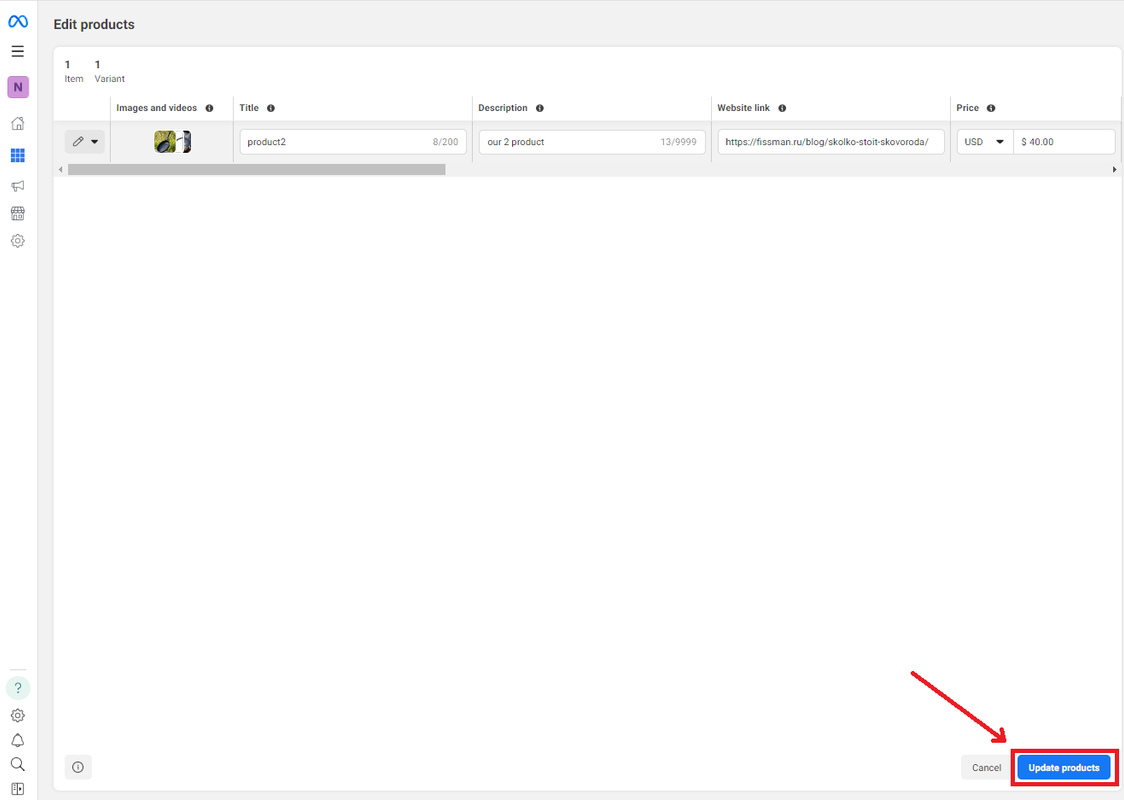
Replacing Data from a Data Feed
If products were uploaded via Google Sheets, simply update the data in the spreadsheet fields like “title” and “description” or replace the image link. Once updated, the new data will appear in the ads after the next refresh.You can also force an immediate update by navigating to "Data sources," selecting the data source, and clicking "Request update now."
Video Creatives in Product Ads
When creating a product with a video creative, you’ll need to upload both the video and an image (which Facebook requires but won't display). The rest is the same as for static creatives.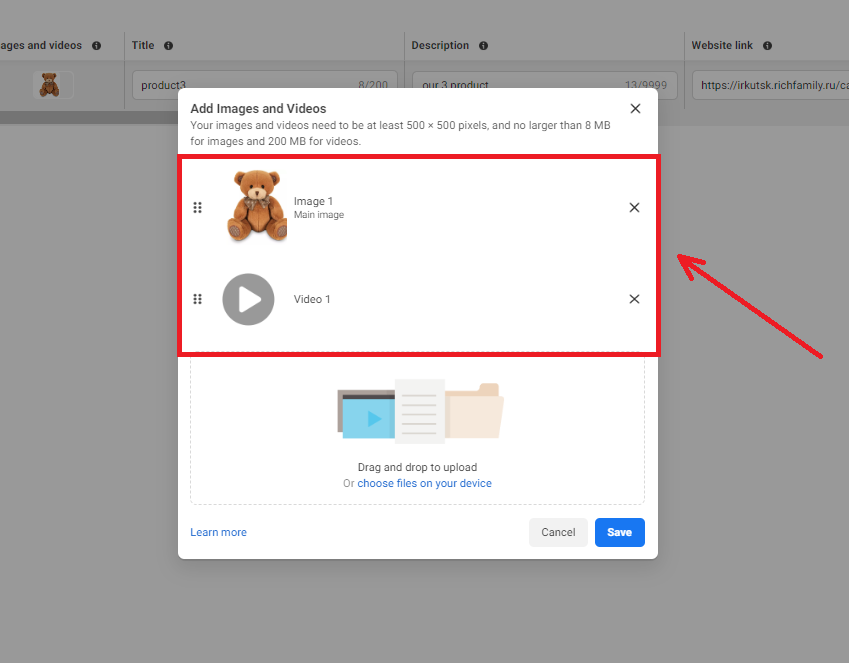
The preview link displays only the video creative. All actions related to replacing a video creative are the same as with static images.
Structuring Ads: Collection Format
The Collection ad format allows you to structure ads to show multiple products, accessible only on mobile devices.Select the "Collection" format, fill in the title, and create a new "Instant Experience." Choose "Storefront" and click "Next." If you want the template to auto-populate with products, select "Order dynamically." Alternatively, choose "Choose a specific order" to manually select products.
Upload an image by clicking "Upload image" — this will be your main creative. Fill in the button text, insert the landing page link, and click "Done."


