

Rachmaninoff
Elite Member
- Jan 19, 2011
- 3,634
- 5,427
I just got back from holiday and this is some souvenirs for you. 
ThemePalace DR87

Signup at
Click Edit Profile. Then at the top right of your browser, click Edit my profile.

Scroll down to Biographical info and place your article and hyperlink into the field. Then hit the Update Profile button.
To see the result, replace the yourusername below with your own username.

Link indexed on google

GiantBomb DR78

Signup for a basic free account at
Make sure you verified your email first. Under Account menu, click Blog.

Then hit ‘Create a new blog entry’. Place your article, naked URL, and images into the editor field.

‘Save your blog’ and then click ‘No, thanks’. And Voila! You made it.

You can create unlimited posts under one account.
Link indexed on google

Bitrix24 DR77
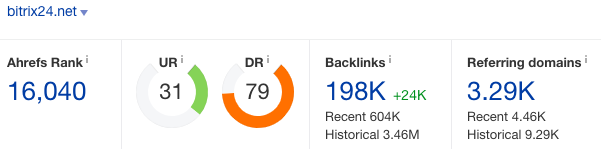
Signup at
Then click ‘New site’. Select a template. Once you’re done editing your blog. Hit the Publish button.
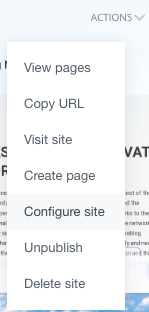
To claim your subdomain, click Configure site. On Site address, add a subdomain name as you like. Then Save.
Link indexed on google

Bonus link
Ameblo DR93

If you don’t like a .jp link as your tier1 then skip this guide or use this as your tier 2 for indexing. Make sure you turn on the auto translate on your Chrome.
Go to
Click the orange button “Register Now (free)”. Fill in your details. Amoeba ID means username, don’t be confused.
On the left sidebar, click Write a blog. Post your article. Hit the green button “Open to everyone” to publish it. Click another green button again to see the result. And there you go. Your article is up and running.

You can post unlimited articles there.
Link indexed on Google

Let me know in the comments below if you have any issues creating these links. To index them, you can use indexing services like bulkaddurl or speed-links as suggested by many members here.
ThemePalace DR87
Signup at
Code:
https://themepalace.com/my-account/Click Edit Profile. Then at the top right of your browser, click Edit my profile.
Scroll down to Biographical info and place your article and hyperlink into the field. Then hit the Update Profile button.
To see the result, replace the yourusername below with your own username.
Code:
https://themepalace.com/users/yourusernameLink indexed on google
GiantBomb DR78
Signup for a basic free account at
Code:
https://www.giantbomb.com/login-signup/Make sure you verified your email first. Under Account menu, click Blog.
Then hit ‘Create a new blog entry’. Place your article, naked URL, and images into the editor field.
‘Save your blog’ and then click ‘No, thanks’. And Voila! You made it.
You can create unlimited posts under one account.
Link indexed on google
Bitrix24 DR77
Signup at
Code:
https://www.bitrix24.net/create/?user_lang=enThen click ‘New site’. Select a template. Once you’re done editing your blog. Hit the Publish button.
To claim your subdomain, click Configure site. On Site address, add a subdomain name as you like. Then Save.
Link indexed on google
Bonus link
Ameblo DR93
If you don’t like a .jp link as your tier1 then skip this guide or use this as your tier 2 for indexing. Make sure you turn on the auto translate on your Chrome.
Go to
Code:
https://www.ameba.jp/Click the orange button “Register Now (free)”. Fill in your details. Amoeba ID means username, don’t be confused.
On the left sidebar, click Write a blog. Post your article. Hit the green button “Open to everyone” to publish it. Click another green button again to see the result. And there you go. Your article is up and running.
You can post unlimited articles there.
Link indexed on Google
Let me know in the comments below if you have any issues creating these links. To index them, you can use indexing services like bulkaddurl or speed-links as suggested by many members here.


