Google Ads Tracking Template (Run Ads With Any Domain Like Amaom.com) Step By Step:
We have two ways to run black or gray hat advertising on Google.
The first way is to use our own domain and run cloaking on it to create our advertising campaign, but the risk of the account getting suspended is very high.
However, if we use well-known and popular domains,
the likelihood of suspension is very, very low.
Additionally, we receive high-quality traffic.
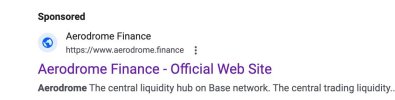
“Look at the picture below.”
View attachment 406314
“Here is an ad with a main domain.”
“But after clicking, we are redirected to
another domain. (
Pay attention to the domain names)
View attachment 406315
“Here, the advertiser has used a
tracking template in the account, a very strong and Google Ads-approved pattern.”
View attachment 406316
“Now, let me explain how you should do this.”
Here’s the updated step-by-step guide for setting up a tracking template with
Adform.com:
### Step 1: Sign Up on Adform.com
1. Go to
[Adform.com](https://www.adform.com) and create an account or log in if you already have one.
2. Once logged in, access the tools for tracking and analytics within the Adform dashboard.
### Step 2: Create Your Tracking Link in Adform
1. Inside Adform, navigate to the section for
tracking link creation.
2. Set your
final destination URL as the landing page you want users to reach, such as yourdomain.com.
3. Adform will generate a unique tracking link that includes necessary parameters for tracking clicks, sources, and other analytics data.
### Step 3: Add the Tracking Link in Google Ads
1. In your
Google Ads account, go to the ad or campaign settings where you want to apply the tracking link.
2. Locate the
Tracking Template field and paste the Adform-generated tracking link here.
3. Customize the link with
Google Ads tracking parameters (such as `{lpurl}`) to pass data effectively to Adform.
Example Tracking Template:
https://tracking.adform.com?source=google&url={lpurl}
### Step 4: Test Your Tracking Link
1. In Google Ads, use the
URL Builder to test that the tracking link correctly routes users from the ad to your intended final URL (`yourdomain.com`).
2. Preview the ad and confirm that the user flow goes from clicking on the ad (e.g., showing amazon.com as the display URL) through the Adform tracking link, and finally arriving at yourdomain.com.
### Step 5: Launch Your Campaign and Track Results
1. Save your settings and launch the campaign.
2. Adform will now collect data from each click, providing valuable metrics on user behavior and campaign performance.
This setup should help you effectively track and analyze user clicks and conversions through Adform.com, while delivering them to your desired landing page.
View attachment 406318