
You are using an out of date browser. It may not display this or other websites correctly.
You should upgrade or use an alternative browser.
You should upgrade or use an alternative browser.
✅ DICloak Browser: Multi-Account Management Tool with a No-Cost Plan Option ✅
- Thread starter DICloak Browser
- Start date


- Mar 14, 2025
- 401
- 132
Sure. It means the Free plan allows 15 profile openings per day. Each time you open a browser profile, it counts once, even if it is the same profile reopened later. With the free trial, you can also test basic features like custom fingerprints, profile editing, proxy configuration, cloud sync, extensions, and limited RPA tasks.What do you mean by 15 times open limitation? Can you elaborate? I would like to get a free trial first.
- Mar 14, 2025
- 401
- 132
DICloak update: Control how many profiles each member can open
With DICloak, admins can now set how many profiles each member can open at the same time in Global Settings. This update is made for teams that need better control when different members handle different accounts, tasks, or workloads.Without a clear opening limit
- one member may open more profiles than the task actually needs
- admins may find it harder to control each member’s working range
- new members may access more profiles than their role should allow
With Concurrent Profile Limit, admins can
- enable the limit in Global Settings
- set the maximum number of profiles each member can open
- apply different limits to selected member groups
For teams running multiple accounts, this helps
- keep profile usage aligned with each member’s role
- prevent members from opening too many account profiles at once
- reduce the need for repeated manual reminders
- keep account operations easier to control as the team grows
Cleaner profile usage. Better team control. More stable multi-account management with DICloak.
More DICloak updates here.

- Mar 14, 2025
- 401
- 132
Running Berachain wallet checks? Don’t mix every wallet in one browser.
When checking rank, airdrop status, explorer data, or token approvals, one small mistake can create a big mess:
- wrong wallet checked from old cache
- testnet and mainnet results mixed
- checker pages showing different snapshots
- team members opening the wrong session
- old token approvals left active
- fake checker links pushing risky signatures
For multi-wallet checks, consistency matters. With DICloak, each wallet group can run in its own profile, with separate session data and a stable proxy setup:
- keep wallet checks separated
- reduce cross-session mistakes
- keep proxy and fingerprint context stable
- assign profiles to the right members
- track actions with operation logs
- use bulk actions or Synchronizer for repeated checker steps
When checking Berachain wallets, each wallet group should stay in a separate profile with a stable environment. Using DICloak makes it easier to separate, track, and repeat multi-wallet checks as the workload grows.
More DICloak updates here.

- Mar 14, 2025
- 401
- 132
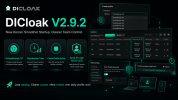
DICloak V2.9.2 Update: New Kernel, Smoother Startup, Clearer Team Control
When profile work scales up, small delays and unclear access rules can slow the whole team down. DICloak V2.9.2 Update adds new options to reduce waiting, review members faster, and keep login access clearer.
1. When some profiles need a newer browser version:
When creating or editing profiles, users can now choose ChromeBrowser 147 to match profiles that need a newer browser version.
2. When member access timelines need a clearer view:
The member list now includes Deactivation Time with sorting support, helping admins review member status and time-sensitive access more clearly.
3. When the wrong profile starts opening:
Users can now cancel profile startup before the process finishes, reducing wasted waiting time during daily or batch profile operations.
4. When too many devices log in from the same IP:
When multiple devices use the same IP, teams can set a clear login limit to keep access easier to control.
Less waiting. Clearer access. More control over your daily profile tasks.
Update to DICloak V2.9.2 and use code [Blackhatworld10] to get 10% off. You can also contact our support team to claim a 7-day trial for paid plans. For more DICloak updates, check here.
- Mar 14, 2025
- 401
- 132
Give each Profile a fresh fingerprint at launch
Preparing new Profiles for account creation, testing, or short-term tasks? Repeating fingerprint setup over and over can take time, especially when you're working with multiple Profiles.
Common challenges when preparing many Profiles
• New account setups often start with the repeated fingerprint configuration work
• Testing different environments can mean changing fingerprint settings again and again
• Preparing multiple Profiles manually slows down account creation and testing
Random fingerprint on each profile launch in DICloak
• Automatically refreshes a Profile’s fingerprint every time it opens, saving repeated manual setup
• Supports account creation, testing, and short-term Profile tasks, helping you prepare Profiles faster
• Can be set per Profile or applied globally, giving flexible control depending on the task
Faster fingerprint setup. Smoother Profile preparation. Contact our support team to get started with DICloak.
For more DICloak updates, check here. And don't forget to use code [Blackhatworld10] to get 10% off.


- Mar 14, 2025
- 401
- 132
Awesome! Feel free to ask if any questions come up. Support can also help with a 7-day free trial if you want to test it first.Gonna have a look at this asap!
- Mar 14, 2025
- 401
- 132
How to Keep Logins, Cookies & Proxies Stable Inside Profiles?
Do you run into issues like profile migration, cookies not carrying over, or proxy changes affecting your setup? Here are 5 FAQs covering issues users commonly run into. Check if any of them match your situation.
1. Can I import browser profiles from other browsers into DICloak?
Yes. If your current tool supports profile export, you can migrate them into DICloak using batch import.
2. How do I import or export cookies in a browser profile?
You can use a cookie extension to export cookies from a logged-in session, then import them into your DICloak profile.
3. Can I bind multiple website accounts in one profile?
Yes. Go to Edit Profile → Link Account section → Add Account. You can add multiple website logins inside the same profile and manage them together. For accounts on the same platform, it’s usually better to keep them in separate profiles for stronger isolation and stability.
4. How do I bulk manage proxy lists?
In Proxies, select multiple entries and use Bulk Operations to delete, test, or assign proxy groups in one action.
5. Will changing the proxy delete my cookies or login sessions?
No. Cookies and sessions stay saved in the profile. However, a new IP location may still trigger re-login or verification on some websites.
If you want to explore DICloak further or have any questions, feel free to reach out to our support team.

- Mar 14, 2025
- 401
- 132
Too Many Repetitive Tasks? Batch It.
As a project grows, those small tasks quickly turn into a long chain of repetitive clicks: creating similar profiles, applying the same settings, opening daily sessions, and updating everything again when something changes.
With DICloak, you can handle those tasks in batches:
- Set up a new batch: Create or import profiles, apply proxy settings, and keep names, groups, and notes consistent from the start.
- Handle a batch in one go: Select the profiles you need and open or close them all at once.
- Adjust an existing batch: Update selected profiles, test or replace proxies, move profiles between teams, or clean up old batches without changing everything one by one.
Less repetitive work. More time for the actual project.
Move faster with Bulk Operations in DICloak.

- Mar 14, 2025
- 401
- 132
DICloak V2.9.7: Easier Login Checks, Cleaner Member Lists
Daily account work often starts before the real task begins: logging in, finding the right members, and checking the right fields. This V2.9.7 update makes these small steps easier.
- Switch Network Routes When Login Connection Fails
When certain network-related login issues happen, users can check available routes and switch to a reachable one before changing networks or contacting support.
- Filter Internal and External Members Faster
Filter by Internal Member or External Member, then find the right people faster during reviews or cleanup.
- Customize the Member List to Show What Matters
Choose the fields you want to see, such as Last Login, Member Role, Status, or Profile Group, and keep the list focused on daily checks.
Update to DICloak V2.9.7 and keep account management running smoothly.
- Mar 14, 2025
- 401
- 132
Do It Once Across Multiple Profiles with Synchronizer
Managing several social media accounts often means repeating the same action in every profile. With Synchronizer, you can perform the same actions across selected profiles from one master control window.
Where the time usually goes
- repeating the same clicks and navigation in every profile
- copying captions, comments, or other text account by account
- switching between windows to check progress or missed steps
What you can do with Synchronizer
- Page Navigation: open the same URL or content page across selected profiles
- Content Engagement: sync actions such as liking, following, and browsing content
- Unique Text: assign different captions, comments, or descriptions to each profile
- Simulation Settings: add click or input delays to make the workflow less uniform
How to start Synchronizer
- Enable Remote Inspector in Global Settings.
- Open the target profiles from Profiles.
- Go to Synchronizer from the left sidebar.
- Choose the profiles and master window, then click Start sync.
- Adjust the Window, Text, or Tabs settings as needed.
Get started with Synchronizer in DICloak today!

- Mar 14, 2025
- 401
- 132
DICloak Update: Easier Route Switching and Better Member Access Control
This update makes DICloak connection issues easier to resolve and Profile group changes easier to apply.
1. Switch Access Routes Inside DICloak
• Use another available route when you cannot access DICloak normally
• Open the route-switching window from the connection prompt or the upper-right corner
• This only changes DICloak’s access route. It does not affect the proxy configured inside any Profile
2. Optional Member Logout During Profile Group Reassignment
• Admins can choose to log a member out when assigning a new Profile group
• When logout is selected, the member signs in again and starts working under the updated group
• No need to wait for the member to log out manually or send a separate reminder
Update DICloak to use the latest features.

- Mar 14, 2025
- 401
- 132
Warm Up Empty Profiles with Cookie Bot
Empty Profiles can look unnatural when used right away. But Cookie Bot takes care of the first browsing step across multiple Profiles before account signup and daily use.
Why users run Cookie Bot
• Build browsing history: visit relevant websites before using a new Profile for Facebook, TikTok, Amazon, or other platforms
• Farm Cookies automatically: collect and save the Cookies generated during each website visit
• Warm up Profiles in batches: apply the same website list to multiple Profiles instead of browsing one by one
• Keep activity regular: continue adding browsing history beyond the initial warm-up
How to start Cookie Bot
• Go to RPA Task > Create RPA, find Cookie Bot, and click Apply
• Enter the URLs Cookie Bot should visit under Task Settings
• Select one or multiple Profiles to run the task• Run it once, repeatedly, cyclically, immediately, or on a schedule
Prepare multiple browser Profiles with Cookie Bot in DICloak.

- Mar 14, 2025
- 401
- 132
DICloak V2.9.10: Find Profiles Faster and Manage Extension Protection with Ease
A fresh DICloak update is here! Let’s take a look at what’s new.
1. Looking for several client or campaign Profiles?
Use Profile names (batch) to enter multiple full or partial names at once. All matching Profiles appear in one list, making campaign checks and client handoffs easier.
2. Want to exempt super admins from extension protection rules?
Turn on Do not apply to team super admins when enabling Enable extension encryption and prevent tampering. Super admins can manage extensions or use developer tools, while restrictions stay active for other members.
Update to DICloak V2.9.10 and try both features.

A fresh DICloak update is here! Let’s take a look at what’s new.
1. Looking for several client or campaign Profiles?
Use Profile names (batch) to enter multiple full or partial names at once. All matching Profiles appear in one list, making campaign checks and client handoffs easier.
2. Want to exempt super admins from extension protection rules?
Turn on Do not apply to team super admins when enabling Enable extension encryption and prevent tampering. Super admins can manage extensions or use developer tools, while restrictions stay active for other members.
Update to DICloak V2.9.10 and try both features.
- Mar 14, 2025
- 401
- 132
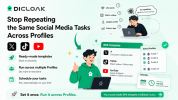
Stop Repeating the Same Social Media Tasks Across Profiles
The task itself may only take a few minutes. Repeat it across 10 or 20 Profiles, and it can quickly take over your day. Social media RPA templates are built for exactly this kind of repeated work.
What can you automate?
- X: browse homepage posts, like content, or update a profile
- TikTok: watch videos or collect followers and video data
- YouTube: search and watch content, publish videos, and collect comments or transcripts
Why use a template?
• Start with a ready-made template instead of building every step
• Select multiple Profiles for the same task
• Choose when the task should run based on your schedule
How to get started
Go to RPA Task > Create RPA, choose a template, and click Apply. Complete the task settings, select the Profiles, and set the run time.
Try a social media RPA template in DICloak today!
- Mar 14, 2025
- 401
- 132
No Template for Your Task? Create Your Own RPA
The template library is only the starting point. Custom RPA gives you more ways to automate your daily work.
Who is it for?
• You already have an Automa process you want to run in DICloak
• No current RPA template covers the task or website you use
• Your team follows a fixed process that needs its own automation
What can you do with Custom RPA?
• Build the task around your own steps, not a preset template
• Run it across selected Profiles now or on a schedule
• Track progress and results in Live status, Run Log, and Task history
How to get started?
1. Record or build the process in Automa
2. Export it as a JSON file
3. Go to RPA Task > Create RPA > Custom RPA
4. Import the file and select the Profiles
5. Complete the task settings and click Run Now
Build a Custom RPA in DICloak around the steps you already use.
And if you decide to try it, code Blackhatworld10 gets you 10% off.

- Mar 14, 2025
- 401
- 132
Running Multiple RPAs? Keep Every Task Under Control
Multiple RPA tasks are useful, but checking their status one by one takes time. Task History gives you a single place to review every execution record.
What can you do with it?
• Choose how many Profiles can run the same RPA task at the same time
• Keep long-running tasks running without being interrupted by system sleep
• Quickly check what task ran, which Profile it used, and its current status
• Find previous RPA runs by task type and creation time
How to access:
- Go to RPA Task > Task History to review execution records
- Open RPA Settings to adjust execution preferences
Keep track of your RPA tasks with Task History in DICloak.
By the way, save 10% with code Blackhatworld10.

- Mar 14, 2025
- 401
- 132
Set Up Extensions Once, Use Them Across Profiles
Adding the same tools to every Profile takes time. With Extensions, you can set them up once and apply them where they are needed. You can also control what team members can see or change.
What can you do with Extensions?
• Add extensions: choose from Marketplace, a Chrome Web Store URL, or a ZIP package
• Apply them to Profiles: organize tools into Extension Groups and assign them in bulk
• Hide selected extensions: use Hidden Settings for specified member groups
• Protect your setup: enable Security Protection to prevent unwanted changes
• Manage everything centrally: update settings, switch extensions on or off, or remove them
How to set it up:
- Go to Extensions and add the extensions you need
- Set the Extension Group, Pin options, and Hidden Settings
- Go to Profiles > Edit or Batch Edit > Advanced > Extension settings and select the group
Start managing extensions across Profiles with DICloak.
Read the full guide here.
And if you decide to try it, code Blackhatworld10 gets you 10% off.

- Mar 14, 2025
- 401
- 132
Manage Profiles and Launch Browser Tasks with DICloak APIs
Still creating Profiles, assigning proxies, and opening browsers manually? Local API and HTTP API let your own system handle these steps.
What can you do with them?
• HTTP API for Profile management: Create or update Profiles, assign proxies, organize Profile Groups, and manage Members through your own system.
• Local API for actions on your device: Open or close Profiles on a computer running DICloak, then let your script continue the browser task.
How do they work together?
For example, HTTP API can create a new Profile and assign its proxy when an account is added to your system. Local API can then open that Profile on the right computer so your script can continue the task.
How to get started:
- Go to Automation > Open API.
- Check the Local API status and generate an API Key.
- Generate an API Key for HTTP API.
- Follow the API guide to connect your script or system.
There’s also a 10% discount with code Blackhatworld10.
