- Nov 29, 2022
- 2,474
- 284

Auto-rules in Facebook Ads are automated actions that you can set up to manage your ad campaigns. These rules help save time and effectively manage budgets, bids, and ad status based on specific conditions without the need for constant monitoring and manual intervention.
How to Set Up Auto-Rules
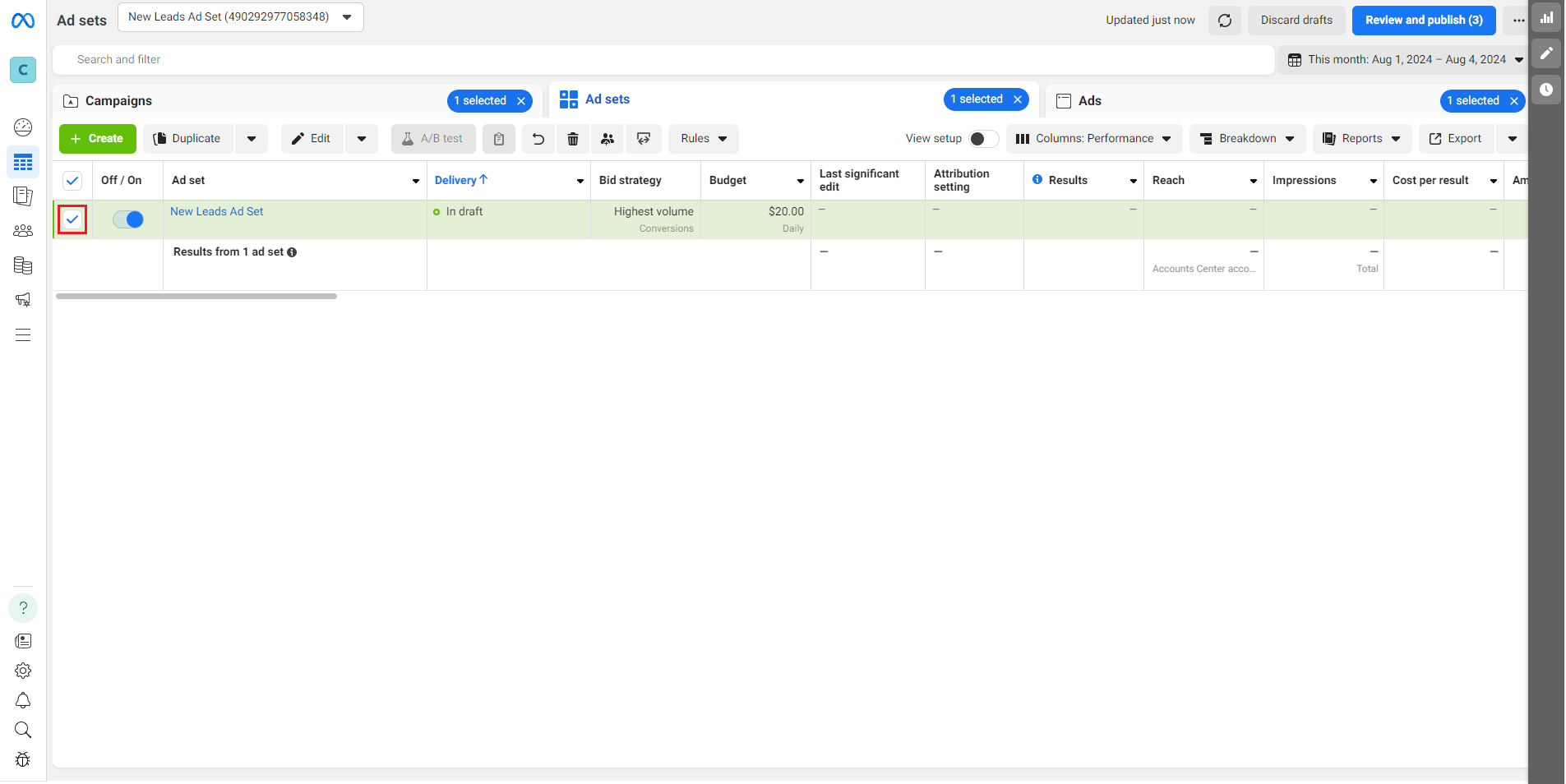
To set up auto-rules in Facebook Ads Manager, select the desired campaign, ad set, or ad. Auto-rules usually work at the ad set level but can also be applied at the campaign or ad level, depending on the tasks.It is crucial that all rules operate at the same level. If you turn off an ad set, you must also turn it on.
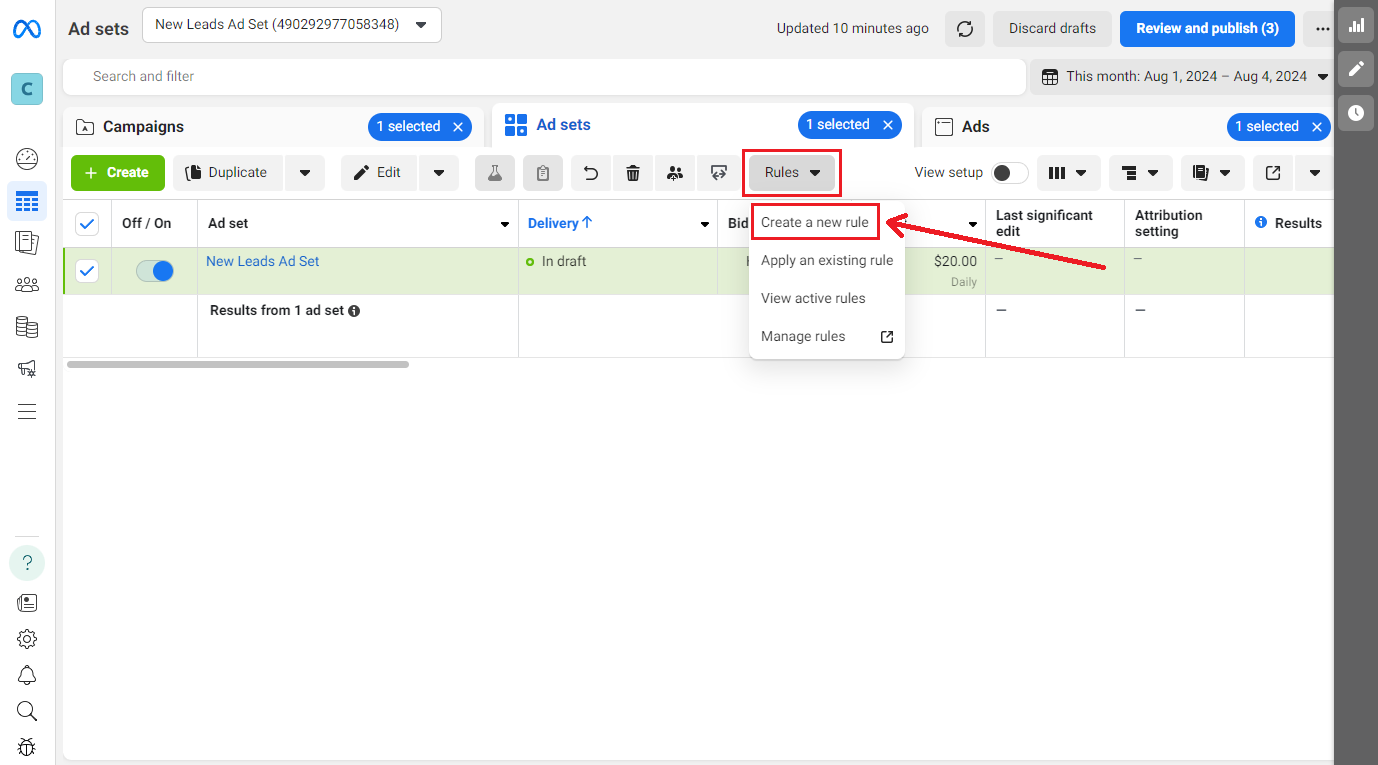
Next, click "Rules" and select "Create a new rule."
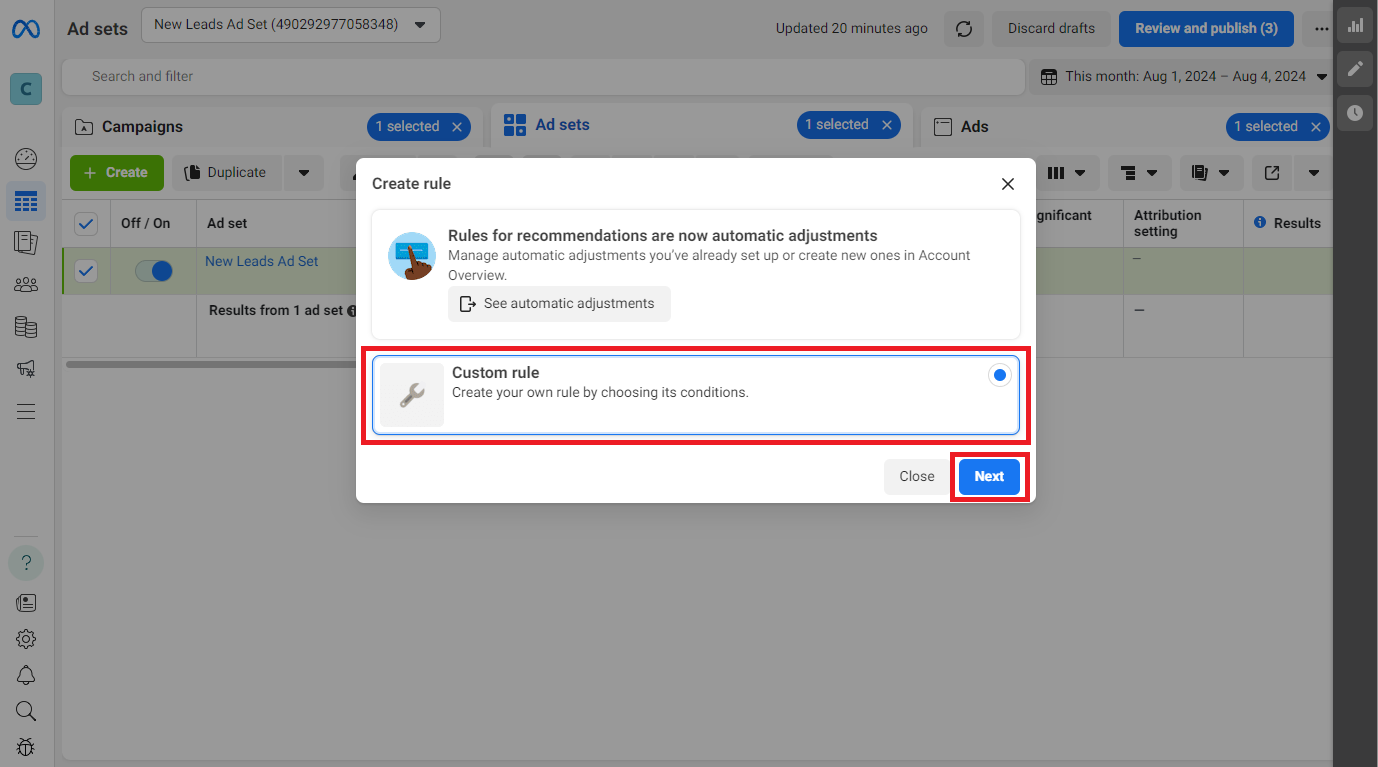
Choose "Custom rule" and click "Next."
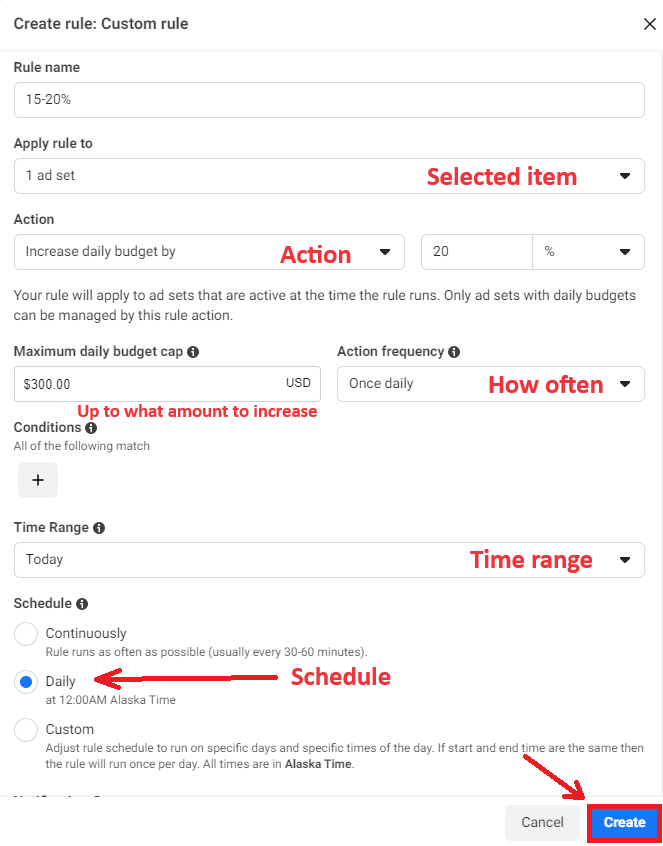
A setup menu for the auto-rule will open, which looks as follows. It is recommended to name the rule clearly to understand its purpose.
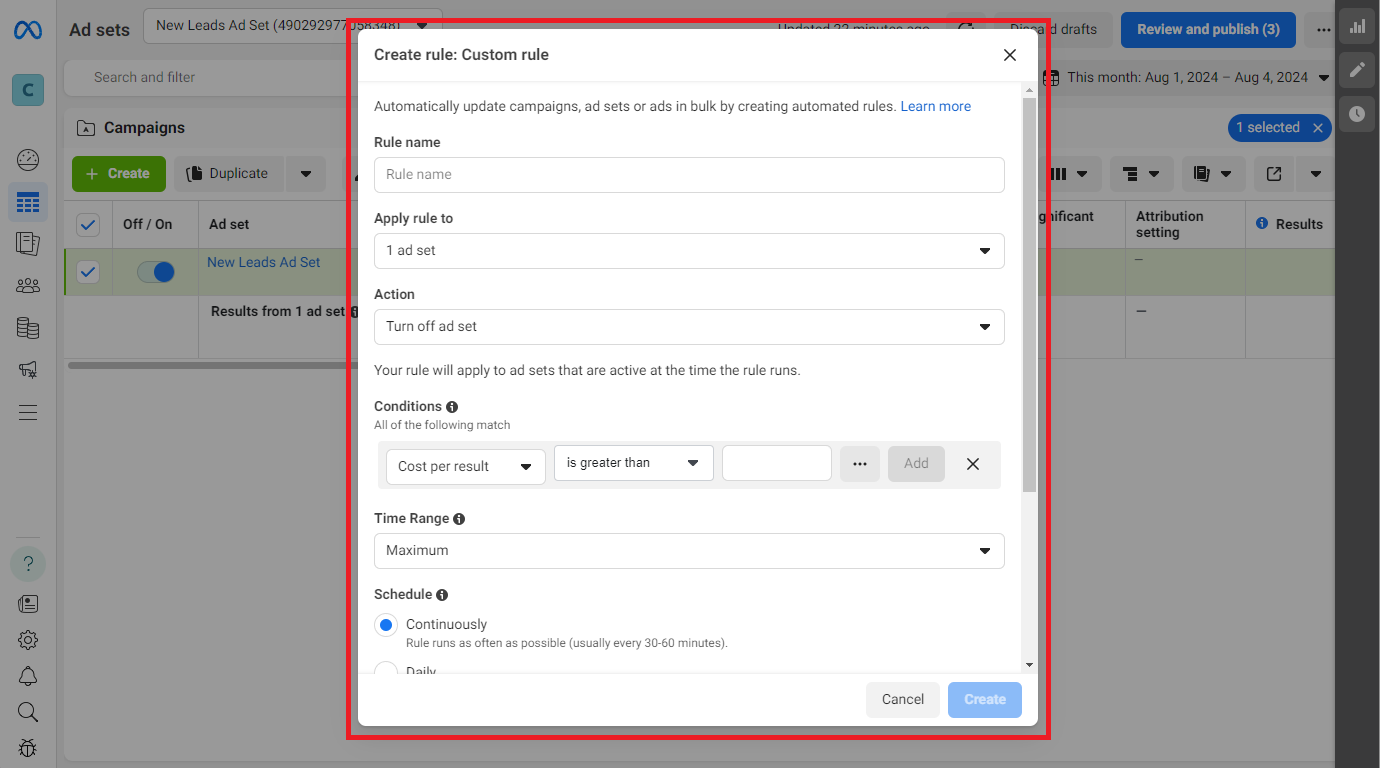
The selected checkbox allows you to set the auto-rule specifically for the chosen element, in our case, the selected ad set. To apply to all elements, do not select the checkbox and choose which elements to apply in the setup menu.
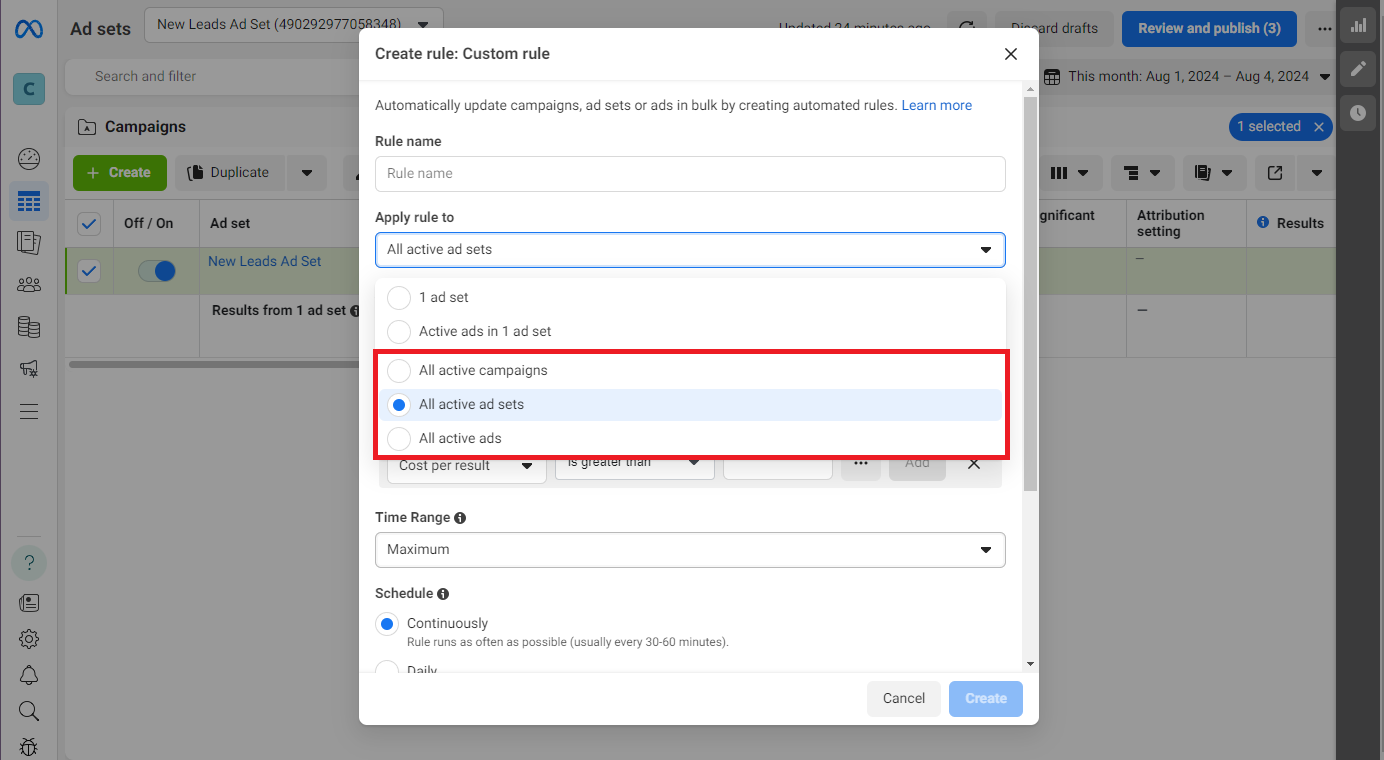
Basic Auto-Rules
Let's break down the main auto-rules that every media buyer should know and the situations where they are applicable.Turn Off Ad Set When There Are No Leads
Avoid wasting money on ads. Turn off an ad set if it does not bring leads after a certain spend. The spend should be 2-3 times the cost per lead, sufficient to get at least one result. Set the following conditions for this rule:- Condition: Spend > $15
- Condition: Lead (Meta Pixel) < 1
- Action: Turn off ad set
- Time range: Today
- Check frequency: Continuously
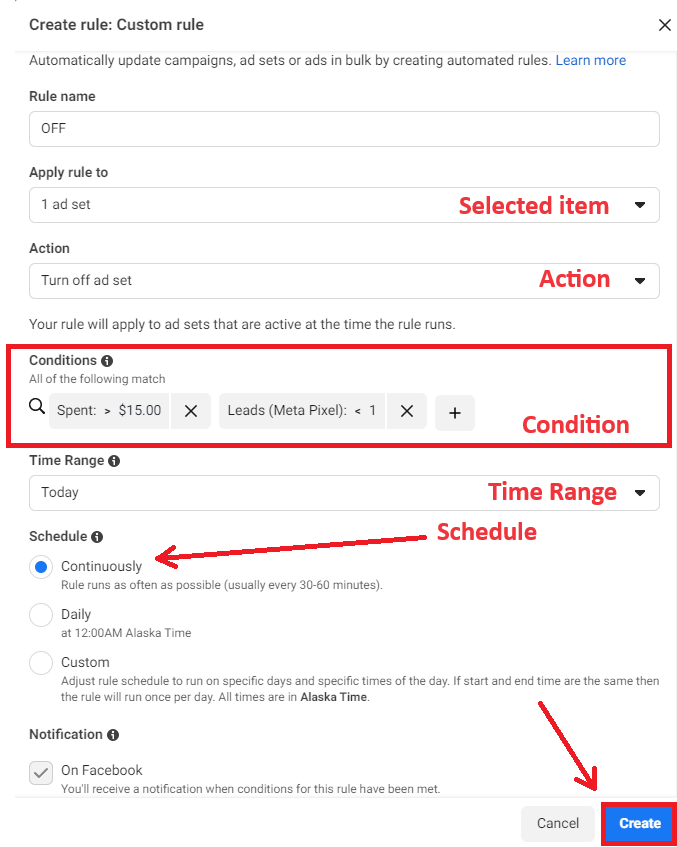
Application:
- Testing a new bundle and scaling. Turns off all ad sets without leads if the rule is set for all ad sets.
- For a working ad set. Turns off if there's a technical failure on your part, preventing users from seeing your landing page (e.g., domain or server failure).
Turn Off Ad Set When Lead Cost Is High
Turn off an ad set if it brings expensive leads- Condition: Cost per Lead (Meta Pixel) > lead cost at breakeven (in this example, $4)
- Action: Turn off ad set
- Time range: Today
- Check frequency: Continuously
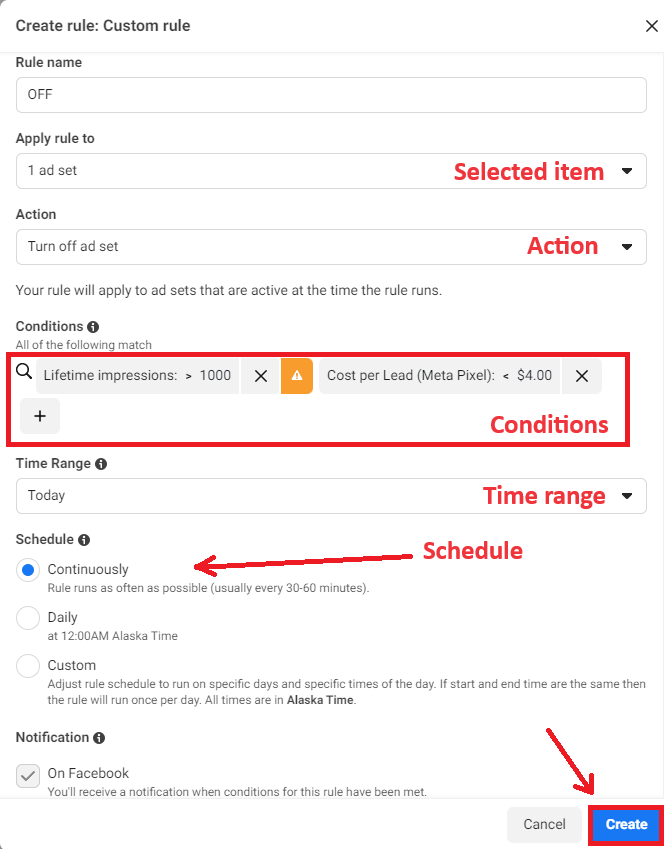
Application:
- Scaling. Turns off all ad sets with high lead costs. Select "Today" for the time range. Example: Launching 10 ad groups with a working bundle, the likelihood of all 10 being successful is nearly zero. This rule turns off all expensive ad sets, leaving the profitable ones.
- For a working ad set. Turns off when the lead cost exceeds the limit. Select "Last 3 days" for the time range.
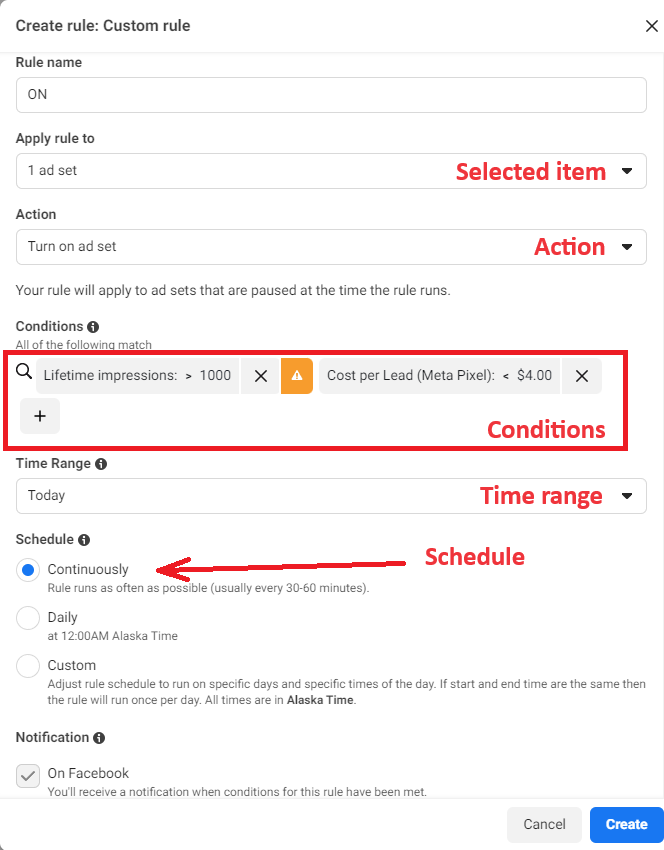
Turn On Ad Set When Lead Cost Normalizes
This rule is recommended to use with the previous one. After turning off an ad set, leads might still come in, lowering the lead cost to the desired value. Set the rule with opposite conditions. If the previous rule had "Lead cost > $4," set this one to "Lead cost < $4."- Condition: Cost per Lead (Meta Pixel) < lead cost at breakeven (in this example, $4)
- Action: Turn on ad set
- Time range: Today
- Check frequency: Continuously
Turn On Ad Set at 00:00
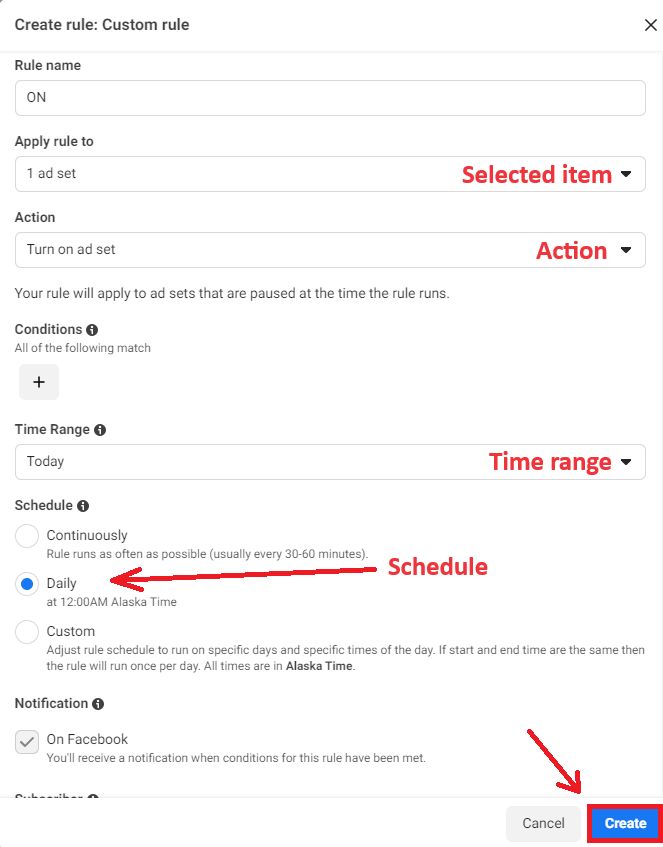
Turn on the ad set for a new auction to try and capture a good audience.- Action: Turn on ad set
- Time range: Today
- Check frequency: Daily
- No conditions
Application:
- Launching new ads. Example: Launching a campaign during the day but pausing it to start showing in a new auction, set this rule.
- Restarting. Example: Turn off an expensive ad set, restart it at 00:00 using this rule.
Increase Budget by 15-20% Daily
After your campaign gains momentum and is profitable, you need to scale it. This rule allows gradual budget adjustments, preventing ad sets from returning to the learning phase.- Action: Increase daily budget by 15-20%
- Maximum daily budget cap: $300 (recommended)
- Action frequency: Once daily
- Time range: Today
- Check frequency: Daily
- No conditions