

Mr.Profit
Regular Member
- Dec 22, 2009
- 221
- 481
Hello BHW,
In this post I will explain how to use multiple instances of Mozilla Firefox along with iMacros for automation.
Now, you may ask - WHY THE HELL I SHOULD DO THIS?
Well, here are some benefits:
- Each instance has its own settings
- Each instance has its own SEPARATE COOKIES
- Each instance MAY HAVE its own PROXY
- Each instance COULD be used to automate THE SAME SITE with different USERNAME!
- All the instances are going to work better, because they won't be heavily enhanced with add-ons like your primary browser.
Remember the IMVU thread lately? Now imagine you COULD'VE RUN the script with 10 users AT THE SAME TIME, targeting DIFFERENT GROUP of members, or using DIFFERENT TWIST? This would result into:
- More conversions per time period
- Easier and FASTER split testing your method/s
- A lot more I can't simply think of right now...
OR MAYBE you've some PPC Vouchers, but you're too scared not to mess up the proxies and cookies and whatnot? Well, this can help you too!
First of all you need to get Firefox if you don't have it already! Get it from here:
For those of you, who are using 64bit Windows/Linux Systems get Waterfox (64bit Firefox) from here:
You can get also 64bit versions of Adobe Flash, Java, and Microsoft Silverlight from the link above.
Now that you have Firefox, you need to setup your instances and we will do this using the built-in Profile Manager:
1) Rename the shortcut on your desktop to "FF Profile Manager" or "FF Profile Selector" or anything that you want, as long as you know it's not the main FF shortcut
2) Right-click on the shortcut you just renamed, and in the TARGET field add the following:
NOTICE: There's a space before the first "-" in "-no-remote"

3) Click "Apply" and then "OK"
Let's setup some profiles, and this is quite easy too:
1) Start the FF Profile Manager
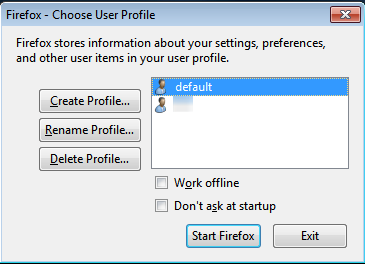
2) Click on the "Create Profile" -> "Next"
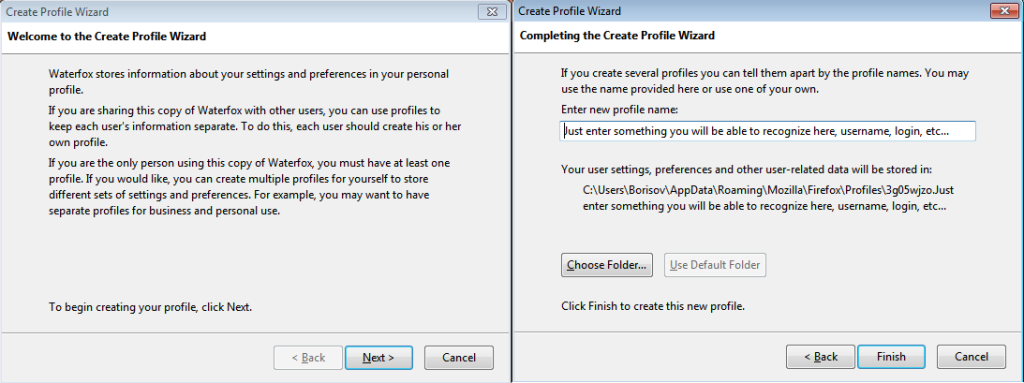
3) Enter a name for your new profile - Make sure it means something to you, or it describes what this profile is for, but keep it short (I'll explain later) and click the "Finish" button
Okay, by now you've setup FF and one (or more) profiles. Now to let the magic happen you need to install some Plugins, which will control the proxies and iMacros of course. Also you want to tune up a bit each profile, so it's faster and works smoothly. Let's start:
In the address bar write the following:
You'll have to agree to be careful, and then you'll be able to edit under-the-hood settings on your browser. Now search for these settings, and change their values accordingly:
Enough with the network settings, a few other tweaks:
1) Create new INTEGER based option (Right-Click in the Window -> "New" -> "Integer"), and name it "nglayout.initialpaint.delay" (without quotes) and for its value use "0" (ZERO) - this will force FF to use less resources when minimized!

2) Set "browser.cache.memory.enable" to TRUE
3) Add new INTEGER based option (See above how to do it) "browser.cache.memory.capacity" and set its value to "20000" (Equals to 20MB) - This option forces FF to use the particular amount of cache memory.
4) MOST IMPORTANT, download Firemin from:
This little app will optimize Firefox databases and will result in GREAT IMPROVEMNT of PERFORMANCE of all your instances! Using this alone, I was able to lower the memory usage to 10-12MB per 50 open tabs!
Last but not least the Plugins you WILL need to be able to use the instances separately, and without confusing them with one another:
1) Premium Proxy Switcher - BY FAR my favorite proxy switching plugin for Firefox, although the name says "Premium", you can import and use your own proxies in there, and you don't have to use the premium service. Download it from here, but make sure you're getting the latest version - 1.0.14 at the time of writing this:
2) Show Profile - This will add the name of your profile to each instance, so you can easily know which one is which. I suggest you setting up "custom text", otherwise the name of the profile will be used.:

Download it from:
3) AdBlock Plus/Light - Most of you know what this one does, so I won't go into detail - in short skipping ads will result in better page loading speed at least! Download it from:
4) AND.... iMacros - The tricky part here is that iMacros will not be able to RECOGNIZE its own folders after the first installation on the first profile, SO when you install it on the 2nd, 3rd and so on profiles you need to set the paths, by going to "Edit" -> "Options" -> "Paths" and fill in the appropriate folders!

Otherwise if you use many iMacros folders, like:
(My) Documents\iMacros-1
(My) Documents\iMacros-2
.....
You can bind these to the different profiles and use the same Datasource files, just change the information in there, and THEREFORE you can use the same MACRO (you won't have to change the Datasource line every time)
Both of these methods are OK, depending on you. I personally prefer only 1 iMacros folder with many versions of my DATASOURCE and MACRO files.
Regards,
Mr.Profit
In this post I will explain how to use multiple instances of Mozilla Firefox along with iMacros for automation.
Now, you may ask - WHY THE HELL I SHOULD DO THIS?
Well, here are some benefits:
- Each instance has its own settings
- Each instance has its own SEPARATE COOKIES
- Each instance MAY HAVE its own PROXY
- Each instance COULD be used to automate THE SAME SITE with different USERNAME!
- All the instances are going to work better, because they won't be heavily enhanced with add-ons like your primary browser.
Remember the IMVU thread lately? Now imagine you COULD'VE RUN the script with 10 users AT THE SAME TIME, targeting DIFFERENT GROUP of members, or using DIFFERENT TWIST? This would result into:
- More conversions per time period
- Easier and FASTER split testing your method/s
- A lot more I can't simply think of right now...
OR MAYBE you've some PPC Vouchers, but you're too scared not to mess up the proxies and cookies and whatnot? Well, this can help you too!
First of all you need to get Firefox if you don't have it already! Get it from here:
Code:
http://www.mozilla.org/en-US/products/download.html?product=firefox-11.0&os=win&lang=en-USFor those of you, who are using 64bit Windows/Linux Systems get Waterfox (64bit Firefox) from here:
Code:
http://waterfoxproject.org/downloads/You can get also 64bit versions of Adobe Flash, Java, and Microsoft Silverlight from the link above.
Now that you have Firefox, you need to setup your instances and we will do this using the built-in Profile Manager:
1) Rename the shortcut on your desktop to "FF Profile Manager" or "FF Profile Selector" or anything that you want, as long as you know it's not the main FF shortcut
2) Right-click on the shortcut you just renamed, and in the TARGET field add the following:
Code:
-no-remote -ProfileManagerNOTICE: There's a space before the first "-" in "-no-remote"
3) Click "Apply" and then "OK"
Let's setup some profiles, and this is quite easy too:
1) Start the FF Profile Manager
2) Click on the "Create Profile" -> "Next"
3) Enter a name for your new profile - Make sure it means something to you, or it describes what this profile is for, but keep it short (I'll explain later) and click the "Finish" button
Okay, by now you've setup FF and one (or more) profiles. Now to let the magic happen you need to install some Plugins, which will control the proxies and iMacros of course. Also you want to tune up a bit each profile, so it's faster and works smoothly. Let's start:
In the address bar write the following:
Code:
about:configYou'll have to agree to be careful, and then you'll be able to edit under-the-hood settings on your browser. Now search for these settings, and change their values accordingly:
network.http.pipelining to True (Double click on the row to change)
network.http.proxy.pipelining to True (Double click on the row to change)
network.http.pipelining.ssl to True (Double click on the row to change)
network.http.pipelining.maxrequests to 20
network.http.max-connections to 128
network.http.max-connections-per-server to 48
network.http.max-persistent-connections-per-proxy to 24
network.http.max-persistent-connections-per-server to 12
Enough with the network settings, a few other tweaks:
1) Create new INTEGER based option (Right-Click in the Window -> "New" -> "Integer"), and name it "nglayout.initialpaint.delay" (without quotes) and for its value use "0" (ZERO) - this will force FF to use less resources when minimized!
2) Set "browser.cache.memory.enable" to TRUE
3) Add new INTEGER based option (See above how to do it) "browser.cache.memory.capacity" and set its value to "20000" (Equals to 20MB) - This option forces FF to use the particular amount of cache memory.
4) MOST IMPORTANT, download Firemin from:
Code:
http://www.rizonesoft.com/2011/firemin/This little app will optimize Firefox databases and will result in GREAT IMPROVEMNT of PERFORMANCE of all your instances! Using this alone, I was able to lower the memory usage to 10-12MB per 50 open tabs!
Last but not least the Plugins you WILL need to be able to use the instances separately, and without confusing them with one another:
1) Premium Proxy Switcher - BY FAR my favorite proxy switching plugin for Firefox, although the name says "Premium", you can import and use your own proxies in there, and you don't have to use the premium service. Download it from here, but make sure you're getting the latest version - 1.0.14 at the time of writing this:
Code:
http://freeproxylist.org/en/premium-proxy-switcher.htm2) Show Profile - This will add the name of your profile to each instance, so you can easily know which one is which. I suggest you setting up "custom text", otherwise the name of the profile will be used.:
Download it from:
Code:
https://addons.mozilla.org/en-US/firefox/addon/show-profile/3) AdBlock Plus/Light - Most of you know what this one does, so I won't go into detail - in short skipping ads will result in better page loading speed at least! Download it from:
Code:
https://addons.mozilla.org/en-US/firefox/addon/adblock-plus/

OR

https://addons.mozilla.org/en-US/firefox/addon/adblock_lite/
4) AND.... iMacros - The tricky part here is that iMacros will not be able to RECOGNIZE its own folders after the first installation on the first profile, SO when you install it on the 2nd, 3rd and so on profiles you need to set the paths, by going to "Edit" -> "Options" -> "Paths" and fill in the appropriate folders!
ATTENTION! When using ONLY 1 MAIN iMacros folder [(My) Documents\iMacros], and using Datasource files in your scripts you will need to name it differently for each instance!
Otherwise if you use many iMacros folders, like:
(My) Documents\iMacros-1
(My) Documents\iMacros-2
.....
You can bind these to the different profiles and use the same Datasource files, just change the information in there, and THEREFORE you can use the same MACRO (you won't have to change the Datasource line every time)
Both of these methods are OK, depending on you. I personally prefer only 1 iMacros folder with many versions of my DATASOURCE and MACRO files.
NOW GO RECORD SOME MACROS and START EARNING!!!
Regards,
Mr.Profit
Last edited:


