
You are using an out of date browser. It may not display this or other websites correctly.
You should upgrade or use an alternative browser.
You should upgrade or use an alternative browser.
Jarvee Proxy Manager not working !
- Thread starter mugupo
- Start date


Stiletto
Elite Member
- Nov 5, 2012
- 2,282
- 1,049
Proxy manager works perfect 
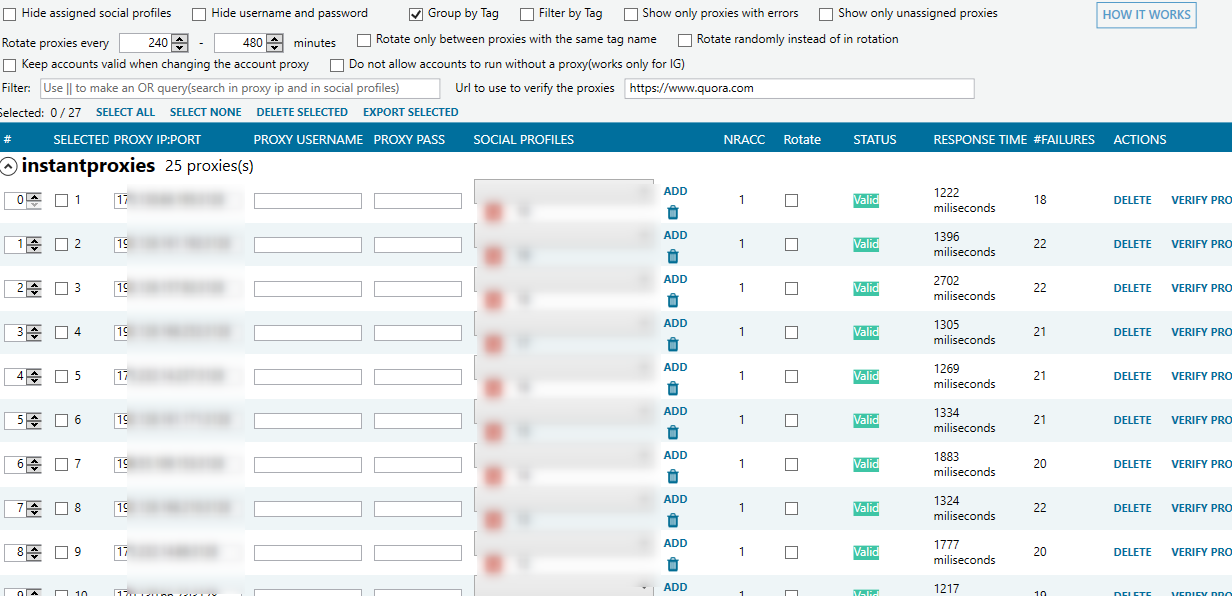
If you use IP authentication, and you have dynamic IP, it might be your ISP changed your IP so your proxies do not work. Check that.
Also, you can try opening embedded browser for any of the proxies and visiting any site (IG, FB), see will you be able to open them.
If you use IP authentication, and you have dynamic IP, it might be your ISP changed your IP so your proxies do not work. Check that.
Also, you can try opening embedded browser for any of the proxies and visiting any site (IG, FB), see will you be able to open them.

iosifelxosari
Junior Member
- Apr 6, 2019
- 138
- 25
Please go to the Social Profiles tab and click Actions == Browse Embedded next to one of the blocked accounts:

And try to do the action (Follow, Like or Comment) manually from the Embedded Browser and refresh the page by checking the "Enable Manual Browsing" box and clicking "GO" and see if the action (Follow, Like or Comment) did stick or not:

Now, there are two scenarios:
If the actions are sticking from the Embedded Browser, you can set Jarvee to do those actions using the Embedded Browser by going to Settings == Social Platforms == Instagram and checking the following 4 boxes:

Here's how the "Logout from Embedded Browser when following using Embedded Browser is blocked" work:
Use this option if you want the Embedded Browser to log out when the follow doesn't succeed(blocked) with the Embedded Browser.
Useful in situations where the follow action is blocked in the EB and after a log out and login it starts working again.
When the Follow doesn't succeed with the Embedded Browser the suspend when getting temporary block between x -y minutes applies.
You can use the option from Follow Tool or Account Profile Settings or Global settings to control the suspend time and at the same time the max amount of times the EB can logout and login in the account.
PS: If you don't see the box for this option in your end, don't worry about that. It will be available in the next Jarvee update.
Once you check those boxes, stop and start your tool and it should be doing those actions using the Embedded Browser.
Second Scenario: The action did not stick
If the action did not stick after refreshing the page, please follow the steps below in their order.
Once you get the actions to stick, you need to apply what we explained above when the actions do stick.
Step 1: Log out and Log in
Log out from your account inside the Embedded Browser by visiting your profile page and clicking here:

And then click Log out from the next page:

Log in again and try to do the action from the Embedded Browser and see if it does stick or not.
If it doesn't stick move on to the next step.
Step 2: Re-login your account
Please go to the Social Profiles tab and select the account or accounts you would like to Re-login for and click "Actions On Selected Profiles" and under "Instagram Actions" section click "Re-login Accounts";
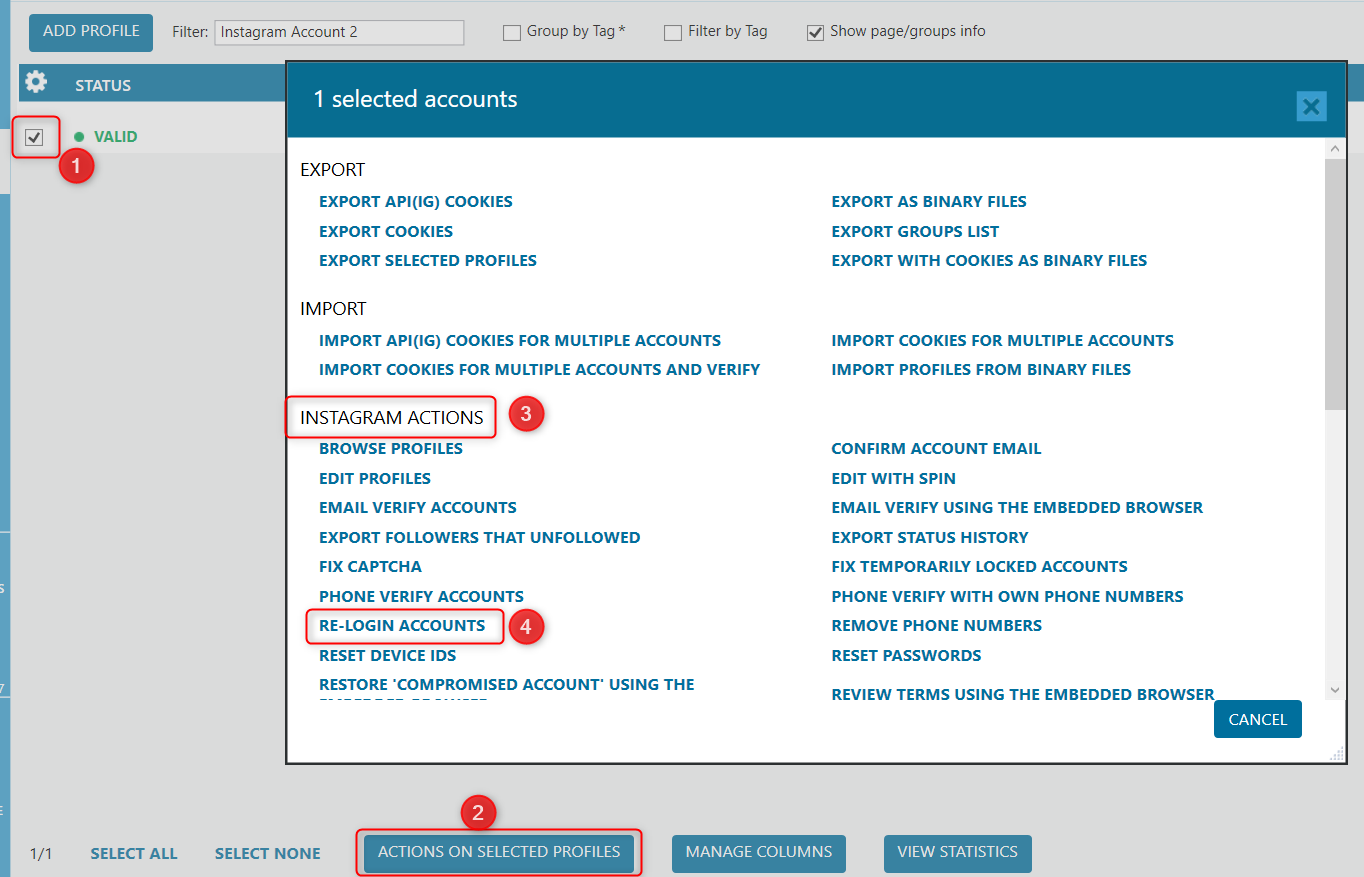
What that option does is that it logout and then login via api on selected accounts. The device id will not be reset, it emulates logging out and logging in on the same phone.
If that doesn't help solving the issue, move to the next step.
Step 3: Reset account Device ID and try again
Please go to the Social Profiles tab and select the account or accounts you would like to reset the Device ID for and click "Actions On Selected Profiles" and under "Instagram Actions" section click "Reset Device IDs";

Once the Device IDs are generated your account status will change to Pending, click on Verify next to it:

Once the account Status is Valid, try to do the actions from the Embedded Browser and see if they do stick or not.
If not, please move to the next step.
Step 4: Try with different proxy providers
If all the above didn't work, Instagram probably doesn't like the proxies or IP you are using.
If you have been doing Instagram marketing for a long time now, you will remember that something similar happened in the last year with the like blocks and finding a good proxy provider solved the issue.
Here's our recommendation:
Instagram flagged a lot of proxies and IPs recently, please try with a new proxy provider (buy only 1 proxy and try with 1 account only) If you try to do the actions from the Embedded Browser using the new proxy and the action still doesn't stick, stop trying for 1 - 2 days and try again.
You can try with 4 different proxies providers and 4 accounts to find which proxy provider is going to work for you faster.
You can ask the proxy providers for 1 proxy as a free trial to test if they work well for your Instagram automation needs instead of buying them directly, some of the providers will agree to this while others won't, but it's worth a try.
If the above didn't solve the issue as well, please move to the next step.
Step 5: Number Of Follows and Others using the account
If trying different proxy providers didn't help, the account either reached the 6000 limit in the last 30 days or other users are connecting to that account and doing actions.
If you think you reached the 6000 limit in the last 30 days, please stop the tool for few days and then try using it again.
If you are managing clients accounts, Instagram doesn't like the fact that the account is doing actions from 2 devices at the same time.
What you need to do is agree with every client on specific hours he can use the account manually from his phone and set up a night mode for that account during those hours in Jarvee.
You can do that by going to the Social Profiles tab and clicking Actions == Edit next to that Instagram account and set up the night mode from here:

Step 6: More stuff to check
If all the above didn't help, please make sure you:
- Don't have anything in common between your accounts:
What we mean with this, is that you shouldn't have:
If you are running more than 2 Instagram accounts, you will need to use proxies.
You can read more about proxies and how to use them here if you are not familiar with the concept: https://jarvee.com/knowledge-base/use-proxy-manager/
When using proxies, make sure you don't use more than 2 accounts per proxy even if you are using mobile or residential proxies.
Otherwise, Instagram can easily link the accounts together.
-Don't use Shared Proxies:
Please make sure you are using Dedicated/Private proxies that no one else is using them
Shared proxies can be shared between multiple users and you really don't know what the other person is doing with them.
He could be using them to create Instagram accounts and they will get flagged in minutes.
- Don't use the follow and unfollow tools at the same time:
Instagram doesn't like accounts doing follows and unfollows at the same time.
We recommend using the following feature instead:
Enable automatic follow/unfollow is a function that will start or stop the tool after a certain amount of followers/followings is reached. So the Follow tool will work until account follows (for example) 7498 users, then the Follow tool stops and Unfollow tool starts unfollowing until the number of followings is less than 500 (example) you can change that number from unfollow settings as shown in the picture below:

It's recommended to use this option in order to avoid running both tools at the same time.
And it's necessary to enable "automatic follow/unfollow" in both tools, Follow and Unfollow, but you only start one tool and Jarvee will take care of the rest.
- Don't use any other tools with your account and don't do actions from other devices:
Make sure you are not using other tools with your account and disconnect your account from any other tools you might be using.
We mentioned this above, but we will repeat it since it's important:
If you are managing clients accounts, Instagram doesn't like the fact that the account is doing actions from 2 devices at the same time.
What you need to do is agree with every client on specific hours he can use the account manually from his phone and set up a night mode for that account during those hours in Jarvee.
You can do that by going to the Social Profiles tab and clicking Actions == Edit next to that Instagram account and set up the night mode from here:
- Don't use aggressive settings:
Please make sure your settings are less than 180 actions per day and that they are less than 20 actions per hour.
Make sure you don't do all 20 actions in the same minute but spread them across the hour and day.
Conclusion:
These are all the recommendations we have at the moment that can solve the issue, try them in the order they are outlined above.
And with everything being said, our developers are still investigating and trying to find a workaround for the blocks if there's one. If we find a solution, we will send an email to all our users. So don't worry about being left in the dark.
We also recommend not relying too much on the follow/unfollow strategy, we have written this blog post with other methods you can use to grow your Instagram account: https://jarvee.com/what-to-do-about-the-latest-instagram-action-blocks/
Give those methods some time and try to adjust them and they should work just fine.
We're happy to help, please don't hesitate to contact us if you have any questions.
And try to do the action (Follow, Like or Comment) manually from the Embedded Browser and refresh the page by checking the "Enable Manual Browsing" box and clicking "GO" and see if the action (Follow, Like or Comment) did stick or not:
Now, there are two scenarios:
- The action did stick when it was done manually from the Embedded Browser.
- The action didn't stick when it was done manually from the Embedded Browser.
If the actions are sticking from the Embedded Browser, you can set Jarvee to do those actions using the Embedded Browser by going to Settings == Social Platforms == Instagram and checking the following 4 boxes:
Here's how the "Logout from Embedded Browser when following using Embedded Browser is blocked" work:
Use this option if you want the Embedded Browser to log out when the follow doesn't succeed(blocked) with the Embedded Browser.
Useful in situations where the follow action is blocked in the EB and after a log out and login it starts working again.
When the Follow doesn't succeed with the Embedded Browser the suspend when getting temporary block between x -y minutes applies.
You can use the option from Follow Tool or Account Profile Settings or Global settings to control the suspend time and at the same time the max amount of times the EB can logout and login in the account.
PS: If you don't see the box for this option in your end, don't worry about that. It will be available in the next Jarvee update.
Once you check those boxes, stop and start your tool and it should be doing those actions using the Embedded Browser.
Second Scenario: The action did not stick
If the action did not stick after refreshing the page, please follow the steps below in their order.
Once you get the actions to stick, you need to apply what we explained above when the actions do stick.
Step 1: Log out and Log in
Log out from your account inside the Embedded Browser by visiting your profile page and clicking here:
And then click Log out from the next page:
Log in again and try to do the action from the Embedded Browser and see if it does stick or not.
If it doesn't stick move on to the next step.
Step 2: Re-login your account
Please go to the Social Profiles tab and select the account or accounts you would like to Re-login for and click "Actions On Selected Profiles" and under "Instagram Actions" section click "Re-login Accounts";
What that option does is that it logout and then login via api on selected accounts. The device id will not be reset, it emulates logging out and logging in on the same phone.
If that doesn't help solving the issue, move to the next step.
Step 3: Reset account Device ID and try again
Please go to the Social Profiles tab and select the account or accounts you would like to reset the Device ID for and click "Actions On Selected Profiles" and under "Instagram Actions" section click "Reset Device IDs";
Once the Device IDs are generated your account status will change to Pending, click on Verify next to it:
Once the account Status is Valid, try to do the actions from the Embedded Browser and see if they do stick or not.
If not, please move to the next step.
Step 4: Try with different proxy providers
If all the above didn't work, Instagram probably doesn't like the proxies or IP you are using.
If you have been doing Instagram marketing for a long time now, you will remember that something similar happened in the last year with the like blocks and finding a good proxy provider solved the issue.
Here's our recommendation:
Instagram flagged a lot of proxies and IPs recently, please try with a new proxy provider (buy only 1 proxy and try with 1 account only) If you try to do the actions from the Embedded Browser using the new proxy and the action still doesn't stick, stop trying for 1 - 2 days and try again.
You can try with 4 different proxies providers and 4 accounts to find which proxy provider is going to work for you faster.
You can ask the proxy providers for 1 proxy as a free trial to test if they work well for your Instagram automation needs instead of buying them directly, some of the providers will agree to this while others won't, but it's worth a try.
If the above didn't solve the issue as well, please move to the next step.
Step 5: Number Of Follows and Others using the account
If trying different proxy providers didn't help, the account either reached the 6000 limit in the last 30 days or other users are connecting to that account and doing actions.
If you think you reached the 6000 limit in the last 30 days, please stop the tool for few days and then try using it again.
If you are managing clients accounts, Instagram doesn't like the fact that the account is doing actions from 2 devices at the same time.
What you need to do is agree with every client on specific hours he can use the account manually from his phone and set up a night mode for that account during those hours in Jarvee.
You can do that by going to the Social Profiles tab and clicking Actions == Edit next to that Instagram account and set up the night mode from here:
Step 6: More stuff to check
If all the above didn't help, please make sure you:
- Don't have anything in common between your accounts:
What we mean with this, is that you shouldn't have:
- The same bio description.
- The same link, or redirecting to the same landing page.
- Posting the same images.
- Using the same Caption for the posts.
- Sending the same message if you are using the contact tool.
- Commenting using the same comment if you are using the comment tool.
- Using more than 2 accounts from the same IP or Proxy.
If you are running more than 2 Instagram accounts, you will need to use proxies.
You can read more about proxies and how to use them here if you are not familiar with the concept: https://jarvee.com/knowledge-base/use-proxy-manager/
When using proxies, make sure you don't use more than 2 accounts per proxy even if you are using mobile or residential proxies.
Otherwise, Instagram can easily link the accounts together.
-Don't use Shared Proxies:
Please make sure you are using Dedicated/Private proxies that no one else is using them
Shared proxies can be shared between multiple users and you really don't know what the other person is doing with them.
He could be using them to create Instagram accounts and they will get flagged in minutes.
- Don't use the follow and unfollow tools at the same time:
Instagram doesn't like accounts doing follows and unfollows at the same time.
We recommend using the following feature instead:
Enable automatic follow/unfollow is a function that will start or stop the tool after a certain amount of followers/followings is reached. So the Follow tool will work until account follows (for example) 7498 users, then the Follow tool stops and Unfollow tool starts unfollowing until the number of followings is less than 500 (example) you can change that number from unfollow settings as shown in the picture below:
It's recommended to use this option in order to avoid running both tools at the same time.
And it's necessary to enable "automatic follow/unfollow" in both tools, Follow and Unfollow, but you only start one tool and Jarvee will take care of the rest.
- Don't use any other tools with your account and don't do actions from other devices:
Make sure you are not using other tools with your account and disconnect your account from any other tools you might be using.
We mentioned this above, but we will repeat it since it's important:
If you are managing clients accounts, Instagram doesn't like the fact that the account is doing actions from 2 devices at the same time.
What you need to do is agree with every client on specific hours he can use the account manually from his phone and set up a night mode for that account during those hours in Jarvee.
You can do that by going to the Social Profiles tab and clicking Actions == Edit next to that Instagram account and set up the night mode from here:
- Don't use aggressive settings:
Please make sure your settings are less than 180 actions per day and that they are less than 20 actions per hour.
Make sure you don't do all 20 actions in the same minute but spread them across the hour and day.
Conclusion:
These are all the recommendations we have at the moment that can solve the issue, try them in the order they are outlined above.
And with everything being said, our developers are still investigating and trying to find a workaround for the blocks if there's one. If we find a solution, we will send an email to all our users. So don't worry about being left in the dark.
We also recommend not relying too much on the follow/unfollow strategy, we have written this blog post with other methods you can use to grow your Instagram account: https://jarvee.com/what-to-do-about-the-latest-instagram-action-blocks/
Give those methods some time and try to adjust them and they should work just fine.
We're happy to help, please don't hesitate to contact us if you have any questions.