

GoldenGlovez
Senior Member
- Mar 23, 2011
- 891
- 2,204
After nearly a year of trying new proxy providers, constant switches, and numerous headaches. I decided to skip the middle man and start my own proxy server. I began contacting multiple hosting companies, comparing prices and services. Eventually, I settled on using TurboVPS's offer for Proxy/VPN servers. They offered a 100MB Unmetered server with 255 Dedicated IP's on 4 different C class subnets for only $255USD/mo. At this price point, I'm only paying $1 a proxy on a server under my control.
After using their service reliably for the last 4 months, I've decided to write a guide on how you can get setup with your own anonymous proxy server. Hopefully this will save you money and/or get you more bang for your buck (it certainly has for me).
Installing Squid 2.7 on Ubuntu 8.04LTS
Our first step is to install SQUID on the server. (This guide will likely work for 10.04LTS as well, but then may want to use SQUID 3.0)
To get started run:
Type Y to accept and wait
Once installed, we will need to configure squid to disable caching, add IP's, authentication and add anonymity.
Make sure SQUID is not running by typing:
An OK means it has stopped. FAIL likely means it wasn't running already.
Next we will move to the configuration directory by typing:
Rename the current squid.conf configuration
And create a new configuration file and open for editing by using nano:
Inside this editor you will copy/paste the following configuration. (If using PuTTy, you can right click to paste into the window)
For now, exit nano (ctrl+X) and save (Y) the current file. Our next step will be to add our available IP addresses to the SQUID configuration for use as proxies. We will need to get a list of the IPs and format them for use inside the configuration file.
An easy way to grab all the IP's assigned to your server would be to run the following command:
If your using PuTTy, you will likely need to increase the amount of lines you can scroll back to copy the output. You can do so by right-clicking the session window > Change Settings > Window and change Lines of Scroll back to 400.
We'll now need to format these IPs for use with SQUID. Copy and paste the long list of IP's that were output by the above command to a REGEX capable text editor such as Notepad++ (be sure to remove the first IP's such as 127.0.0.1 or 10.0.0.8).
The first IP format we will need to create is assigning an acl (ID) to each IP. Once you have loaded the IPs into Notepad++ we will use the replace feature to prefix each IP.
Click Search > Replace. Make sure click Regular Expression in the search mode on the bottom left. Inside the search field you will put:
In the Replace field you will put:
And then select Replace All
We will need to replace the X in 'ipX' with sequential numbers. To do this, hold down ALT and click the first X and scroll to the bottom of the document highlighting the entire column of X's. It should look like the following image:
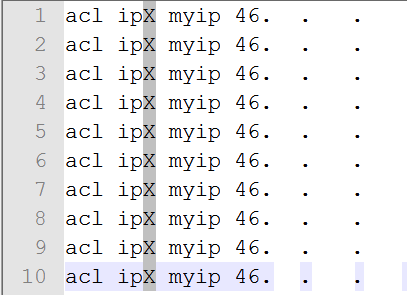
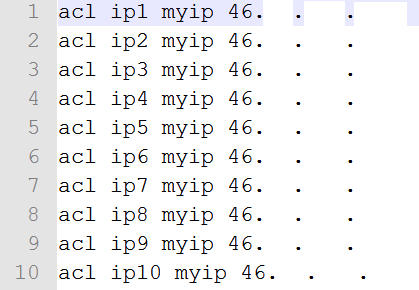
After highlighting all of the X's, go to EDIT > Column Editor. Select Number to Insert. Initial Number: 1 and Increase by: 1. Click OK. You should now have sequential numbers in place of the X's (make sure to check and remove any additional space between the first 9 IP addresses and myip).
Final Result:
Save the file and open a new text file and paste in the list of IP addresses again. This time we will need to prefix and append information. Run the Search > Replace. Inside of Search put:
and Replace with:
Click Replace All. Then put into the search field:
and Replace with:
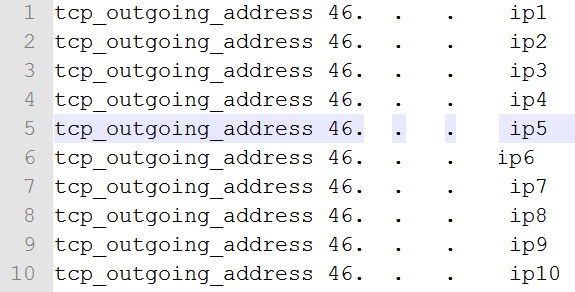
Afterwards, repeat the same steps you previously completed to replace all of the X's in 'ipX' with sequential numbers.
Final Result:
PHEW. Almost done now!
We now need to copy these formatted IP address into the SQUID configuration.
Re-open your squid.conf configuration and find the section labeled "# Host Definitions" and underneath 'acl to_localhost' you will paste the entirety of the first txt file you made 'acl ipX myip x.x.x.x'.
Next find the section titled "Outgoing IP Definitions", and then copy the entirety of the second txt file you made 'tcp_outgoing_ipaddress x.x.x.x ipX'.
Final Step:
Adding authentication to access the proxy server.
Username/Password authentication is outside the scope of this tutorial. I will show you now how to add users to authenticate on your proxy server by IP address.
Locate inside squid.conf "# User IP Authentication". Underneath here we will add our users and source IP for authentication. For example:
Where X.X.X.X you will put the IP address of the machine ACCESSING the proxy server.
Next to allow the user access to the IP address on the proxy server, locate "# Proxy Server Client Access" and add the following line:
This will allow any incoming requests from X.X.X.X to use ALL of the defined proxies running under SQUID.
If you would like to limit which proxies a client has access to on the server, you will need to add the definition as in this example:
This will grant all incoming requests access to the proxy IP's associated to myip 2,5,20, and 35 as defined in the SQUID Configuration.
Finally, save your configuration and start your squid server!
OK
Enjoy!
After using their service reliably for the last 4 months, I've decided to write a guide on how you can get setup with your own anonymous proxy server. Hopefully this will save you money and/or get you more bang for your buck (it certainly has for me).
Installing Squid 2.7 on Ubuntu 8.04LTS
Our first step is to install SQUID on the server. (This guide will likely work for 10.04LTS as well, but then may want to use SQUID 3.0)
To get started run:
Code:
sudo apt-get install squidOnce installed, we will need to configure squid to disable caching, add IP's, authentication and add anonymity.
Make sure SQUID is not running by typing:
Code:
sudo /etc/init.d/squid stopNext we will move to the configuration directory by typing:
Code:
cd /etc/squid/
Code:
mv squid.conf squid.old
Code:
nano squid.conf
Code:
# Interface, Port and Proxy Type
http_port 127.0.0.1:8080

# General Options
cache_mgr not_to_be_disturbed
client_db on
collapsed_forwarding on
dns_defnames on
dns_defnames on
dns_retransmit_interval 2 seconds
detect_broken_pconn on
forwarded_for off
half_closed_clients off
httpd_suppress_version_string on
ignore_unknown_nameservers on
pipeline_prefetch on
retry_on_error on
strip_query_terms off
uri_whitespace strip
vary_ignore_expire on
visible_hostname localhost

# Timeouts
forward_timeout 30 seconds
connect_timeout 30 seconds
read_timeout 30 seconds
request_timeout 30 seconds
persistent_request_timeout 1 minute
client_lifetime 21 hours

# Host Definitions
acl all src 0.0.0.0/0
acl localhost src 127.0.0.1/255.255.255.255
acl to_localhost dst 127.0.0.0/8

# User IP Authentication

# Proxy Server Client Access
acl mynetworks src 127.0.0.0/8 192.168.0.0/16
http_access deny !mynetworks

# Outgoing IP Definitions

# Max Connections per IP
acl maxuserconn src 127.0.0.0/8 10.0.10.0/28
acl limitusercon maxconn 500
http_access deny maxuserconn limitusercon

# Disable Caching
cache deny all
cache_dir null /tmp

# Disable Multicast ICP
icp_port 0
icp_access deny all

# Disable Ident Lookups
ident_lookup_access deny all

# No trust for on-the-fly Content-Encoding
acl apache rep_header Server ^Apache
broken_vary_encoding allow apache

# Logs
logformat combined [%tl] %>A %{Host}>h "%rm %ru HTTP/%rv" %Hs %<st"%{Referer}>h" "%{User-Agent}>h" %Ss:%Sh
access_log /var/log/squid/access.log combined
cache_store_log /var/log/squid/store.log
cache_log  /var/log/squid/cache.log
logfile_rotate 8

# Support Files
coredump_dir /tmp
pid_filename /var/log/squid/squid.pid

# Ports Allowed
acl Safe_ports port 80 443
http_access deny !Safe_ports

# SSL ports/method allowed
acl SSL_ports port 443
acl CONNECT method CONNECT
http_access deny CONNECT !SSL_ports

# Protocols Allowed
acl Safe_proto proto HTTP SSL
http_access deny !Safe_proto

# Methods Allowed
acl Safe_method method CONNECT GET HEAD POST
http_access deny !Safe_method

# Allow replies to client requests
http_reply_access allow all

# Header Re-write. Make it look like all user agents are Mozilla
#header_replace Accept */*
#header_replace Accept-Encoding gzip
#header_replace Accept-Language en
header_replace User-Agent Mozilla/5.0 (en)

# Header List ( DENY all -> ALLOW listed )
header_access Accept allow all
header_access Accept-Encoding allow all
header_access Accept-Language allow all
header_access Authorization allow all
header_access Cache-Control allow all
header_access Content-Disposition allow all
header_access Content-Encoding allow all
header_access Content-Length allow all
header_access Content-Location allow all
header_access Content-Range allow all
header_access Content-Type allow all
header_access Cookie allow all
header_access Expires allow all
header_access Host allow all
header_access If-Modified-Since allow all
header_access Location allow all
header_access Range allow all
header_access Referer allow all
header_access Set-Cookie allow all
header_access WWW-Authenticate allow all
header_access All deny allAn easy way to grab all the IP's assigned to your server would be to run the following command:
Code:
/sbin/ifconfig | grep 'inet addr:' | cut -d: -f2 | awk '{print $1}'We'll now need to format these IPs for use with SQUID. Copy and paste the long list of IP's that were output by the above command to a REGEX capable text editor such as Notepad++ (be sure to remove the first IP's such as 127.0.0.1 or 10.0.0.8).
The first IP format we will need to create is assigning an acl (ID) to each IP. Once you have loaded the IPs into Notepad++ we will use the replace feature to prefix each IP.
Click Search > Replace. Make sure click Regular Expression in the search mode on the bottom left. Inside the search field you will put:
Code:
^([A-Za-z0-9]+)
Code:
acl ipX myip \1We will need to replace the X in 'ipX' with sequential numbers. To do this, hold down ALT and click the first X and scroll to the bottom of the document highlighting the entire column of X's. It should look like the following image:
After highlighting all of the X's, go to EDIT > Column Editor. Select Number to Insert. Initial Number: 1 and Increase by: 1. Click OK. You should now have sequential numbers in place of the X's (make sure to check and remove any additional space between the first 9 IP addresses and myip).
Final Result:
Save the file and open a new text file and paste in the list of IP addresses again. This time we will need to prefix and append information. Run the Search > Replace. Inside of Search put:
Code:
^([A-Za-z0-9]+)
Code:
tcp_outgoing_address \1
Code:
([A-Za-z0-9]+)$
Code:
\1 ipXFinal Result:
PHEW. Almost done now!
We now need to copy these formatted IP address into the SQUID configuration.
Re-open your squid.conf configuration and find the section labeled "# Host Definitions" and underneath 'acl to_localhost' you will paste the entirety of the first txt file you made 'acl ipX myip x.x.x.x'.
Next find the section titled "Outgoing IP Definitions", and then copy the entirety of the second txt file you made 'tcp_outgoing_ipaddress x.x.x.x ipX'.
Final Step:
Adding authentication to access the proxy server.
Username/Password authentication is outside the scope of this tutorial. I will show you now how to add users to authenticate on your proxy server by IP address.
Locate inside squid.conf "# User IP Authentication". Underneath here we will add our users and source IP for authentication. For example:
Code:
acl goldenglovez src X.X.X.XNext to allow the user access to the IP address on the proxy server, locate "# Proxy Server Client Access" and add the following line:
Code:
http_access allow goldenglovezIf you would like to limit which proxies a client has access to on the server, you will need to add the definition as in this example:
Code:
http_access allow goldenglovez myip2
http_access allow goldenglovez myip5
http_access allow goldenglovez myip20
http_access allow goldenglovez myip35Finally, save your configuration and start your squid server!
Code:
sudo /etc/init.d/squid startOK
Enjoy!
Last edited:


