

Ankonz
Junior Member
- Aug 19, 2015
- 123
- 743
Hey Lovely BHW Folks,
Yesterday I shared My Journey with Upwork--
How I Made Over $10k on UPWORK with Some of the Extremely Easy & High Demand Jobs ( EXCLUSIVE TIPS INSIDE )
Some of you guys asked me About that They are not able to Accepted by Upwork - Every time when they Submit their Application Upwork Reject it.
But Don't worry!! I am here to help you Guys!!
IF YOU FOLLOW EVERY STEP IN THIS TUTORIAL - Hopefully You will Get Instant Approval!!
So, let's Get Started :
1. Go To Upwork.com and Click on "Sign Up"
2. Provide your Email & Click on " Continue With Email"
3. If You are not using Domain Email - You will see a message like this. Just click on " Continue With Email" Again

4. Provide Your Real "First Name" & "Last Name", "Password" "Country" & "Username" ( I am using Fake info here because of Tutorial Purpose )
Also, Thick on the checkbox.
And Click on the "Create My Account"
Note: Use your all real info, Because when you get a Job you need to Verify your Upwork account with your Passport or National ID Card.

5. Now they will send you an Email to Verify Your Email. Go to your Mailbox & Verify Your Email.
6. When Email Verification is Done you will see a page like this. Click On "Start My Profile"

7. Now In This Part Select Everything Carefully
What is the main service you offer?
-- Web , Mobile & Software Dev
What types of Web, Mobile & Software Dev do you do?
-- Desktop Software Development
-- Ecommerce Development
-- Web & Mobile Design
What skills do you offer clients?
-- Progressive Web Apps
-- Desktop Application
After You Put Everything Properly -- Click: Next.

8. What is your level of experience in this field?
-- Intermediate
9. Put anything on Education

10. For "Employment" Click " Skip this Step for Now "

11. What is your English proficiency?
-- Fluent
12. Hourly Rate
-- $70 / hr
13. Now "Title" & "Professional Overview" Part - Write something like this:

14. On This Step -- " Add Your Profile Photo "
15. Enter Your Real Address
16. Add your Real Phone Number & Click On " Preview Profile"
17. Now Double Check That Your Every Detail are Correct & Click On " Submit Profile"
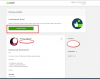
VIOLLAA !! YOUR PROFILE GOT APPROVED ON UPWORK!!
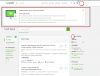
Now You can Start your Freelance Journey On Upwork !!
Note: You can Change Your Skills & Work Category When you Get Approved. So Don't Need to Worry About That. When you Get Approval you can Customize your Profile & Start Bidding on your Targeted Jobs Category.
Yesterday I shared My Journey with Upwork--
How I Made Over $10k on UPWORK with Some of the Extremely Easy & High Demand Jobs ( EXCLUSIVE TIPS INSIDE )
Some of you guys asked me About that They are not able to Accepted by Upwork - Every time when they Submit their Application Upwork Reject it.
But Don't worry!! I am here to help you Guys!!
IF YOU FOLLOW EVERY STEP IN THIS TUTORIAL - Hopefully You will Get Instant Approval!!
So, let's Get Started :
1. Go To Upwork.com and Click on "Sign Up"
Code:
https://www.upwork.com/

https://prnt.sc/ths5si
2. Provide your Email & Click on " Continue With Email"
Code:
https://prnt.sc/ths5cu3. If You are not using Domain Email - You will see a message like this. Just click on " Continue With Email" Again
4. Provide Your Real "First Name" & "Last Name", "Password" "Country" & "Username" ( I am using Fake info here because of Tutorial Purpose )
Also, Thick on the checkbox.
And Click on the "Create My Account"
Note: Use your all real info, Because when you get a Job you need to Verify your Upwork account with your Passport or National ID Card.
5. Now they will send you an Email to Verify Your Email. Go to your Mailbox & Verify Your Email.
Code:
https://prnt.sc/thrvdc

https://prnt.sc/thrv2b
6. When Email Verification is Done you will see a page like this. Click On "Start My Profile"
7. Now In This Part Select Everything Carefully
What is the main service you offer?
-- Web , Mobile & Software Dev
What types of Web, Mobile & Software Dev do you do?
-- Desktop Software Development
-- Ecommerce Development
-- Web & Mobile Design
What skills do you offer clients?
-- Progressive Web Apps
-- Desktop Application
After You Put Everything Properly -- Click: Next.
8. What is your level of experience in this field?
-- Intermediate
Code:
https://prnt.sc/thruhq9. Put anything on Education
10. For "Employment" Click " Skip this Step for Now "
11. What is your English proficiency?
-- Fluent
Code:
https://prnt.sc/thru2912. Hourly Rate
-- $70 / hr
Code:
https://prnt.sc/thrtlv13. Now "Title" & "Professional Overview" Part - Write something like this:
14. On This Step -- " Add Your Profile Photo "
Code:
https://prnt.sc/thrsqx15. Enter Your Real Address
Code:
https://prnt.sc/thrwyz16. Add your Real Phone Number & Click On " Preview Profile"
Code:
https://prnt.sc/thrydw17. Now Double Check That Your Every Detail are Correct & Click On " Submit Profile"
VIOLLAA !! YOUR PROFILE GOT APPROVED ON UPWORK!!
Now You can Start your Freelance Journey On Upwork !!
Note: You can Change Your Skills & Work Category When you Get Approved. So Don't Need to Worry About That. When you Get Approval you can Customize your Profile & Start Bidding on your Targeted Jobs Category.


