

- Aug 15, 2024
- 596
- 254
In this guide, I want to share my experience in analyzing a domain's history using the Wayback Machine.
This guide is structured as a checklist with key points to pay attention to. It follows a general-to-specific format: first, we analyze on the surface, then dig deeper into the details.
The goal of this analysis is to better understand the domain's past—without being tied to any particular niche or selection criteria. You can use this guide to analyze domains for money sites, PBNs, gambling, adult, doorway pages, or any other niche or purpose.
Use this information as one part of your overall strategy when evaluating expired domains. And of course, I don’t claim to have the final word. I might be wrong, miss things, or not know everything. Feedback and additions are always welcome!
Let’s get into it.
Go to the Wayback Machine (WBM) website — enter your domain and start the analysis.
Domain Age
The simplest and quickest thing to check is the domain’s age based on the archive.
Here, age means the number of years from the first to the last snapshot.
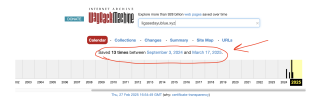
The minimum domain registration period is typically one year in most zones.
Most site owners register a domain for one year and renew it annually if the business is still running and the site gets traffic.
So, if the archive only shows one year, it’s likely the domain was used for something temporary or shady—or the project just didn’t work out.
This is often the case with cheap TLDs like .buzz, .xyz, and .top.
History Histogram
Even if the domain is older than two years, that doesn’t mean ownership and content remained the same.
At the top of WBM, you’ll see a timeline histogram. This is a timeline with bars for each month—the taller the bar, the more snapshots were taken that month.

The WBM crawler tends to visit more frequently if the site has more traffic, backlinks, or content changes.
So even visually, you can start to get a sense of the domain’s history.
Look at the screenshot above.
You can see that in the beginning, it was clearly a legit site (lots of snapshots in a short period). Then it looks like the domain expired. A new owner launched a different site. And after that, things started to go in a completely different direction…
Sudden spikes, long gaps. And yeah, this domain was passed around. Its history shows both a 301 redirect and a 403 error blocking the WBM crawler, which points to some kind of blackhat activity.
Now take a look at the second screenshot.

Here you can see a steady, even distribution of bars with no major gaps or spikes throughout the domain’s history. The site’s niche and brand stayed consistent over the years. The domain had steady traffic and solid backlinks. You can see all of that reflected in the archive snapshot history.
By the way, there are exceptions. If there are very few snapshots but the domain is several years old, it likely was never used for a real website—just registered long ago and maybe passed between owners.
For example, like in this screenshot. Here, the domain had a 301 redirect to another site throughout its entire history.

Snapshot History
Now we move to the most detailed level of domain history analysis – the individual snapshots.
Start by selecting the most recent year in the timeline histogram (it’s usually opened by default when you enter from WBM’s homepage). You’ll see a calendar with colored dots marking the dates.

The thicker the dot, the more snapshots were taken on that day. The color indicates the server response code:
• Blue – 200 (content)
• Orange – access errors (404, 401, 403) – more on that later
• Green – 301, 302 (redirects)
• Red – 500 (server error)
If you see a green, orange, or red dot, check those snapshots first. Blue ones can be reviewed selectively—like one from the beginning, middle, and end of the year.
When you hover over a dot, a menu will appear with a list of snapshots taken that day. Open the one you need in a new tab.

Check snapshots from the beginning, middle, and end of the year. Also take a look at both the most active and least active years—this helps you spot content changes over time.
With blue snapshots, you can evaluate the site’s content at that point in time. Keep in mind that due to WBM limitations, some styles or images might not load. So don’t jump to conclusions—check multiple snapshots to get the full picture.
Red snapshots are easy to interpret—they’re just server errors. Usually temporary. The next snapshot is often blue and working fine.
A green snapshot means there was a redirect to another domain or subdomain. You need to check where it leads. Most of the time, these are harmless redirects like from/to www or switching to https. But redirects to completely different domains are more interesting and worth digging into.
Summary
Key questions to ask yourself after analyzing a domain with WBM:
Feedback, comments, and additions to this guide are more than welcome!
This guide is structured as a checklist with key points to pay attention to. It follows a general-to-specific format: first, we analyze on the surface, then dig deeper into the details.
The goal of this analysis is to better understand the domain's past—without being tied to any particular niche or selection criteria. You can use this guide to analyze domains for money sites, PBNs, gambling, adult, doorway pages, or any other niche or purpose.
Keep in mind: a perfectly clean domain history doesn’t guarantee high Google rankings. And vice versa—a domain used for shady stuff or passed around multiple times doesn’t automatically mean it won’t rank.
Use this information as one part of your overall strategy when evaluating expired domains. And of course, I don’t claim to have the final word. I might be wrong, miss things, or not know everything. Feedback and additions are always welcome!
Let’s get into it.
Go to the Wayback Machine (WBM) website — enter your domain and start the analysis.
Domain Age
The simplest and quickest thing to check is the domain’s age based on the archive.
Here, age means the number of years from the first to the last snapshot.
The minimum domain registration period is typically one year in most zones.
Most site owners register a domain for one year and renew it annually if the business is still running and the site gets traffic.
So, if the archive only shows one year, it’s likely the domain was used for something temporary or shady—or the project just didn’t work out.
This is often the case with cheap TLDs like .buzz, .xyz, and .top.
Pro tip: compare the domain's age with the number of snapshots. The more snapshots per year, the more active the domain likely was.
History Histogram
Even if the domain is older than two years, that doesn’t mean ownership and content remained the same.
At the top of WBM, you’ll see a timeline histogram. This is a timeline with bars for each month—the taller the bar, the more snapshots were taken that month.
The WBM crawler tends to visit more frequently if the site has more traffic, backlinks, or content changes.
So even visually, you can start to get a sense of the domain’s history.
Look at the screenshot above.
You can see that in the beginning, it was clearly a legit site (lots of snapshots in a short period). Then it looks like the domain expired. A new owner launched a different site. And after that, things started to go in a completely different direction…
Sudden spikes, long gaps. And yeah, this domain was passed around. Its history shows both a 301 redirect and a 403 error blocking the WBM crawler, which points to some kind of blackhat activity.
Now take a look at the second screenshot.
Here you can see a steady, even distribution of bars with no major gaps or spikes throughout the domain’s history. The site’s niche and brand stayed consistent over the years. The domain had steady traffic and solid backlinks. You can see all of that reflected in the archive snapshot history.
By the way, there are exceptions. If there are very few snapshots but the domain is several years old, it likely was never used for a real website—just registered long ago and maybe passed between owners.
For example, like in this screenshot. Here, the domain had a 301 redirect to another site throughout its entire history.
Snapshot History
Now we move to the most detailed level of domain history analysis – the individual snapshots.
Start by selecting the most recent year in the timeline histogram (it’s usually opened by default when you enter from WBM’s homepage). You’ll see a calendar with colored dots marking the dates.
The thicker the dot, the more snapshots were taken on that day. The color indicates the server response code:
• Blue – 200 (content)
• Orange – access errors (404, 401, 403) – more on that later
• Green – 301, 302 (redirects)
• Red – 500 (server error)
If you see a green, orange, or red dot, check those snapshots first. Blue ones can be reviewed selectively—like one from the beginning, middle, and end of the year.
When you hover over a dot, a menu will appear with a list of snapshots taken that day. Open the one you need in a new tab.
Check snapshots from the beginning, middle, and end of the year. Also take a look at both the most active and least active years—this helps you spot content changes over time.
With blue snapshots, you can evaluate the site’s content at that point in time. Keep in mind that due to WBM limitations, some styles or images might not load. So don’t jump to conclusions—check multiple snapshots to get the full picture.
Red snapshots are easy to interpret—they’re just server errors. Usually temporary. The next snapshot is often blue and working fine.
A green snapshot means there was a redirect to another domain or subdomain. You need to check where it leads. Most of the time, these are harmless redirects like from/to www or switching to https. But redirects to completely different domains are more interesting and worth digging into.
Summary
Key questions to ask yourself after analyzing a domain with WBM:
- Did the content change over the years? Was the site’s niche and brand consistent?
- Especially if there was gambling-related content
- Or placeholder pages from hosting companies or registrars
- A sudden niche switch or placeholder page usually signals a change in ownership
- Were there any long-term (over a month) 301 redirects to other domains?
- Sometimes these are registrar redirects when the domain wasn’t renewed
- Often it’s just redirects to/from www or https (not a red flag)
- Could also be a redirect to a new domain of the same brand. Some domains are dropped after being redirected for over 2 years
- Were there any 4xx errors?
- 403 errors are especially concerning. It means the WBM bot was intentionally blocked, which often points to doorway usage
- 401 and 404 errors are usually short-lived and point to CMS or server misconfigurations
- Were there any 5xx errors?
- These are server-side issues. It’s a bad sign if they persisted for a long time
Just a reminder—having a clean domain history doesn’t guarantee high rankings in Google, and a messy one doesn’t always mean failure either.
Feedback, comments, and additions to this guide are more than welcome!


