

sohom
Supreme Member
- May 26, 2013
- 1,361
- 643
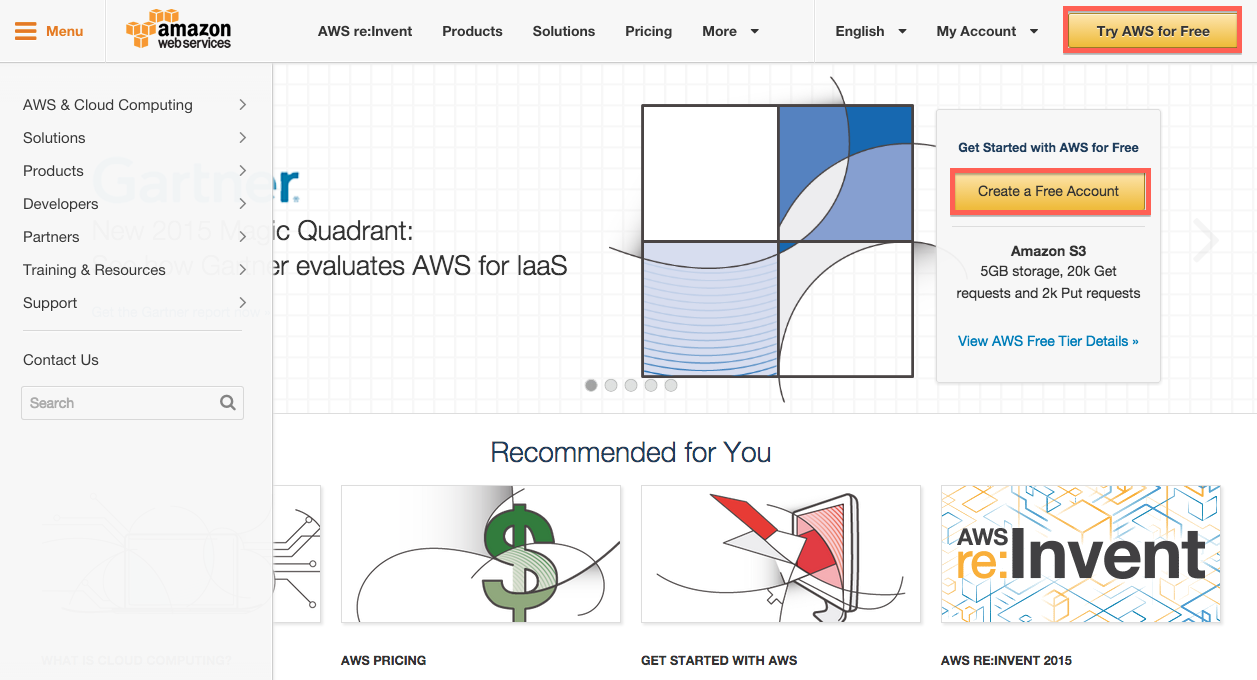
1. Go to AWS(Amazon Web Services) and click "Try AWS for Free"
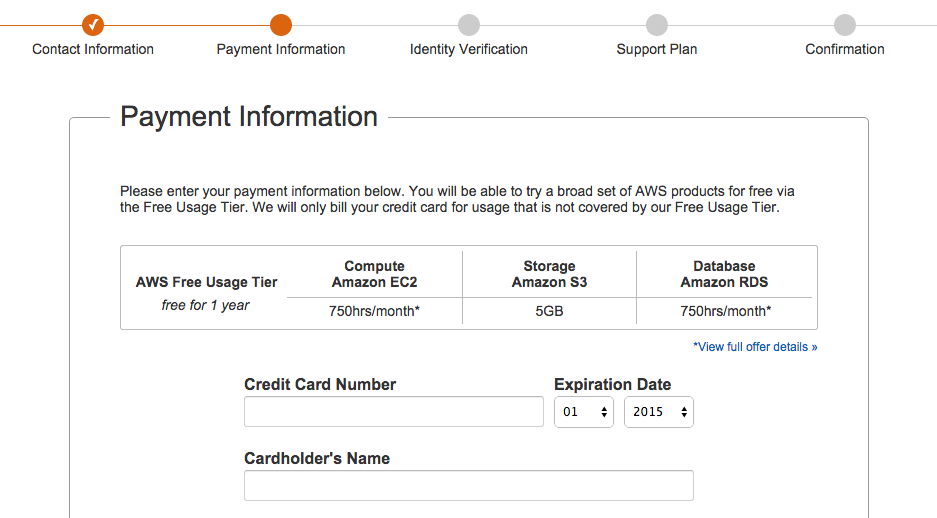
2. Put your login credentials than put your contact information and click the continue button. Than come to this page:
Choose "Free" support plan and move on.
PS: You might have to wait for like 2 hour or 1 day to use your aws account. Amazon staff will approve your account in one day.
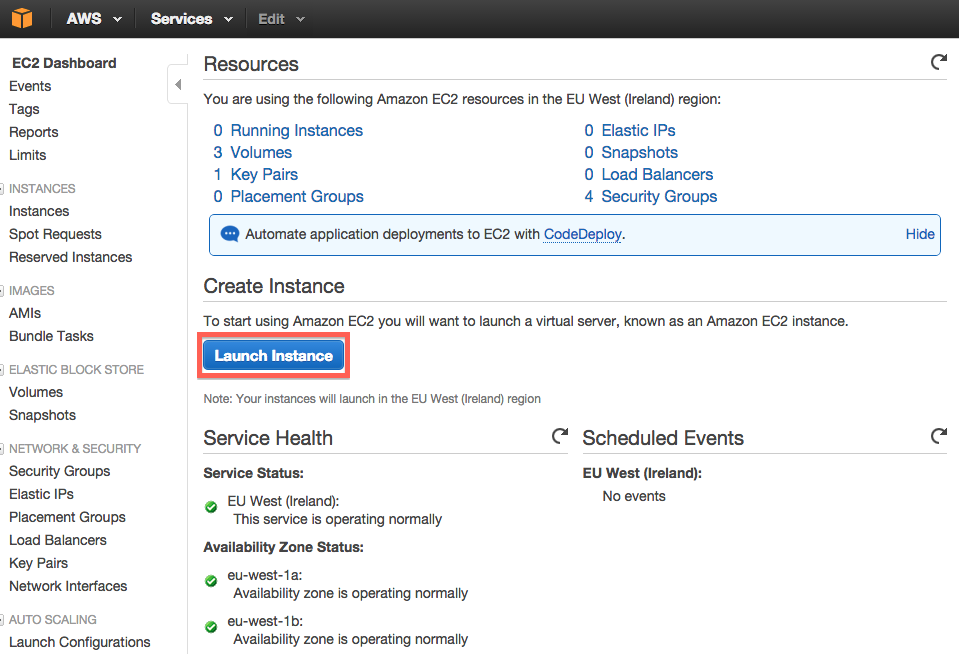
3. Go to AWS Management Console and click the "EC2"

4. Click the "Launch Instance" button
5. Scroll down little bit and choose Windows

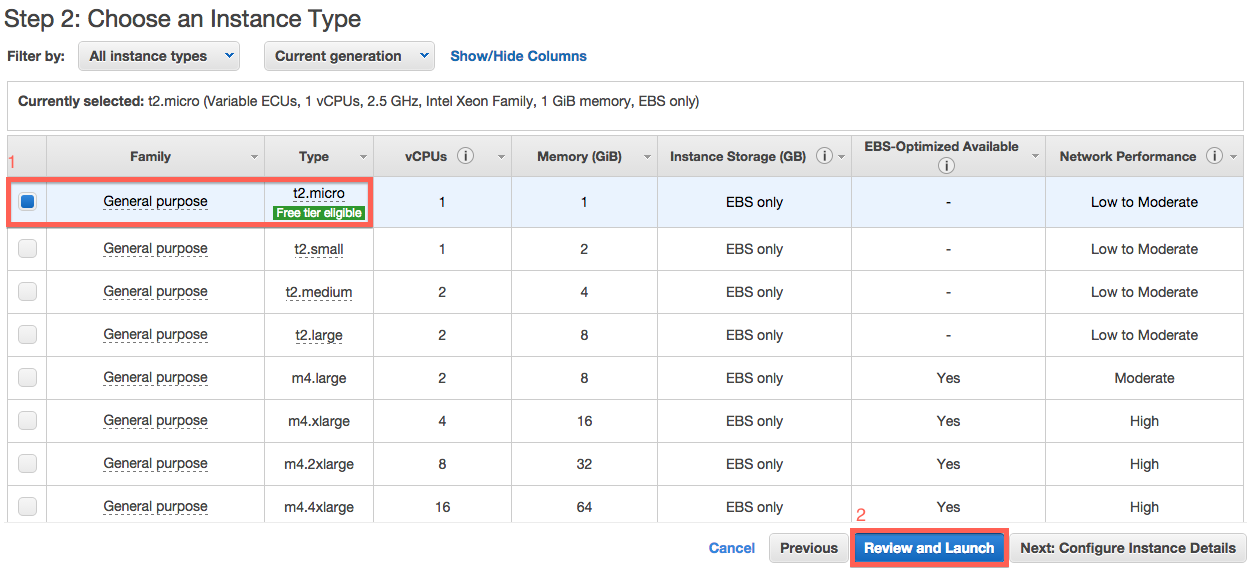
6. Click the free tier and then click the "Review and Launch" button
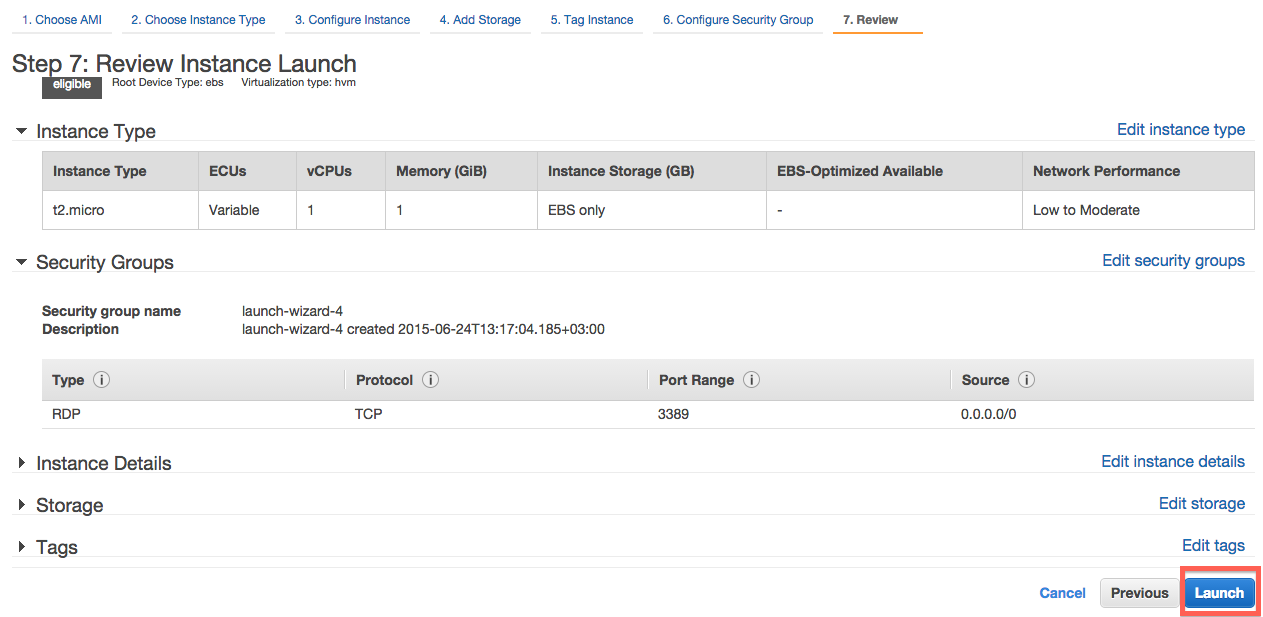
7. Now, all you have to do click the "Launch" button
8. Now go back to "Instances" page and wait until you see Status Checks 2/2: (2/2 means your vps is ready to use)

9. Than click the Connect, get your ip, admin and password. Connect and start to use it!
2. Put your login credentials than put your contact information and click the continue button. Than come to this page:
- If you don't have VCC or Credit Card, you have two options:
If you have vcc just put informations and click the continue. You need to also verify your number. Amazon will call you and you have to type the number you see on the screen.
Choose "Free" support plan and move on.
And your account will be ready to use.
3. Go to AWS Management Console and click the "EC2"
4. Click the "Launch Instance" button
5. Scroll down little bit and choose Windows
6. Click the free tier and then click the "Review and Launch" button
7. Now, all you have to do click the "Launch" button
8. Now go back to "Instances" page and wait until you see Status Checks 2/2: (2/2 means your vps is ready to use)
9. Than click the Connect, get your ip, admin and password. Connect and start to use it!
Its not my research
m just sharing
m just sharing
| Get it before they end |
Regards
Last edited:


