

SoccerLover
Elite Member
- Jun 12, 2014
- 5,007
- 2,773
I have just been able to automate writing eCommerce product descriptions with OpenAI.
With this method of doing in Google sheets means you can bulk upload this to your store rather than having to copy and paste loads.
Not 100% ideal but a good starting point for a retailer site.
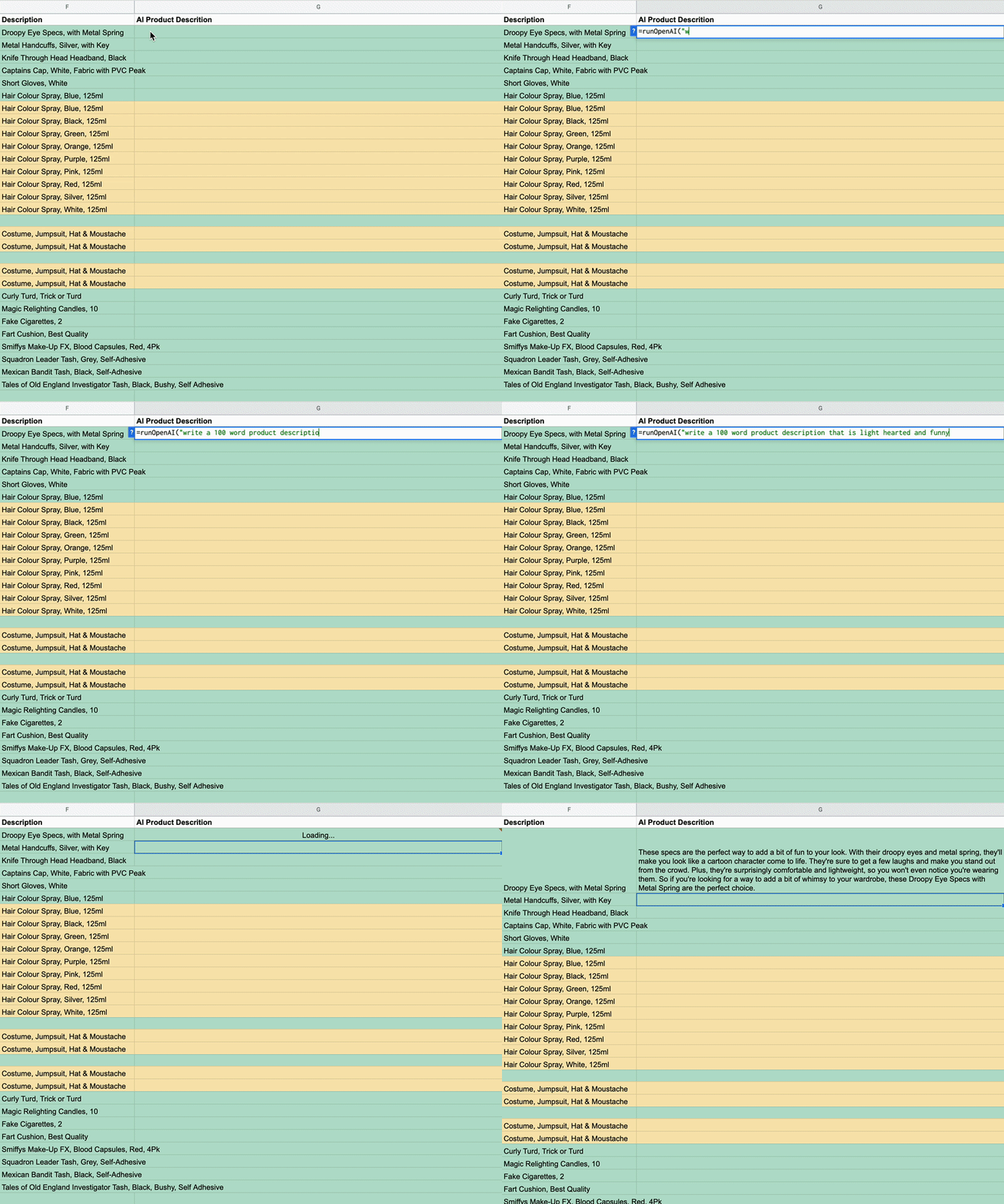
It is worth noting that the output isn’t 100% ideal but a good starting point and a massive time saver for a retailer site to then get your copywriter to tweak. It helps give them a starting point rather than having to come up with this from scratch.
To leverage this power, you can use the Google Apps script below to pull off this wizardry.
Step 1) Navigate to Google Apps Script within Google Sheets (Go to Google Sheet → Extensions → App Script)

Step 2) Copy and paste the following code into your Google Apps Script Project

Step 3) Sign-Up to Open AI
Step 4) Once you have an account, get your API key
4.1) Click on your name in the top-right corner
4.2) Click on view API Keys
4.3) Create new secret key
4.4) Copy the key

Step 5) Paste your key inside your Apps Script project, replacing the text “YOUR API KEY”

Step 6) Save your project and go back to your sheet
You are now ready to use the “=runOpenAI()” function and insert your prompt” like in the example I used of “=runOpenAI("write a 100 word product description that is light hearted and funny",F2)”.
That is it. You can now bulk automate your eCommerce product description writing. I hope this helps.
With this method of doing in Google sheets means you can bulk upload this to your store rather than having to copy and paste loads.
Not 100% ideal but a good starting point for a retailer site.
It is worth noting that the output isn’t 100% ideal but a good starting point and a massive time saver for a retailer site to then get your copywriter to tweak. It helps give them a starting point rather than having to come up with this from scratch.
To leverage this power, you can use the Google Apps script below to pull off this wizardry.
Step 1) Navigate to Google Apps Script within Google Sheets (Go to Google Sheet → Extensions → App Script)
Step 2) Copy and paste the following code into your Google Apps Script Project
Code:
/**
 * Generates text using OpenAI's GPT-3 model
 * @param {string} prompt The prompt to feed to the GPT-3 model
 * @param {string} cell The cell to append to the prompt
 * @param {number} [maxWords=10] The maximum number of words to generate
 * @return {string} The generated text
 * @customfunction
 */

function runOpenAI(prompt, cell, maxWords) {

const API_KEY = "YOUR API KEY";

maxTokens = 150
if (maxWords){maxTokens = maxWords * 0.75}

model = "text-davinci-003"
prompt = prompt+cell+":",
temperature= 0

 // Set up the request body with the given parameters
 const requestBody = {
 "model": model,
 "prompt": prompt,
 "temperature": temperature,
 "max_tokens": maxTokens
 };
 console.log(requestBody)

 // Set up the request options with the required headers
 const requestOptions = {
 "method": "POST",
 "headers": {
 "Content-Type": "application/json",
 "Authorization": "Bearer "+API_KEY
 },
 "payload": JSON.stringify(requestBody)
 };

 // Send the request to the GPT-3 API endpoint for completions
 const response = UrlFetchApp.fetch("https://api.openai.com/v1/completions", requestOptions);

 console.log(response.getContentText())

 // Get the response body as a JSON object
 const responseBody = JSON.parse(response.getContentText());


 let answer= responseBody.choices[0].text


 // Return the generated text from the response
 return answer
}
Step 3) Sign-Up to Open AI
Step 4) Once you have an account, get your API key
4.1) Click on your name in the top-right corner
4.2) Click on view API Keys
4.3) Create new secret key
4.4) Copy the key
Step 5) Paste your key inside your Apps Script project, replacing the text “YOUR API KEY”
Step 6) Save your project and go back to your sheet
You are now ready to use the “=runOpenAI()” function and insert your prompt” like in the example I used of “=runOpenAI("write a 100 word product description that is light hearted and funny",F2)”.
That is it. You can now bulk automate your eCommerce product description writing. I hope this helps.

