

- Mar 26, 2013
- 14,954
- 11,759
Thread closed: check out the updated version here https://www.blackhatworld.com/seo/how-to-add-images-to-your-posts.1047085/#post-11261885
We get a lot of questions about adding images to marketplace threads or forum posts so here's a step-by-step guide to uploading and posting images.
If you want to add images to your posts, you need to upload the picture to a website which will host it for you externally. The sites we allow for this are imgur and imageshack. These sites allow you to sign up and upload pictures. You can then get an image link so you are able to display the image on forums or web pages without having to upload it multiple times.
Imageshack have recently changed their terms of use. In order to use them for pictures on forums like blackhatworld, you need to have a premium (paid) account. For this, I'll talk through using imgur because they offer free image hosting for forums.
So, before you actually start writing your post, you want to upload your images. For this example, go to http://imgur.com. You'll see the following screen
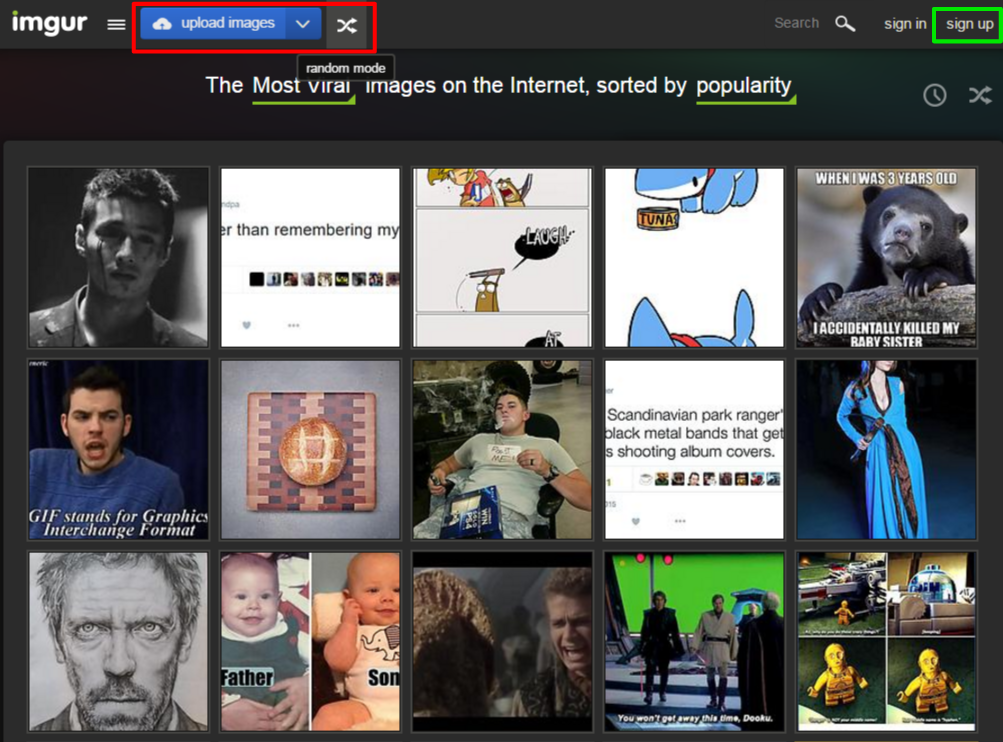
(If you're likely to post lots of images, it's worth signing up for an account - these are currently free.)
Once you click the "upload images" button, you'll get this popup:
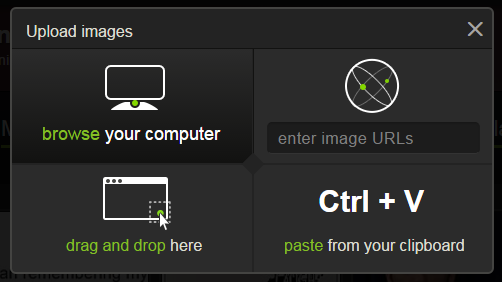
You can click on "browse" to bring up your PC's explorer to select the image, but the easiest way is to drag and drop. I've saved an image to my desktop like this:
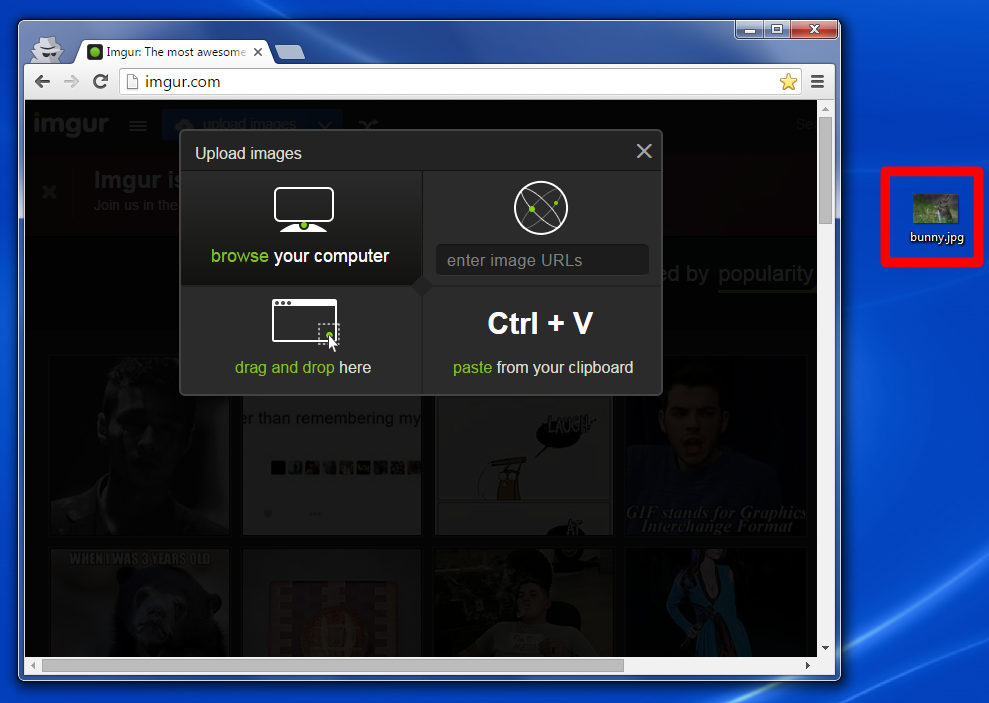
Dragging and dropping it onto the upload window will look like this:

You'll then revert back to the previous screen, like so:
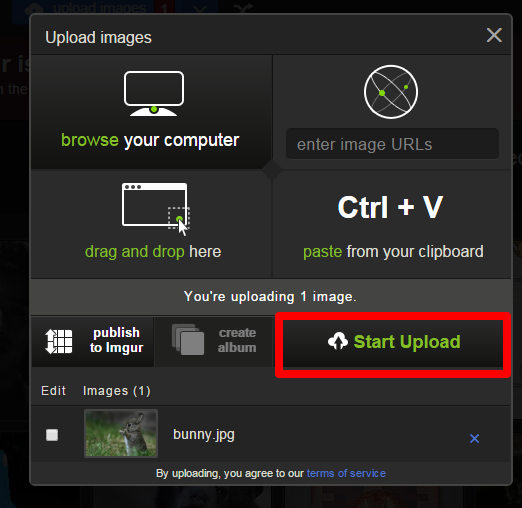
Click "Start Upload"
Once this has completed, the page will refresh - be patient! You'll then see this:
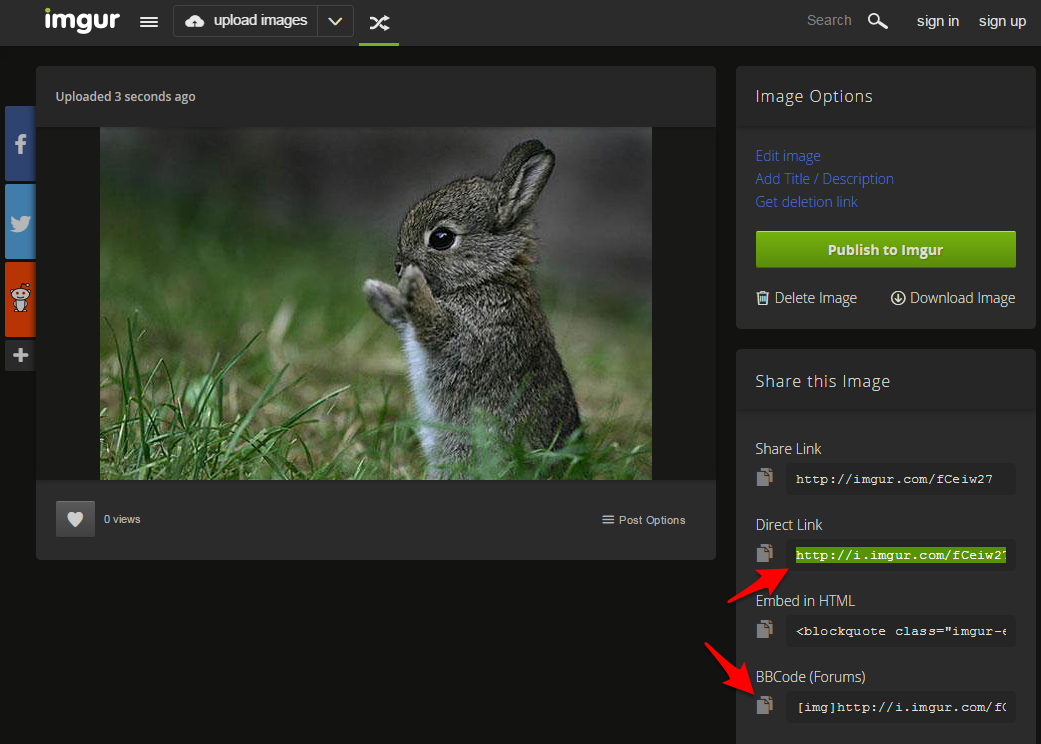
The code you'll need is the one highlighted in green (top arrow). This is the direct link to the image - this means it will display the image as part of the forum post instead of linking to the imgur page.
(The bottom red arrow points to the BBCode image link. Blackhatworld uses BBCode to format posts. If you use BBCode, you can place this in as it is.)
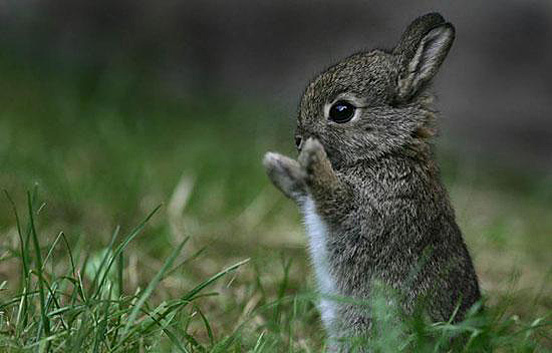
This is the direct link for the bunny picture: http://i.imgur.com/fCeiw27.jpg
MAKE SURE YOU SAVE THIS LINK SOMEWHERE SAFE.
Once you've uploaded the image, you can start writing your post.
Open your thread and add the text. When you come to the part of the post where you want to add the picture, make sure the flashing cursor is in the right place and then click the "insert image" button.
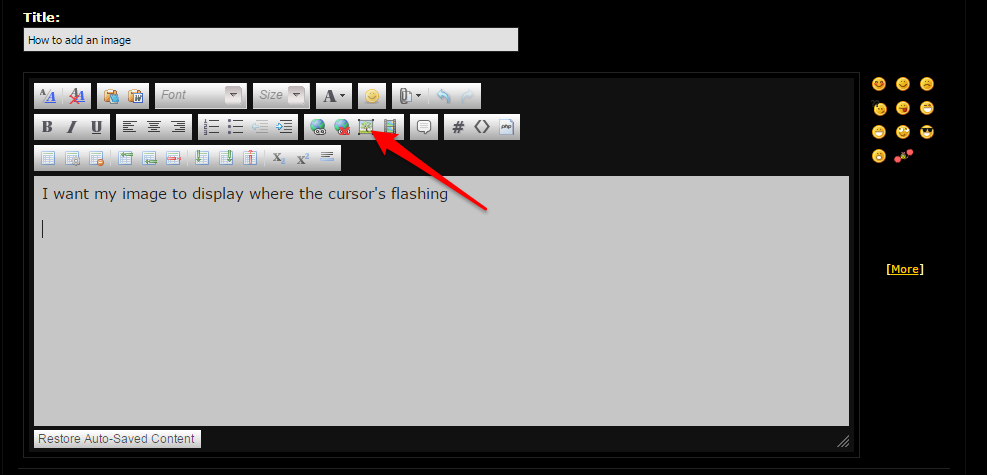
You'll get a popup, like the one below.
IMPORTANT: make sure that the two tabs pointed out by the arrows look like the picture! "From URL" should be selected and make sure you UNCHECK "Retrieve remote file and reference locally".
Your image link should get pasted in the URL field, like this:

Once you click on OK, the popup should disappear, leaving your image displayed in the window.
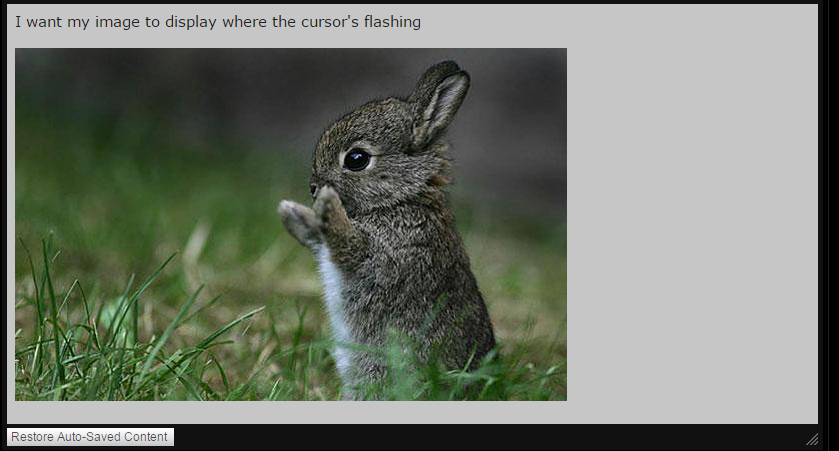
If you want to see how your post will look, you can click the "Preview Post" button which will display how the finished post should appear:
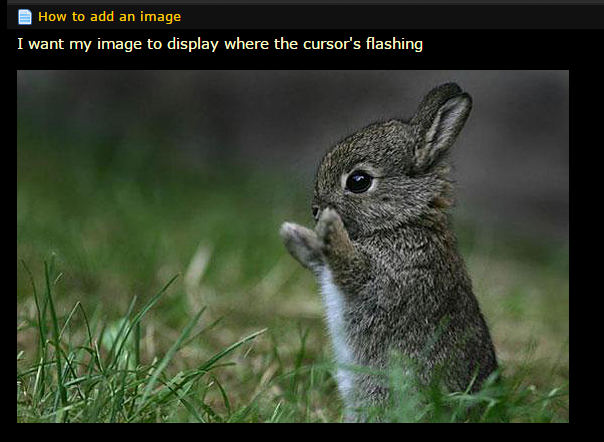
You then click on "Submit New Thread" and your thread is now live with the images displayed.
If you want any additional formatting on your picture, you can view the BBCode directly, by clicking on the "Switch Editor to Source Mode" button (red square):

In this example, I have placed center tags around the image so it displays in the middle of the post, like so:
We get a lot of questions about adding images to marketplace threads or forum posts so here's a step-by-step guide to uploading and posting images.
If you want to add images to your posts, you need to upload the picture to a website which will host it for you externally. The sites we allow for this are imgur and imageshack. These sites allow you to sign up and upload pictures. You can then get an image link so you are able to display the image on forums or web pages without having to upload it multiple times.
Imageshack have recently changed their terms of use. In order to use them for pictures on forums like blackhatworld, you need to have a premium (paid) account. For this, I'll talk through using imgur because they offer free image hosting for forums.
So, before you actually start writing your post, you want to upload your images. For this example, go to http://imgur.com. You'll see the following screen
(If you're likely to post lots of images, it's worth signing up for an account - these are currently free.)
Once you click the "upload images" button, you'll get this popup:
You can click on "browse" to bring up your PC's explorer to select the image, but the easiest way is to drag and drop. I've saved an image to my desktop like this:
Dragging and dropping it onto the upload window will look like this:
You'll then revert back to the previous screen, like so:
Click "Start Upload"
Once this has completed, the page will refresh - be patient! You'll then see this:
The code you'll need is the one highlighted in green (top arrow). This is the direct link to the image - this means it will display the image as part of the forum post instead of linking to the imgur page.
(The bottom red arrow points to the BBCode image link. Blackhatworld uses BBCode to format posts. If you use BBCode, you can place this in as it is.)
This is the direct link for the bunny picture: http://i.imgur.com/fCeiw27.jpg
MAKE SURE YOU SAVE THIS LINK SOMEWHERE SAFE.
Once you've uploaded the image, you can start writing your post.
Open your thread and add the text. When you come to the part of the post where you want to add the picture, make sure the flashing cursor is in the right place and then click the "insert image" button.
You'll get a popup, like the one below.
IMPORTANT: make sure that the two tabs pointed out by the arrows look like the picture! "From URL" should be selected and make sure you UNCHECK "Retrieve remote file and reference locally".
Your image link should get pasted in the URL field, like this:
Once you click on OK, the popup should disappear, leaving your image displayed in the window.
If you want to see how your post will look, you can click the "Preview Post" button which will display how the finished post should appear:
You then click on "Submit New Thread" and your thread is now live with the images displayed.
If you want any additional formatting on your picture, you can view the BBCode directly, by clicking on the "Switch Editor to Source Mode" button (red square):
In this example, I have placed center tags around the image so it displays in the middle of the post, like so:
Last edited by a moderator:


