[FREE] Windows VPS for 1 month 2015

AmateRasu

Power Member
Joined
Nov 12, 2013
Messages
763
Reaction score
434
brand.png

Hey guys I found this cool website called RunAbove they have servers that can be rented per hour or per month

Step by step

1. First, you will need an invite from someone who already used their service
2. Since I'm already their customer for months now I'm eligible of sending invitation so here it is : http://runabove.me/R7NE
- the link will give you free $10 coupon consumable FREE for 1 month (after that $2.5 per month)
3. after you signed up to the link you will need to link your paypal account or credit card. you will also need to subscribe to them (you can cancel them if you don't want to continue after the 1 month of trial.
4. After you have successfully created an account go to Add > an intance > select your server (CA or EU) > Select your plan (Select the 'S' plan which is $0.004 per hour) > select your OS (Windows Server 2012 R2)
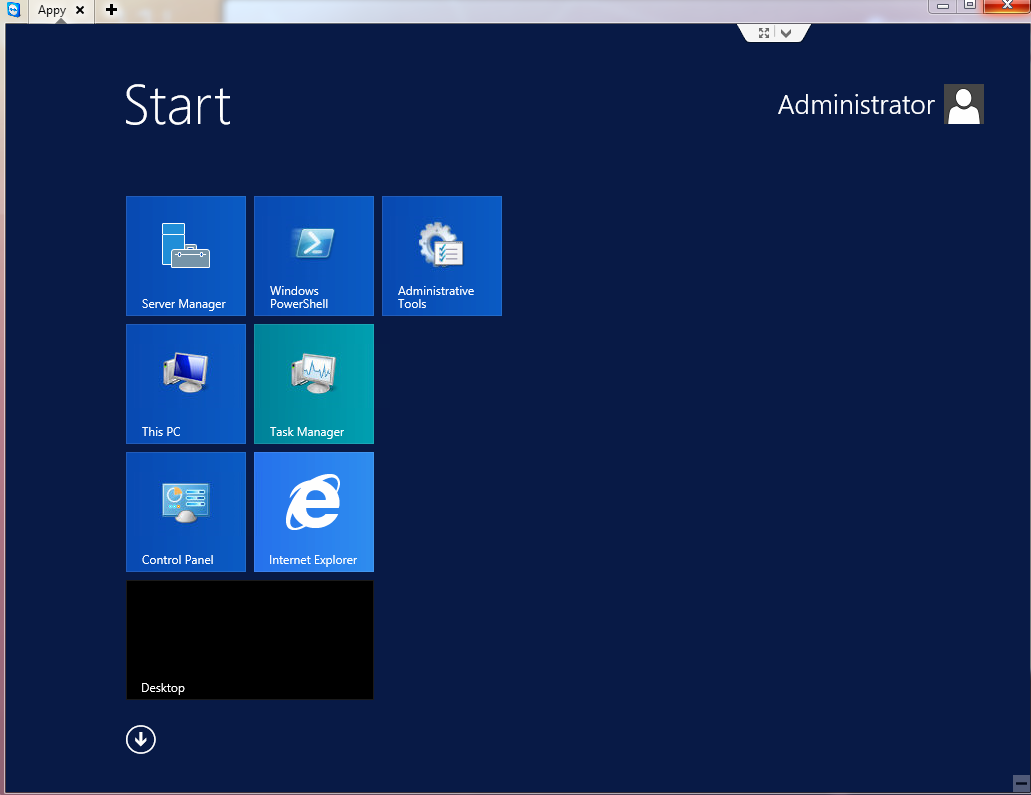
5. It will take few minutes to setup and you will receive your VPS Details where you can connect thru RDP or Team viewer

This is the one I'm currently using on my journey thread here where I use it for mass uploading


D1ntVAJ


Last edited:
There is only 'S' plan which costs 0.014/hr or 10$ per month
 
'S' Plan 10$/Month ,1st month FREE _ Pros ===> FAST, 2G RAM , 3.7 GHZ processor : CONS ===> Can only use via browser, Hangs sometimes, 10GB Drivespace
 
Last edited:
There is only 'S' plan which costs 0.014/hr or 10$ per month

whoops sorry my bad it should be 'S' which means small.

'S' Plan 10$/Month ,1st month FREE _ Pros ===> FAST, 2G RAM , 3.7 GHZ processor : CONS ===> Can only use via browser, Hangs sometimes, 10GB Drivespace

You can connect to it via RDP or team viewer (see my screenshot above)

To enable Remote Desktop on Windows you had to :
- Enable Remote Desktop inside your Windows Server. You could change Remote Desktop inside your Server Manager, Tab Local Server, inside the Properties panel. Remote Desktop is disabled by default
- Authorize 3389 port on RunAbove firewall. You could do this in expert mode of RunAbove. Go in Access and Security tab and click on Add rule. Create a TCP rule on 3389 port and submit the form.

Then, you just need to open a rdp client :)
 
I've never used VPS before. Guess this is my chance to try it and familiarize myself for free.
 
whoops sorry my bad it should be 'S' which means small. - Authorize 3389 port on RunAbove firewall. You could do this in expert mode of RunAbove. Go in Access and Security tab and click on Add rule. Create a TCP rule on 3389 port and submit the form. Then, you just need to open a rdp client :)
Didn't get this line . Where is expert mode of RunAbove? What Access?
 
haha stuck at phone validation from a long it not sending code at my end.
I suppose that is necessary??
 
Its been 15 minutes now. and havent received a code looks likes it will take more :)
 
Is this something stable and for how long has the host been in business do you know that?
 
Is this something stable and for how long has the host been in business do you know that?

as far as I know they are the #1 rival of digitalocean :) so yeah, they are somehow well reputed
 
whoops sorry my bad it should be 'S' which means small.


You can connect to it via RDP or team viewer (see my screenshot above)

To enable Remote Desktop on Windows you had to :
- Enable Remote Desktop inside your Windows Server. You could change Remote Desktop inside your Server Manager, Tab Local Server, inside the Properties panel. Remote Desktop is disabled by default
- Authorize 3389 port on RunAbove firewall. You could do this in expert mode of RunAbove. Go in Access and Security tab and click on Add rule. Create a TCP rule on 3389 port and submit the form.

Then, you just need to open a rdp client :)

I did both, still can't access it via RDP. Can only access via browser.
 
Back
Top