

Lincoln Rhyme
Senior Member
- Jan 27, 2021
- 898
- 219
Facebook advertising has become an essential tool for businesses to reach their target audience and drive conversions. To make the most of your Facebook ad campaigns, it’s crucial to leverage the power of Facebook Pixel Ads . This comprehensive guide will walk you through the process of setting up and using Facebook Pixel to optimize your ad campaigns for maximum success.
Conversion Tracking: With Facebook Pixel, you can measure the effectiveness of your ads by tracking the actions users take after clicking on your ad. This includes purchases, sign-ups, and other valuable interactions.
Optimization: You can optimize your ad campaigns for specific conversion events. This ensures that your ads are shown to people most likely to take the desired action on your website.
Remarketing: Facebook Pixel allows you to create custom audiences of users who have visited your site. You can then retarget these audiences with relevant ads, increasing the likelihood of conversion.
Insights: The data collected by Facebook Pixel provides valuable insights into user behavior, allowing you to refine your ad strategy and improve your website’s performance.

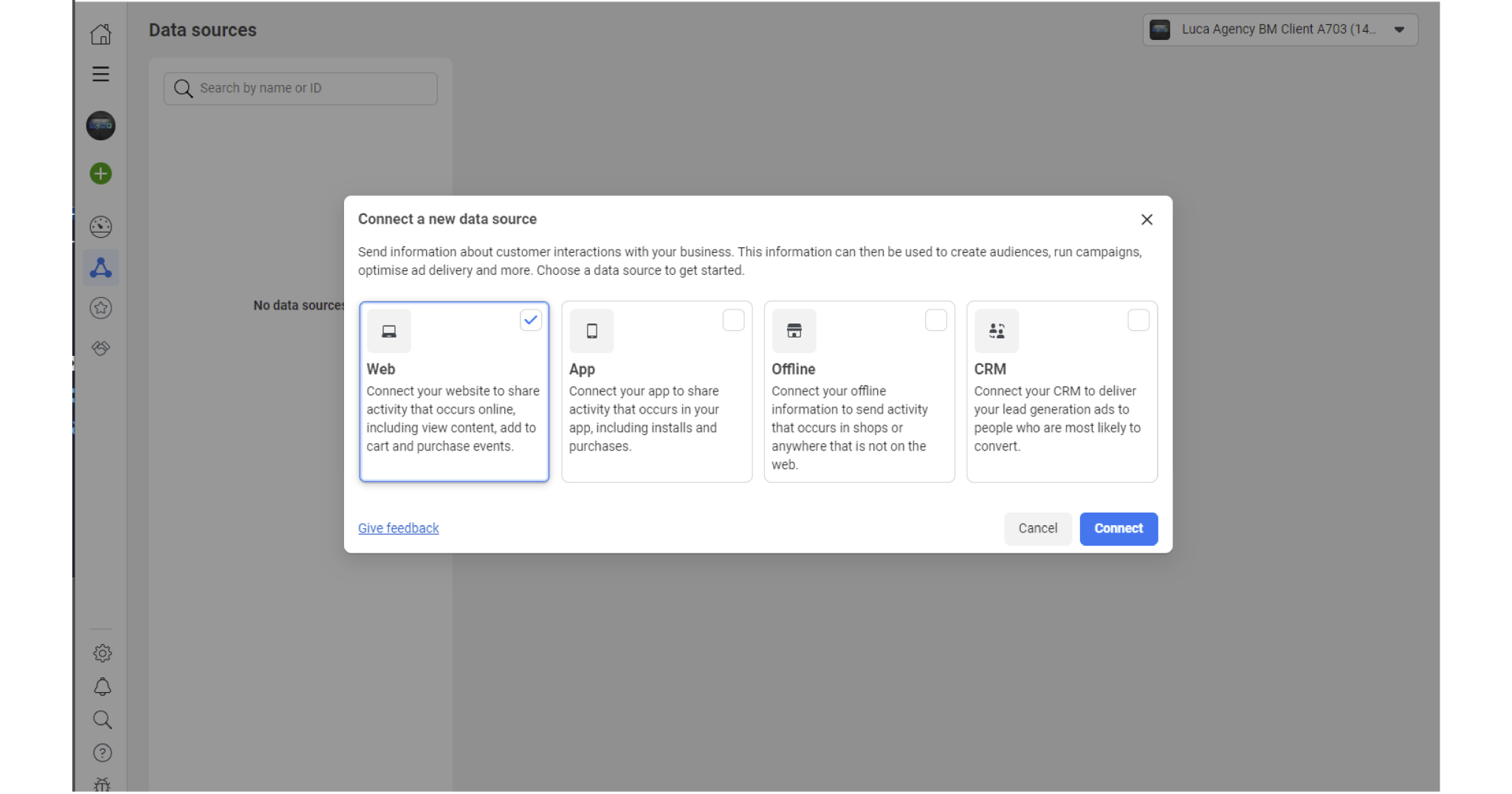
Step 2: In the left margin, click Data sources, then choose Web/App/ CRM,.. based on your need, after that click Connect.
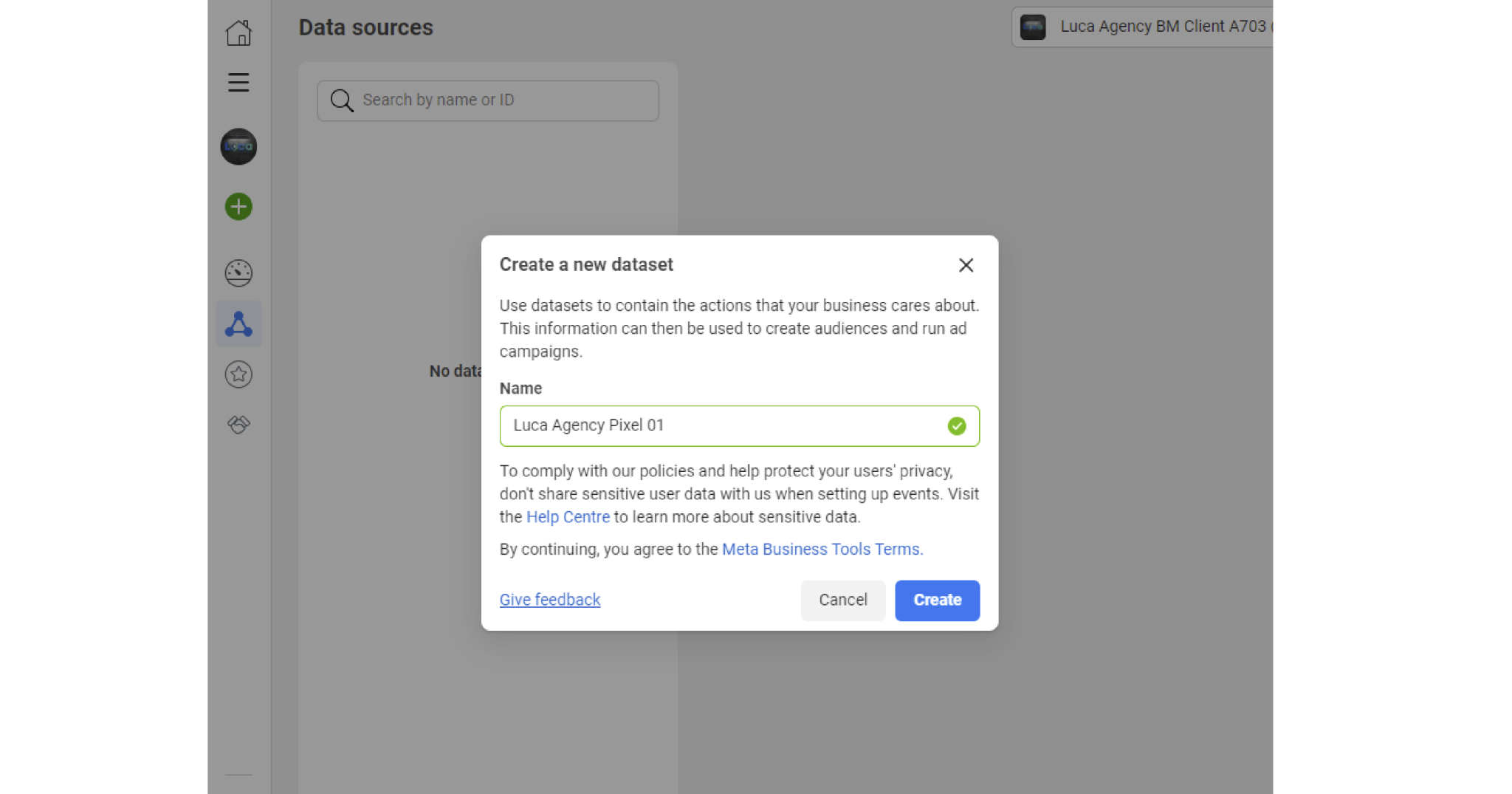
Step 3. Create your pixel’s name and select Create.
a. Dynamic Ads
Dynamic Ads automatically show the right products to people who have expressed interest on your website, in your app, or elsewhere on the Internet. These ads are highly personalized and can lead to increased conversions and revenue. To set up Dynamic Ads, you need to upload your product catalog to Facebook and create a product feed.
b. Custom Audiences
Custom Audiences allow you to create specific groups of people based on their interactions with your website. You can segment your audience into various categories, such as:
Lookalike Audiences are a powerful feature that enables you to target new users who are similar to your existing customers. You can create Lookalike Audiences based on your Custom Audiences or other sources, making your ad campaigns more efficient in reaching potential customers who are likely to convert.
a. Standard Events
Standard Events are predefined actions that Facebook has created to help you track common interactions on your website. These events include:
b. Custom Conversions
In addition to standard events, you can create Custom Conversions to track actions that are unique to your business. To set up a Custom Conversion:
You can find related articles below:
Facebook Dynamic Ads: Attract More Target Customers
How to create Facebook lead ads
1. What is Facebook Pixel?
Facebook Pixel is a piece of code provided by Facebook that you place on your website. This code collects data about user interactions on your website, such as page views, form submissions, and purchases. With this data, you can track conversions, optimize your ad campaigns, and gain valuable insights into user behavior.2. Why Facebook Pixel Matters
Facebook Pixel matters for several key reasons:Conversion Tracking: With Facebook Pixel, you can measure the effectiveness of your ads by tracking the actions users take after clicking on your ad. This includes purchases, sign-ups, and other valuable interactions.
Optimization: You can optimize your ad campaigns for specific conversion events. This ensures that your ads are shown to people most likely to take the desired action on your website.
Remarketing: Facebook Pixel allows you to create custom audiences of users who have visited your site. You can then retarget these audiences with relevant ads, increasing the likelihood of conversion.
Insights: The data collected by Facebook Pixel provides valuable insights into user behavior, allowing you to refine your ad strategy and improve your website’s performance.
3. Setting Up Facebook Pixel
Step 1: Go to your Facebook Ads Manager. Click on the “Events Manager” in the left-hand column.Step 2: In the left margin, click Data sources, then choose Web/App/ CRM,.. based on your need, after that click Connect.
Step 3. Create your pixel’s name and select Create.
4. Advanced Facebook Pixel Features
Facebook Pixel offers several advanced features that can take your ad campaigns to the next level.a. Dynamic Ads
Dynamic Ads automatically show the right products to people who have expressed interest on your website, in your app, or elsewhere on the Internet. These ads are highly personalized and can lead to increased conversions and revenue. To set up Dynamic Ads, you need to upload your product catalog to Facebook and create a product feed.
b. Custom Audiences
Custom Audiences allow you to create specific groups of people based on their interactions with your website. You can segment your audience into various categories, such as:
- All Website Visitors
- People who visited specific web pages
- People who haven’t visited your site in a while
- People who completed a specific action (e.g., made a purchase)
- Lookalike Audiences
Lookalike Audiences are a powerful feature that enables you to target new users who are similar to your existing customers. You can create Lookalike Audiences based on your Custom Audiences or other sources, making your ad campaigns more efficient in reaching potential customers who are likely to convert.
5. Facebook Pixel Event Tracking
Once Facebook Pixel is installed on your website, you can set up event tracking to monitor specific user actions. There are two main types of events you can track: Standard Events and Custom Conversions.a. Standard Events
Standard Events are predefined actions that Facebook has created to help you track common interactions on your website. These events include:
- View Content: Tracks when a user views a specific piece of content on your website.
- Search: Tracks when a user performs a search on your website.
- Add to Cart: Tracks when a user adds a product to their shopping cart.
- Add Payment Info: Tracks when a user enters their payment information during the checkout process.
- Purchase: Tracks when a user completes a purchase on your website.
- Lead: Tracks when a user submits their contact information, such as in a sign-up form.
- Complete Registration: Tracks when a user completes the registration process on your website.
- Customize Product: Tracks when a user customizes a product on your website.
- Initiate Checkout: Tracks when a user begins the checkout process.
- Add to Wishlist: Tracks when a user adds a product to their wishlist.
b. Custom Conversions
In addition to standard events, you can create Custom Conversions to track actions that are unique to your business. To set up a Custom Conversion:
- Go to Events Manager in Facebook Ads Manager.
- Click on “Custom Conversions.”
- Click on “Create Custom Conversion.”
- Enter the URL of the specific page where the desired action occurs.
- Define the specific event parameters, such as the URL contains/doesn’t contain, equals/doesn’t equal, etc.
- Give your Custom Conversion a name and a category to help you organize your events.
- Click “Create” to save your Custom Conversion.
You can find related articles below:
Facebook Dynamic Ads: Attract More Target Customers
How to create Facebook lead ads


