Leovlad111
Newbie
- May 12, 2018
- 15
- 1
need subcription bro ?


What do I call you!Hello, I don't know if it share before but i didn't seen.
1. Go to https://azure.microsoft.com/en-us/services/devops/ Then Click On "Sign in to Azure DevOps". Login with your existing Microsoft account or create a new one.

2. Click Continue

3. Click Continue

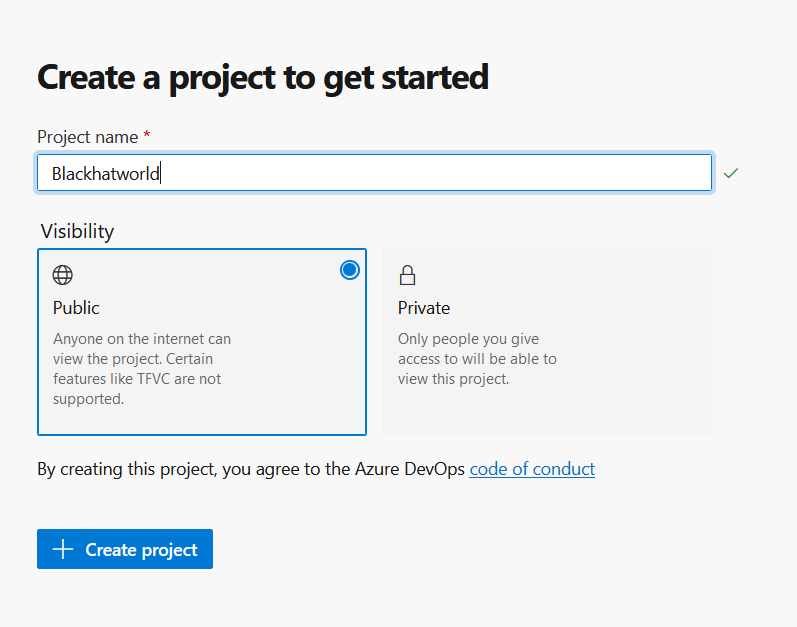
4. Enter Project name, Make visibility "Public" and hit Create project
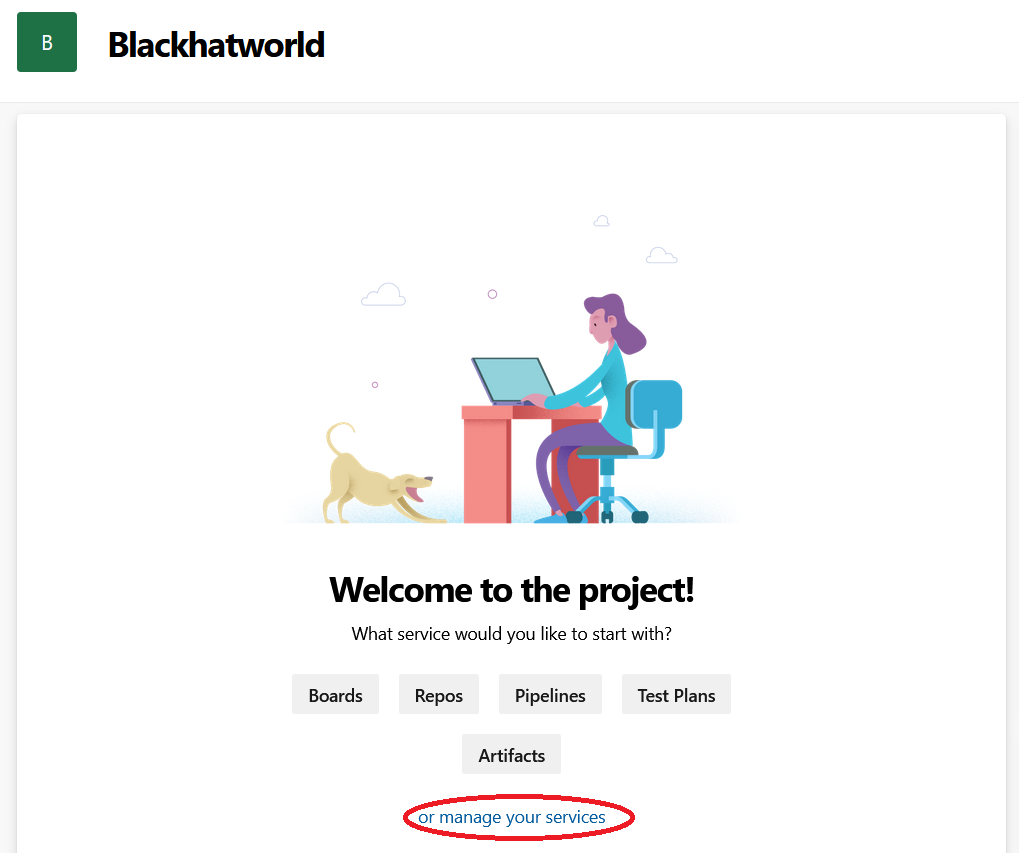
5. Click on "or manage your services", Scroll down and disable all services only "Repos" is enable. Refresh page

6. Click on "Repos" icon, in your left. Scroll down and click on "Initialize"


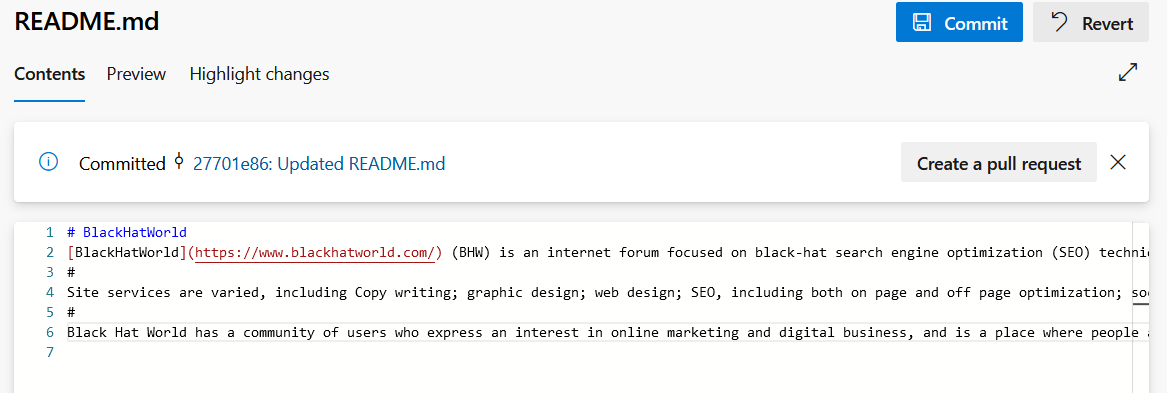
7. Click on "README.md" then "Edit" README.md


8. Add your content and for paragraph use #. For link use "[Keyword](https://www.url.com/)" And hit "Commit" for save.

9. Click on Overview icon on left side and back to project page after save. Now click to "Add Project Description" button.
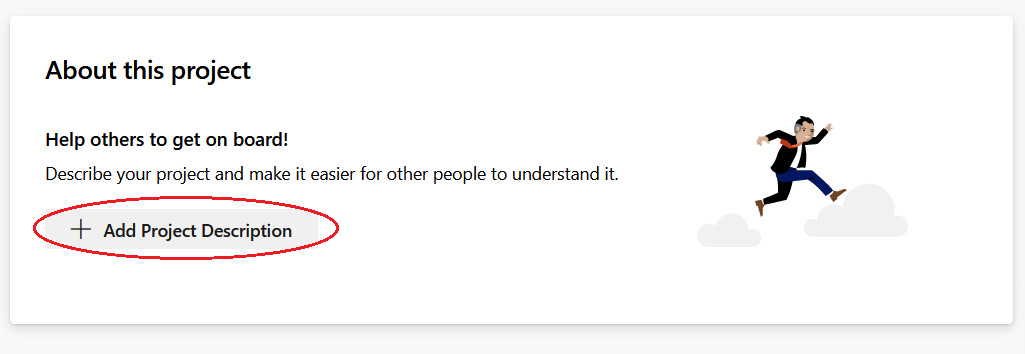
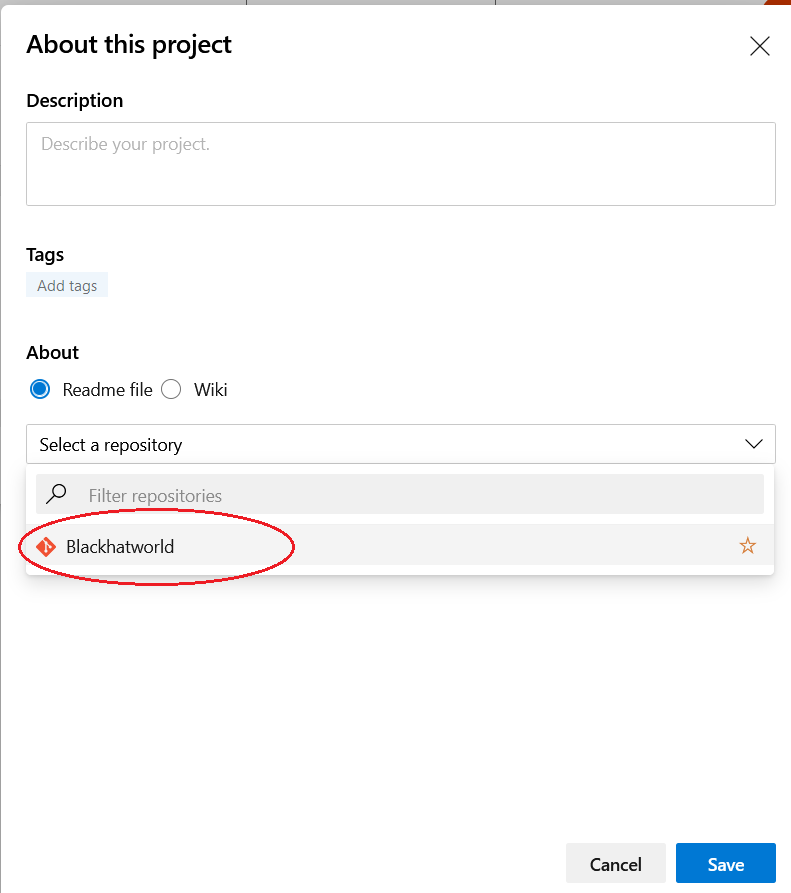
10. Click on "Select a repository" select your project name and save.
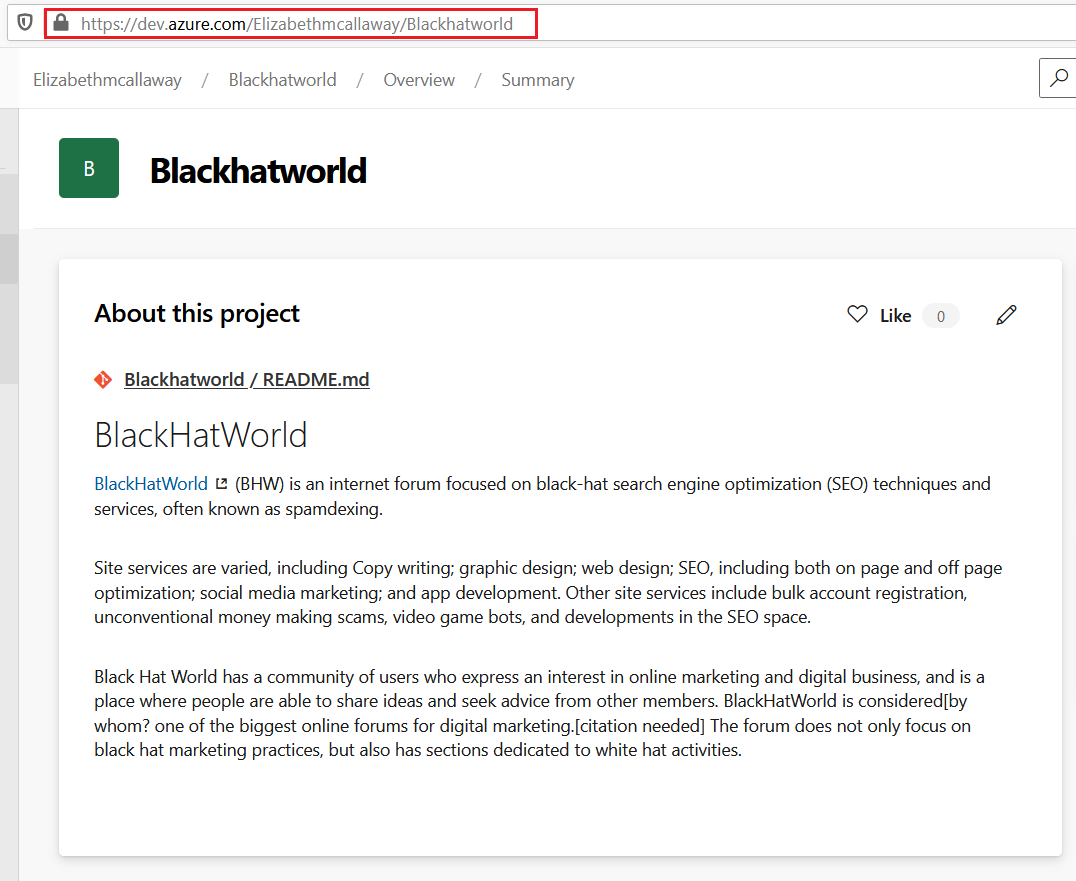
You are done!
FAQs:
Is this link indexed on Google?
Yes, it is.

How to get this link indexed?
Build some tier 2 links or submit to index.
Hope this useful.

You can create as many as you want.Thanks a lot
have I a question
How many projects can I create?
I can just One project an One link

Thanks valuable share.
Bookmarking this, thanks!
thanks
Thank you.Looks interesting. A must try. Thanks Mate.


