

fasttrak
Elite Member
- Sep 12, 2016
- 3,516
- 3,970
I posted Part 1 of the SEMrush Hacks Guide a couple of weeks ago, so thought it was about time to give you something else pretty cool to get your teeth in to.
** Reminder **
Remember that we all get a FREE 30 day trial of SEMrush from BHW. So if you have not signed up yet, get on with it and be sure to checkout Part 1 of this series, you will not regret it!
I have a few more SEMrush Hacks to share and will try and post something new for you soon, so if you like what you see, be sure to check back for more.
If you missed any of my previous guides over the last couple of months, you can follow the links below to catch up.
Part 2 - Social Media Manager
Social media is a huge part of a successful IM strategy and I have been banging on about it quite a bit recently as Google is being a bit of a git with everyones rankings. But with all the platforms you NEED to be using, it can become a bit of a nightmare.

So, if you feel a bit like perky Jessica above, strap in and prepare to make your life a whole lot easier!
1. Create a Project for your money site, if you have not done so already.
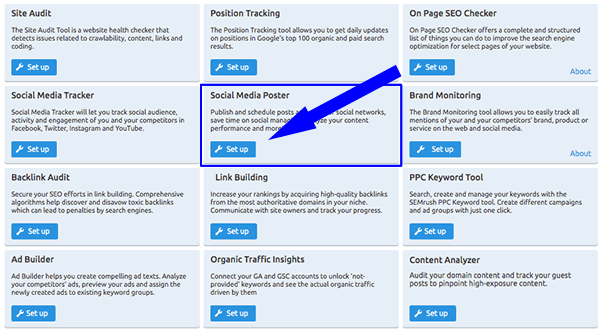
2. From the SEO Dashboard, click on the Setup Button in the Social Media Poster section.
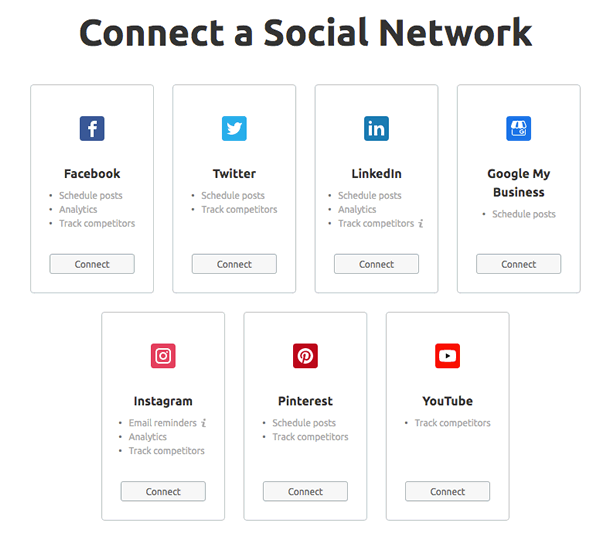
3. Connect all of your social media accounts for this project
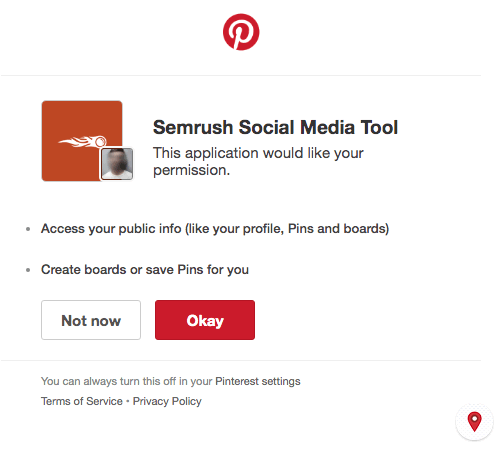
4. Approve SEMrush access to your social media accounts (below example is Pinterest)
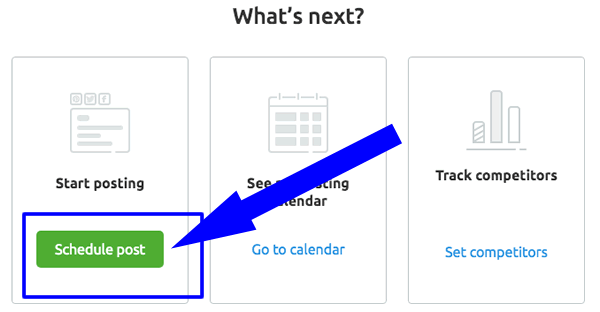
5. Click on Schedule Post and away you go.
Why should I manage my social media platforms in SEMrush?
Because it is easy, really powerful, and you are already using SEMrush anyway, so the question is, why not?
Take a look at a few of the things it can do, and how clean the interface is.
Schedule Posts
Insights & Analytics
Track competitors
Boost Posts
Bonus Tip 1 - Adding posts individually is a pain, especially for us manipulators of social media. So one of the cool features that this tool has is the ability to Bulk Add up to 100 posts from a CSV file at a time. Nice!
1. Simply click on the Bulk Post icon.

2. Upload your CSV file.

Bonus Tip 2 - There is also a Chrome Extension to make converting content from your money site even easier.
1. Click on the Chrome Extension button.

2. Add the Extension.

3. Click on the icon on your toolbar to Connect to Semrush.
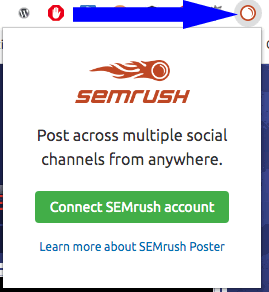
4. Click on an image, highlight text on a page and right click and send it straight to Semrush for publishing.

By the way, the baseball bat guide in the above example is one of the best guides I have ever read, full stop. If you want an example of how to create great content, take a look at this!
Conclusion
Yes there are tools out there dedicated to social media management, but they are likely overkill for a lot of us + the good ones cost you. Having this ability in SEMrush is a really cool feature and one which is lacking from other SEO tools.
I have only scratched the surface of what you can do, so do yourself a favour and take a proper look!
Let me know what you think and if this is something you want more of? If so, I will show you a few other methods and guides which will help streamline your workflow.

↓↓ This guide has been brought to you by ↓↓
** Reminder **
Remember that we all get a FREE 30 day trial of SEMrush from BHW. So if you have not signed up yet, get on with it and be sure to checkout Part 1 of this series, you will not regret it!
- BHW 30 day SEMrush trial signup
- Already used it? You can find LOTS of free trials with a simple Google search and a new email address.... just saying
I have a few more SEMrush Hacks to share and will try and post something new for you soon, so if you like what you see, be sure to check back for more.
If you missed any of my previous guides over the last couple of months, you can follow the links below to catch up.
- Ahrefs Hacks Part 1 - Pinterest
- Ahrefs Hacks Part 2 - Quora
- Ahrefs Hacks Part 3 - Twitter
- Ahrefs - Bonus Tip
- Semrush Hacks (this one is free...)
- You've been hit by, you've been struck by a Google Update - How to Find if a Google Update Hit Your Site? (100% free - no tools required)
Part 2 - Social Media Manager
Social media is a huge part of a successful IM strategy and I have been banging on about it quite a bit recently as Google is being a bit of a git with everyones rankings. But with all the platforms you NEED to be using, it can become a bit of a nightmare.
1. Create a Project for your money site, if you have not done so already.
2. From the SEO Dashboard, click on the Setup Button in the Social Media Poster section.
3. Connect all of your social media accounts for this project
4. Approve SEMrush access to your social media accounts (below example is Pinterest)
5. Click on Schedule Post and away you go.
Why should I manage my social media platforms in SEMrush?
Because it is easy, really powerful, and you are already using SEMrush anyway, so the question is, why not?
Take a look at a few of the things it can do, and how clean the interface is.
Schedule Posts
Insights & Analytics
Track competitors
Boost Posts
Bonus Tip 1 - Adding posts individually is a pain, especially for us manipulators of social media. So one of the cool features that this tool has is the ability to Bulk Add up to 100 posts from a CSV file at a time. Nice!
1. Simply click on the Bulk Post icon.
2. Upload your CSV file.
Bonus Tip 2 - There is also a Chrome Extension to make converting content from your money site even easier.
1. Click on the Chrome Extension button.
2. Add the Extension.
3. Click on the icon on your toolbar to Connect to Semrush.
4. Click on an image, highlight text on a page and right click and send it straight to Semrush for publishing.
By the way, the baseball bat guide in the above example is one of the best guides I have ever read, full stop. If you want an example of how to create great content, take a look at this!
Conclusion
Yes there are tools out there dedicated to social media management, but they are likely overkill for a lot of us + the good ones cost you. Having this ability in SEMrush is a really cool feature and one which is lacking from other SEO tools.
I have only scratched the surface of what you can do, so do yourself a favour and take a proper look!
Let me know what you think and if this is something you want more of? If so, I will show you a few other methods and guides which will help streamline your workflow.
↓↓ This guide has been brought to you by ↓↓


