

Zwielicht
Elite Member
- Aug 31, 2013
- 21,127
- 40,701
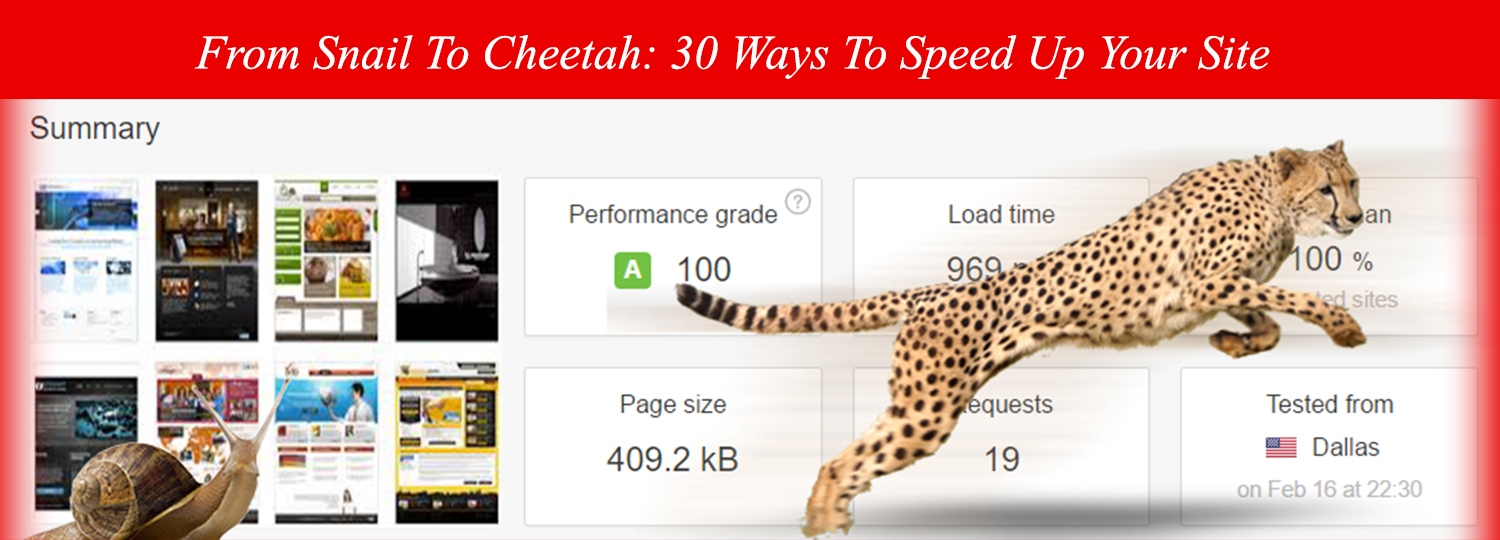
I've seen quite a few posts here on Black Hat World where a member here was complaining about their site being too slow. Since these posts are becoming more prevalent and I've been meaning to create a new thread after my "The Ultimate Guide To Ranking A Website Without Building Backlinks" guide, I figured that this forum could use a website speed guide, so here it is!
30 Ways To Speed Up Your Site
1. Use A CDN Such As Cloudflare
I'm not the biggest fan of Cloudflare these days, but a content delivery network (CDN) is a network that you use to deliver the content on your website to your audience from a server that's close to the visitor's geographical location. With this in mind, you can see how using a CDN can speed up your website significantly.
For instructions on setting Cloudflare up on your website, visit Cloudflare's support page.
2. Remove Any Unnecessary Plugins
For those of you using Wordpress, go to your plugins page. How many of those plugins are you actually using? Do you really need "Awesome Surveys" on your website when you don't have any visitors? What about "BJ Lazy Load"; do you really need to use that plugin when you hardly have any images on your site?
Having a bunch of plugins doing who knows what may cause your site to load slowly, so use a tool such as Pingdom's speed tester and look for any plugin files that are slowing down your website. In some cases, you might even have plugins conflict with other plugins, causing your site to load slowly or appear broken in some places.
3. Change Web Hosts
If you think you've tried everything to speed up your website and your site's still loading slowly, then perhaps it's because of a slow server response time. Changing your web host to one that offers a faster server response time is an easy, albeit possibly expensive change. There are also web hosts here who offer quality hosting packages (research them first), so visit the Hosting sub-forum to find them.
4. Upgrade Your Hosting Package
If changing web hosts is not an option for you, consider upgrading your hosting package with your current web host. Many web hosts offer a multitude of package, such as shared hosting and SSD hosting, the latter of which can boost your site speeds significantly. However, in my experience, if the web hosts lesser packages are causing your site to load in 5 seconds, their "better" packages are usually less than stellar.
5. Lazy Load Your Images
For those of you who have multiple images on your websites, consider using a lazy loader to load the images as the user scrolls down your page. For Wordpress users, there is a plugin called BJ Lazy Load that can do this for you.
However, I should warn you that lazy loading pisses some users off, so know your audience before you do this.
6. Leverage Browser Caching
I personally haven't noticed much of an effect using this method on any of my sites, although you can try using a plugin called "WP Fastest Cache" to speed up your site (just don't go crazy with the plugins and look for caching plugins that have this option).
7. Compress Your Images
This is just reducing the file size usually, though not always without a visible loss of quality. Images that have already been uploaded can be compressed on your Wordpress website by using a plugin called "EWWW Image Optimizer".
One thing I should warn you about is that I've found PNG files tend to take a long time to upload when you have this plugin installed.
8. Remove Query Strings From Static Resources
Query strings in static resources are resources with a "?" toward the end of the URL of a static webpage. Again, for you Wordpress users there caching plugins that can do this for you such as "Remove Query Strings From Static Resources".
Similarly to leveraging browser caching, I haven't seen much of a difference using this, but you might.
9. Minify Your Codes
Minifying your codes reduces the number of unnecessary characters in your codes that can cause your site to load slower. There are caching plugins such as W3 Total Cache that have this option in Wordpress, although be warned that these minify options, when conflicted with plugins or CDNs such as CloudFlare, can "break" the design of your website (although this is easily reversible when you disable the minify option). In other words, don't minify using Cloudflare and then minify using a plugin.
10. Remove Broken Links
If a browser is trying to load your website, but it begins to encounter broken links for the files that it's loading, then this could slow down your website. There's a plugin you can install and later delete (so you don't have a million plugins by this point) for this called Broken Link Checker.
11. Reduce The Number of Posts That Show On Your Homepage
Loading 20 posts on your homepage slows down your site, especially if you have images that load with your posts. For Wordpress users, if you go to your settings, then to "Reading", you can change the number of posts that appear on your homepage. Additionally, showing excerpts instead the full posts on your homepage can speed up your site a bit.
12. Use A Full Service Caching Plugin
By full service, I mean a caching plugin that has multiple caching and speed options (minifying, browser caching, etcetera). Having one plugin that does this instead of 10 separate plugins can reduce the number of plugins on your site and increase your website's load time.
But rather than use a plugin, you could use Cloudflare since it also has several caching features.
13. Change Your Theme
Some themes are slower than others due to being "bulkier" or poorly coded. If possible, try looking for a theme that's advertised as lightweight.
14. Move Javascript To The Footer
JavaScript typically takes longer to load, so serving your content first before your JavaScript can reduce your page loading times. Again, there is a plugin that does this for you, although take how many plugins you already have on your site into consideration before adding yet another one.
15. Convert PNG Images To JPEGs
PNG images are lossless, meaning they preserve every detail of the image. Those of you who are audiophiles already know how large lossless music files can be when compared to their lossy MP3 counterparts. When it comes to images, it's the exact same deal; PNG files are larger than JPEGs, meaning that when you use them on your website, they can slow down your site significantly.
Unless your image uses a transparent background or you have a site that focuses on photography, it's better to use the JPEG format for your images. However, if you absolutely must use PNGs, then you do have the option of compressing them. Despite how contradictory it sounds, compressed PNGs are still lossless.
16. Remove On-Page 404 Errors
I'm unsure of how much of a difference, if any, fixing internal 404 error links will make. But it's something you should do anyway. Since this is similar to #10, to the plugin I linked to there will detect these broken links as well.
17. Reduce Your Page Size
If possible, look into ways to reduce your page size such as by removing unnecessary images or videos as larger pages take longer to load.
18. Optimise Your Database Tables
Post revisions and spam comments need to be purged from your database to reduce the size of your database and to reduce the loading speed of your website. For Wordpress users, there are a multitude of methods that you can use to optimise your database that are easy to use.
19. Avoid Using Too Many Redirects
Redirecting to a redirected link that has been redirected to another link can take quite some time to load, so avoid using too many redirects.
20. Remove Redundant Code & Text
I've been to sites where the article loads and then a text version of the articles loads below it. Why!? If you have redundant text & code on your pages or in your files, then remove it.
21. Remove Whitespace
Whitespace in your HTML code (double spaces, tabs, and text line breaks) just adds more space to your file size, so removing this code with an HTML compressor can reduce your HTML file sizes.
22. Remove Unnecessary Images
Consider this: do the images on your page add any real value to the rest of the content? Do you need 3 different images that demonstrate the exact same point? If an image doesn't add any value to your content or to your visitors, then consider removing it.
23. Clean Up Your Code
Some codes, especially the codes in free Wordpress themes, are messy and contain extra characters and superfluous lines that slow down your website. Dirty Markup has a tool to help you clean up your code, so I recommend using it if you decide to clean your code up (or do it manually).
24. Correct Any Canonicalisation Errors
If your site uses https://www.yoursite.com/, then be sure to use this URL across your entire site. This also has an SEO benefit since search engines will see the URL that you used is the correct one to index.
25. Use Static Pages When You Can
Static pages are pages that don't change often or at all and are delivered to your visitors the way they are stored (in contrast to dynamic pages which are generated by a web application).
26. Avoid Using Gifs
This isn't 2001. I've been to some sites filled to the brim with gifs because the site owner thought they were funny. Gifs are large files (since they're a combination of images), so don't use them on your website unless you have to. If you have to use them, at the very least consider compressing them using Ezgif.
27. Resize Your Images
I'm talking about the dimensions of your image, not the file size this time. Using smaller-sized images when appropriate is another way to reduce your image size and reduce the time it takes for a browser to receive the image.
28. Replace Image Buttons With HTML
Years ago, I built a site for a client of mine who requested a navigation bar with images instead of your usual HTML/CSS links. Image navigation bars take longer to load than HTML/CSS navigation bars for the reasons I mentioned previously.
29. Limit 3rd Party Content
3rd party content (sometimes) takes longer to load since it's loading from an external source, so limiting the amount of 3rd party content on your website can speed your website up a bit.
30. Only Display What's Necessary
Contact forms and social media links on every page of your site are superfluous on some websites. If your pop-up contact forms or sidebar contact forms aren't being used by your visitors, then consider getting rid of them.
Last edited:


