Images Now Automatically Convert to WebP (What You Need to Know)

In a hurry? [TL;DR]​

✅ PNG, JPG, and JPEG files are automatically converted to WebP.

✅ GIF files are not affected.

✅ No action is required from users.

✅ Manual conversion is recommended if you want full control over quality and compression.

✅ Final uploaded WebP files must be 2 MB or smaller.

✅ Your remaining Media storage was increased due to the WebP transition.

✅ Recommended dimensions: 1158 px width and up to 5000 px height.
 
Last edited by a moderator:
The Announcement​

Most of you are already familiar with the WebP image format and may already use it on your own websites. For those who are less technical, here's a quick overview of what is changing and what it means for you.

WebP is supported by all major modern browsers and is widely used across the web. For most users, images will look the same while loading more quickly.

Going forward, all images uploaded to BlackHat World (images embedded in posts or DMs via attachments or images uploaded to BHW Media) will be automatically converted to WebP.

Exception:
  • GIF files will not be converted and will continue to work exactly as they do now.

Supported Conversions:

The following image formats will be automatically converted to WebP:
  • .png (Note: PNG transparency is preserved during conversion to WebP)
  • .jpg
  • .jpeg

 
Why are we doing this​

The truth is, this isn't entirely new and some of you might have spotted it.

For over two years, images have been served as WebP whenever a visitor's browser supported it through Cloudflare's optimization features. By converting images directly during upload, we can:
  • Reduce image file sizes
  • Improve page load times
  • Save bandwidth
  • Provide a better overall user experience
  • Improve image delivery efficiency for users (and SE)
There is simply no downside to continuing this optimization at the source.
 
What does it mean for you?​

If you're a seller or regularly use BHW Media, you can continue uploading your PNG or JPEG images as usual. The system will automatically convert them to WebP during the upload process.

Do You Need to Do Anything?
Ans: Quick answer - No.

However (a more detailed answer), if you'd like more control over:
  • Image quality
  • Compression level
  • Final file size
we recommend converting your images to WebP yourself before uploading them.

Increased Remaining Storage

Thanks to the transition to WebP, your remaining personal media storage has also increased.

PS: To check, navigate to Media → Add Media → Click on "Marketplace" as an option, and on the following page, right under your profile on the left side, you'll see the remaining storage statistic.

You can also just click this link and you'd see the same page.
 
How to control image quality​

WebP supports both lossless and lossy compression. The appropriate setting depends on your image type and desired file size.

To manually convert images and control the compression settings, you can use third-party tools such as:

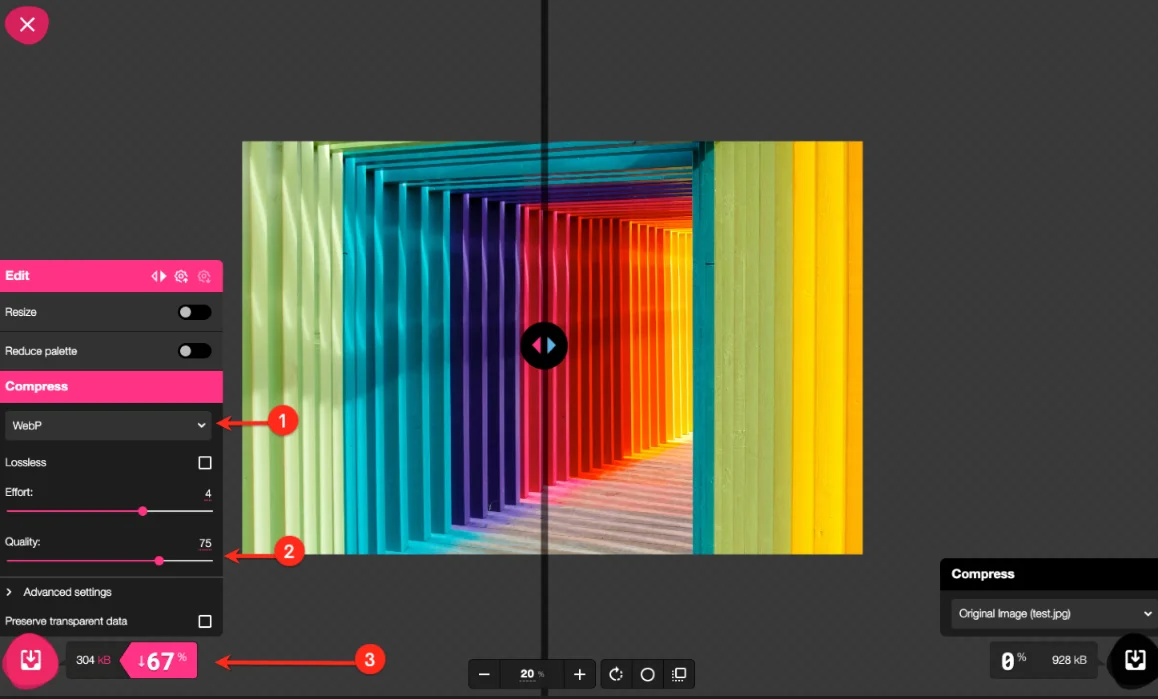
Recommended Tool: Squoosh
We recommend Squoosh because it provides a split-screen preview that allows you to compare the original image with the compressed version in real time.

Quick Guide
  1. Upload your PNG, JPG, or JPEG image.
  2. In the compression settings, select WebP as the output format.
  3. Adjust the quality slider to find the right balance between image quality and file size.
  4. Download the converted WebP image.
  5. Upload it to BHW Media.
Tip: Feel free to experiment with the additional settings available in Squoosh to further optimize your images.

full
 
Upload limitations​

When uploading a PNG, JPG, or JPEG image, the file is converted to WebP in your browser before being uploaded to the server.

Maximum Final File Size
The final WebP image must not exceed 2 MB for BHW Media and 1MB for attachments. This limit has not changed.

Why Large Uploads Sometimes Work
You may notice that some very large images (10-20 MB, for example) can still be seemingly uploaded successfully. That's sort of an illusion.

This is because:
  1. The original file is compressed into WebP in your browser BEFORE it is uploaded.
  2. The resulting WebP image may be under the 2 MB limit.
If the converted image is still larger than 2 MB, you'll receive a server error indicating that the file is too large.
In that case, you'll need to further reduce the image size or compression quality.

What's the Downside?
WebP achieves smaller file sizes through image compression. Depending on the compression settings used, some image quality may be reduced. In most cases this difference is minimal and not noticeable during normal viewing.

Images containing small text, detailed UI screenshots, or intricate graphics may benefit from manual conversion so that you can fine-tune the quality settings before uploading.
 
Recommended image dimentions​


Measurement​
Maximum (pixels)​
Note​
Width​
1158 px​
This has always been the maximum allowed width and has not changed.
Height​
5000 px
(highly recommended!)​
Very tall images can sometimes cause upload or processing issues. If you receive a server error, excessive image height may be the cause. Of course, you can also always Contact Support if you're not sure.


For Long Sales Threads and Graphics

If your sales graphic is particularly long, we recommend splitting it into several smaller sections rather than uploading one extremely tall image.
 
FAQ​

Q: Will existing images be converted?
A
: Yes, all images (except GIFs) are converted retroactively.

Q: Will my image look different?
A
: In most cases the visual difference is negligible. If precise quality control is important, manually convert your image before uploading.

Q: Can I upload WebP directly?
A
: Yes. Uploaded WebP files must still comply with the 2 MB limit for BHW Media and 1MB for Attachments (using the attach button in the editor).

Q: Are GIFs affected?
A
: No. GIF uploads continue to work as before.
 
Last edited by a moderator:
Back
Top